

![JSAUX anti-glare matte screen protector for ROG Ally and ROG Xbox Ally series #style_[2-pack] for all rog ally models](http://jsaux.com/cdn/shop/files/GP0113A-Anti-Glare-Screen-Protector-for-ROG-Ally-_-ROG-Xbox-Ally-Series-1_jpg.png?v=1762310072&width=92)


![Grey 2-pack 90 degree USB-C to USB-C right angle adapters #style_grey [2-pack]](http://jsaux.com/cdn/shop/files/90_-USB-C-to-USB-C-Right-Angle-Adapter-grey-1.png?v=1755238920&width=92)


![JSAUX anti-glare screen protector 2-pack for Lenovo Legion Go 2 with alignment frame #model_for legion go 2 [2-pack]](http://jsaux.com/cdn/shop/files/GP0132-Anti-Glare-Screen-Protector-for-Legion-Go-2-1.png?v=1766136633&width=92)


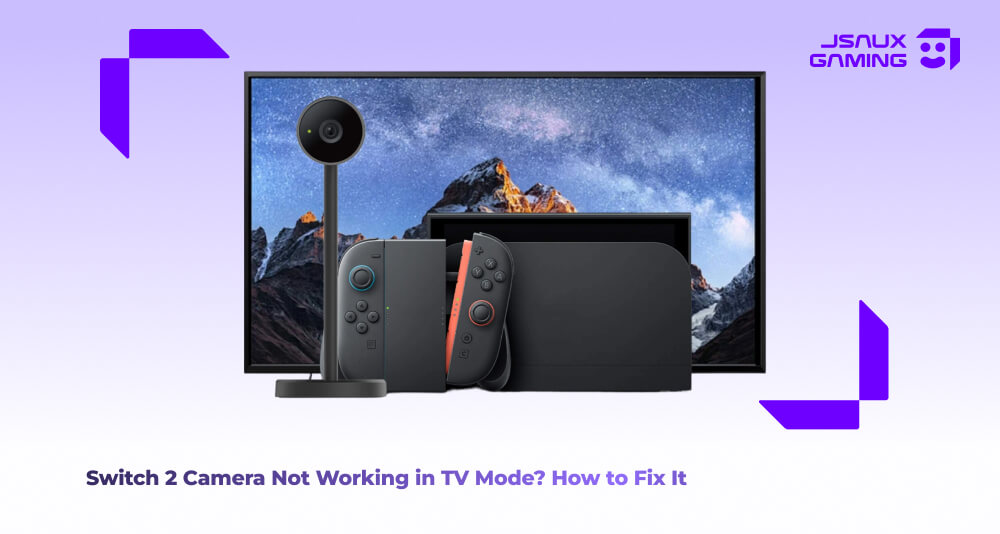
If the camera on your Switch 2 is working during handheld mode, but stops functioning when you connect and switch to TV mode, that doesn't usually mean that it’s a hardware issue automatically. In fact, in many cases, this problem is caused by docking connections, outdated system settings, app and game incompatibility or just straight up interference caused by third party accessories when the Switch 2 is docked.
Problem solving the Camera Issues
-
Check your Dock and USB Connections- The very first step you need to take is ensuring that your device is properly docked, and your USB connections are not loose and are properly plugged in. When the Switch 2 is docked, it essentially uses the dock’s USB ports to transfer data correctly. If your camera is plugged into the wrong port or the dock lacks sufficient power, this can cause the system to fail to detect the camera. Undock the console and unplug every cable, then reconnect everything and redock once more. If the camera still struggles to switch on, try switching the USB port that it’s connected into.
-
Enable Camera in TV Mode via Settings- While this process is usually automated, sometimes the system does not properly switch the camera permissions as intended when going from handheld to TV mode. Furthermore, some camera functions require your explicit permission to work while the device is docked. To fix this, go to your device’s “System Settings”, navigate to “Controllers and Accessories” or “Camera Settings” and check that the camera is enabled for use during TV mode. Once checked, a quick restart of your device can also help ensure that these settings take effect.
-
Verify Compatibility with App/Game- Not all software supports the camera function while the Switch 2 is docked, even if the camera works during handheld mode. Double check to see that the app or game you’re trying to use the camera mode with is actually compatible with docked support. If the software does not support the function, no amount of changing of settings will resolve the issue.
-
Test with the Official Nintendo Gear- Third party accessories and docks can potentially cause interference with data transfer even if charging appears to work normally. This is especially problematic with lower quality accessories, which can result in camera recognition problems. To fully rule this out as a potential problem, ensure you test the camera with the official Nintendo Switch 2 dock and nothing else. Keep it bare bones to ensure that there isn't an issue with the device itself, as well as help you identify which accessory could be creating a bottleneck.
- Perform a Full Reboot- Last but not least, and probably one of the more useful solutions is a full reboot of your Switch 2. Turn off your device completely, unplug it from the dock as well as remove any additional devices that may be plugged in. Wait a couple of minutes and then reconnect and power the device back on. This essentially resets the console in terms of how it detects external devices, and can clear minor firmware or connection glitches.
Summary
When the Switch 2 camera doesn't work during TV Mode, this is usually a sign of a setup or configuration issue instead of a hardware issue. Use the checklist above to go through all potential solutions to fixing the issue- with these steps your camera should be back to full functionality on the big screen and you back to your gaming self.
For more Switch 2 accessories and camera-compatible products, check out our Switch 2 collection to find docks, cameras, and other gear designed for seamless gaming in both handheld and TV mode.

发表评论
所有评论在发布前都会经过审核。
此站点受 hCaptcha 保护,并且 hCaptcha 隐私政策和服务条款适用。