


![JSAUX anti-glare matte screen protector for ROG Ally and ROG Xbox Ally series #style_[2-pack] for all rog ally models](http://jsaux.com/cdn/shop/files/GP0113A-Anti-Glare-Screen-Protector-for-ROG-Ally-_-ROG-Xbox-Ally-Series-1_jpg.png?v=1762310072&width=92)


![Grey 2-pack 90 degree USB-C to USB-C right angle adapters #style_grey [2-pack]](http://jsaux.com/cdn/shop/files/90_-USB-C-to-USB-C-Right-Angle-Adapter-grey-1.png?v=1755238920&width=92)


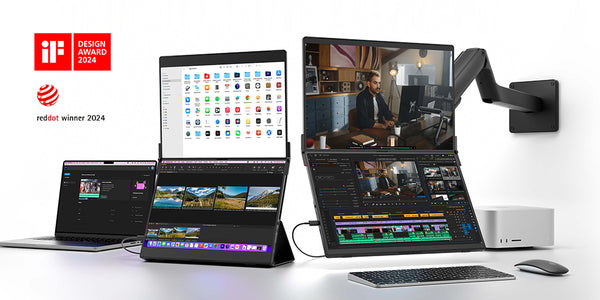
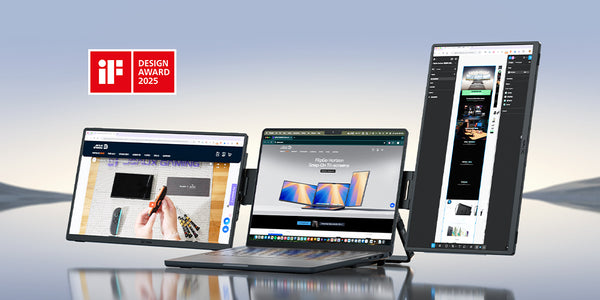

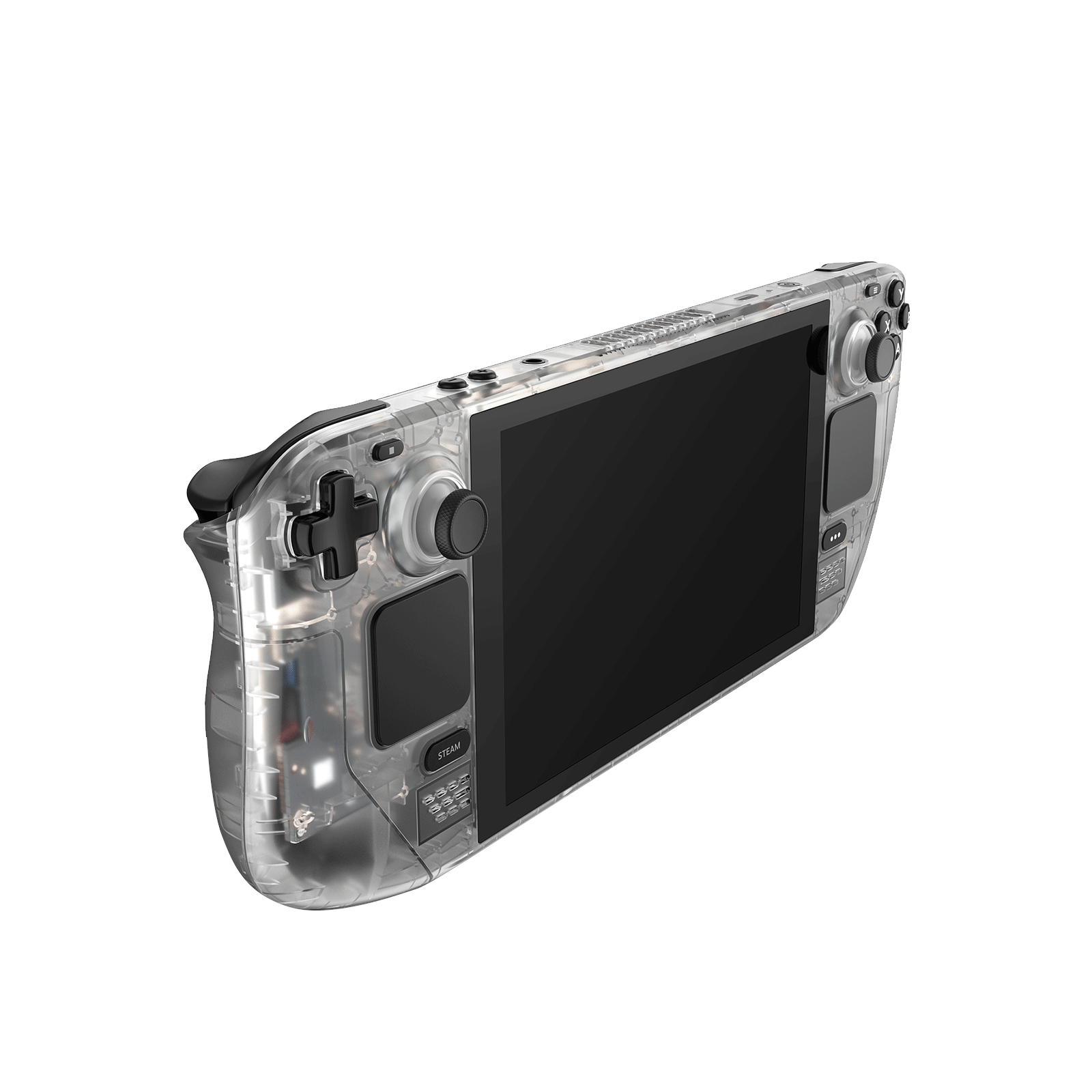
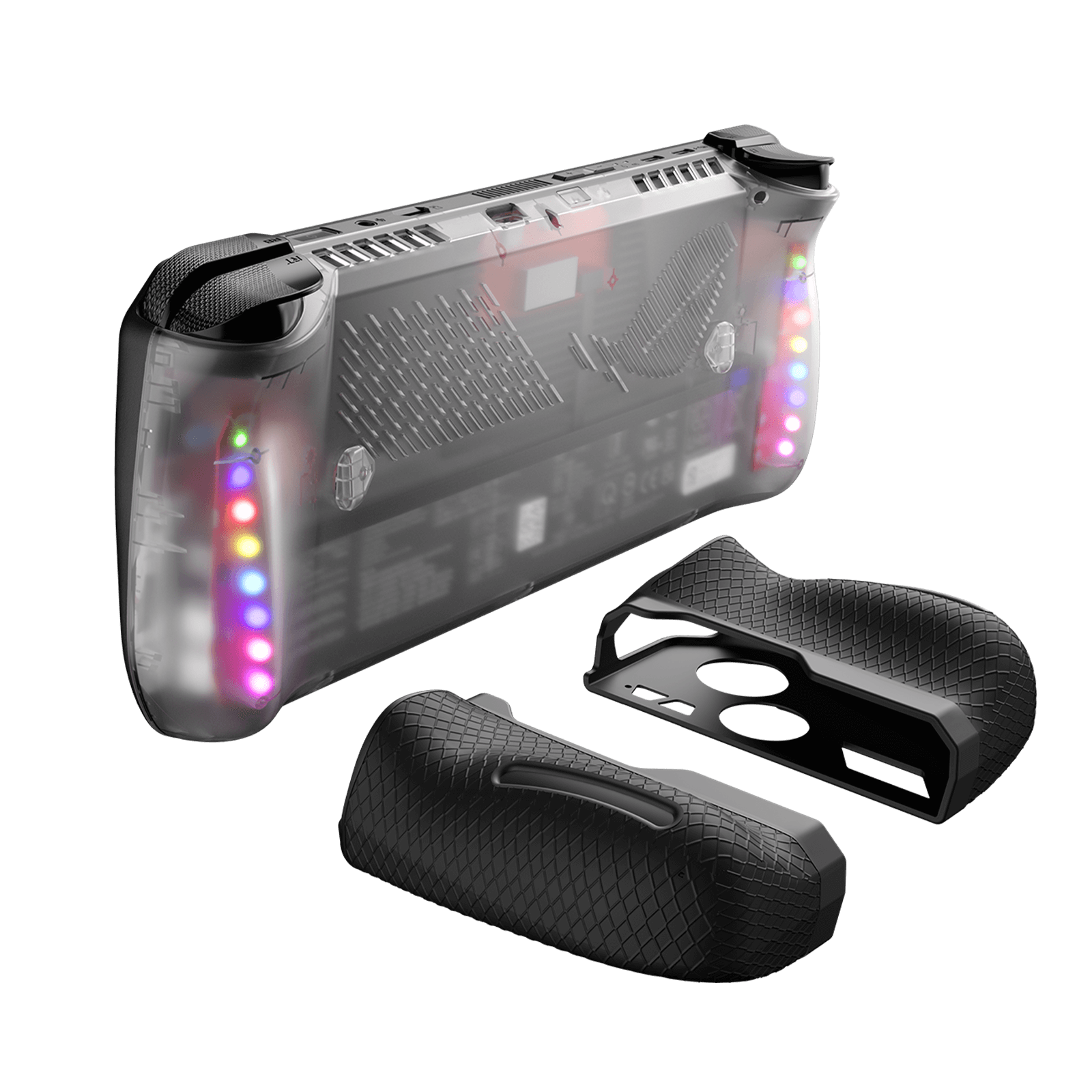
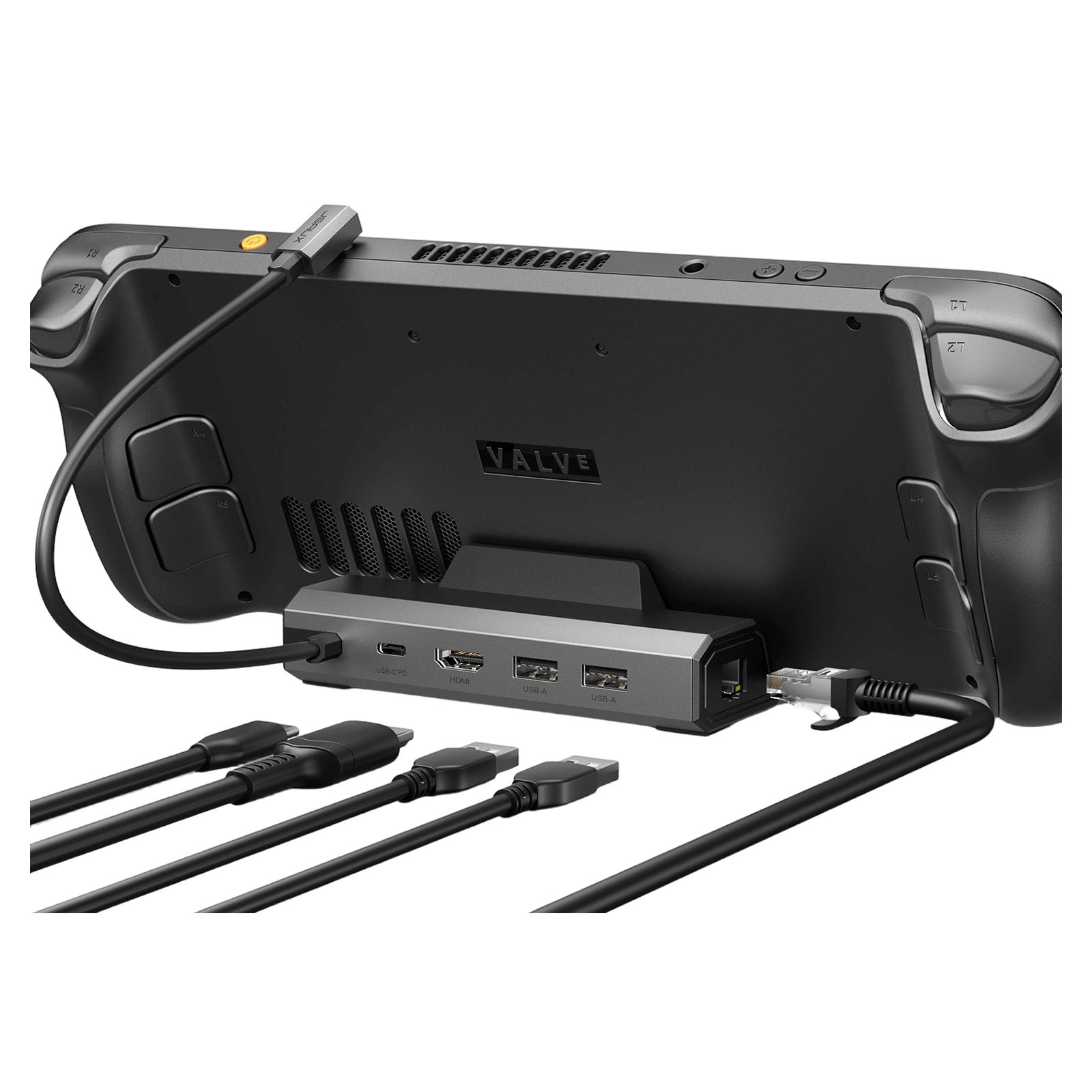
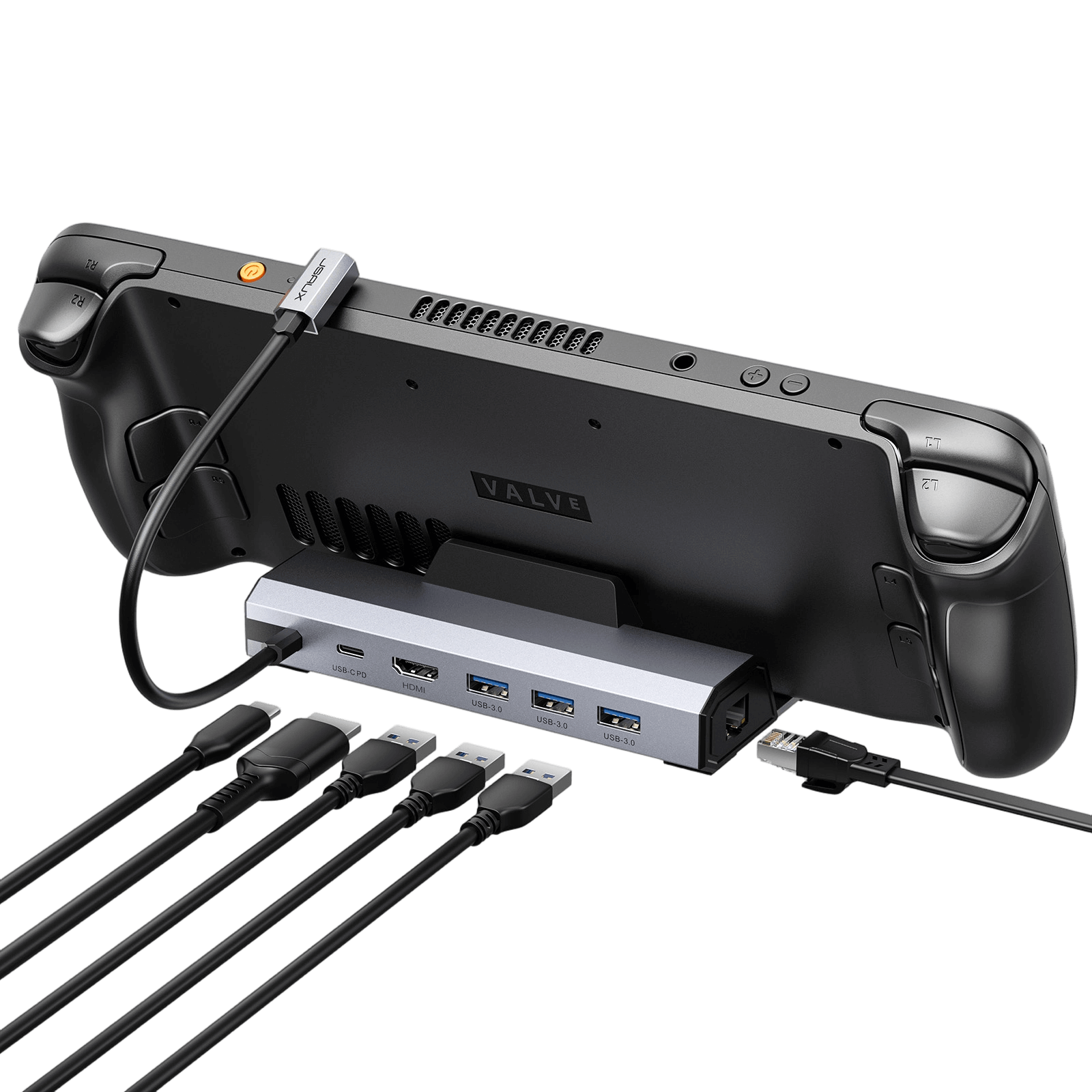
クイック比較:
HB0603S – アップグレード版: HDMI 2.1 (4K@120Hz)
HB0612 – アップグレード版 (ROG Xbox Ally/X): HB0603Sと同じHDMI 2.1仕様で、ROG Xbox Ally/Xに対応
HB0603 – 標準版: HDMI 2.0 (4K@60Hz)、ROG Ally X、ROG Xbox Ally/Xには非対応
FAQ
PC0106 RGB — Q1: Why is there only one crystal color and no other colors?
A1: Only one color is currently available. Due to the RGB light effect, only the crystal shell can completely pass through, and the shells of other colors can only pass through part of the light, resulting in poor light effect.
PC0106 RGB — Q2: Can its RGB lighting effects be controlled only by buttons? Is it possible to set it up directly through the Steam deck?
A2: Yes, for the control of RGB lighting effects, the solution we currently provide is indeed controlled by physical buttons. Currently, it is not possible to set it directly through Steam Deck, but this design ensures that you can control the lighting effect conveniently and quickly at any time, regardless of whether Steam Deck is running or not.
PC0106 RGB — Q3: Will its RGB lighting effect consume the battery of the Steam deck and affect the usage time?
A3: The RGB lighting has a built-in 150mAh lithium battery, please rest assured that it will not consume the power of the Steam deck itself when in use.
PC0106 Vents — Q1:Will the open hole affect the original air duct of the original case, resulting in reduced cooling effect?
A1: Please do not worry, we specially considered the effect on the Steam Deck air duct when designing this transparent case.
The position of the opening is carefully selected to directly align with the air intake of the fan, which can shorten the air flow path and increase the air circulation speed, thereby accelerating the heat dissipation process. This design helps to remove the heat from the surface of the heat-conducting copper tube inside the Steam Deck faster, improving the operating efficiency of the device.
In order to keep the original heat dissipation air duct of the equipment unaffected, we used pre-cut silicone grease inside, and reserved a place for the original air intake. This ensures that the function of the original air intake is not disturbed, thus ensuring the air flow inside the device.
PC0106 Vents —Q2: Will dust get in after opening the hole in the back of the Transparent Back Plate ?
A2: Please do not worry, we installed a 50-mesh dust filter on the fan to cover the hole, which can prevent dust particles with a diameter of about 300 microns.
This mesh is typically used to keep larger airborne particles such as dust, pollen, and other impurities from entering the fan area while ensuring good airflow and cooling.
In addition, we also recommend that you clean the dust filter regularly and avoid using it in a dusty environment.
PC0106 Vents — Q3: Can it be used together with a protective case?
A3: The perforated design behind the clear case is precisely designed to maximize air flow, thereby effectively dissipating the heat inside the device.
If Using with other protective cases and silicone cases, etc., may block these cooling vents, interfere with the thermal management of the device, and may reduce the performance of the device.
Therefore, we recommend that you use this clear case alone to get the best Excellent device protection and heat dissipation.
FAQ
Q1. What should I do if the back buttons (R4, R5, L4, L5) cannot be pressed after I replace the back plate?
A1.After installing the button, first, check whether there is a gap between the button and the buckle and whether it can be pressed and rebounded normally.
If there is a gap that can be pressed and rebounded normally, continue to install.
If there are no gaps, proceed as follows:
1) Loosen the button screw for 2-3 turns. This method can make the space inside the button bigger, but it will make the whole button feel loose.
2) Add a gasket of M3 or M4 size to the yellow nut (the size of the gasket is about 5-6mm in outer diameter, 3.2mm in inner diameter, and 0.5mm in thickness. You can also trim a gasket with harder cardboard according to this size) , this method increases the pressing space at the other end by raising the nut.
3) Slightly loosen the back cover screws near the stuck button for 2-3 turns. For example, if R4 will be stuck, loosen the three screws closest to R4. This method can increase the pressing space, please be careful not to screw it too loosely.
2. Check if there is a gap at the top, because the gap is caused by deformation, and deformation may also cause the button to get stuck.
If there is no gap, continue with the installation. If there is a gap, remove the thermal grease and reinstall it.
Q2. After changing to a back plate, can it still be fit with a protective case?
A2. The transparent case is the same size as the original back cover. If you choose a lower or medium button , it is compatible with all JSAUX protective cases.
Q3. Is it normal for the thermal grease to get hot?
A3. That is normal, the thermal grease conducts heat from the Steam Deck circuit board. In addition, because the aluminum itself has good thermal conductivity, it will be hotter than other areas when touched, so be careful not to touch it to avoid being burned.
If you still feel too hot, you can also remove the inner thermal grease.
Q4. Will the thermal grease affect the original heat dissipation of the Steam Deck?
A4. It will not affect the original heat dissipation of the Steam Deck. Because the air inlet and outlet of the steam deck heat dissipation are separate heat dissipation pipes, and the thermal grease will not block the heat dissipation channels.
Q5. I replaced it with a jsaux’s button (medium or higher), can it fit in the valve carrying case/JSAUX case?
A5. It cannot be put into the original valve carrying case and JSAUX-BG0102 carrying case, but it can be put into JSAUX shoulder bag-BG0105 or carrying case-BG0106.
Q6. Why is the color of the product I received a little different from the picture?
A6. Actual colors may vary. This is due to computer monitors & screens displaying colors differently and everyone can see these colors differently.
スチームデッキLCD用透明シェルシリーズ
Description
表紙について
- Steam Deck の内部コンポーネントをはっきりと見ることができます。
- 実践的なカスタマイズを楽しむ愛好家のためのDIY カスタマイズ。
- 最高品質の素材とアクセサリーが、耐久性と高級感を保証します。さらに、高品質なアクセサリーも豊富に取り揃えています。
- 透明なフロントカバーはSteam デッキにぴったりフィットします。
- Steam Deck との互換性を確保するための厳格なテスト プロセス。
バックプレートの通気口について
-
スチームデッキ用透明バックプレート PC0106B
Steamデッキ用透明バックプレートPC0106のアップグレード版 - 強化されたエアフロー:吸気口を追加してエアフローの経路を短縮し、放熱性を大幅に向上しました。
- 冷却機能の向上:埋め込まれたアルミフィンにより表面温度が低くなり、筐体の温度が下がり、火傷の危険性が軽減されます。
⚠️注記:
- 透明フロントカバーは、DIYや電子機器の分解経験のない方にはお勧めできません。取り付けをご自身で行う場合、または専門家にご依頼される場合は、取り付けビデオと説明書をよくご確認いただくことを強くお勧めします。Steamデッキの分解によって生じた機器の故障については、お客様の責任となりますが、本製品に起因する故障については、お客様の責任とさせていただきます。
- ネジを締める際は、無理な力を加えずに、しっかりと位置合わせを行ってください。締めすぎると変形し、機器が損傷する恐れがありますので、締めすぎにはご注意ください。
FAQ
Q1. What should be paid attention to when disassembling the machine?
1. Replacing the cover of the Steam Deck involves a significant amount of work. The replacement process takes about 3-5 hours and is very difficult. We recommend that you find professional maintenance personnel to do it.
2. For information on changes to the overall device repair policy resulting from the disassembly, please refer to the official information provided by VALVE.
3. To minimize the risk of damage, please discharge the Steam Deck battery to below 25% before disassembly.
4. Before disassembling, please completely power off the Steam Deck and unplug all cables. Please follow the anti-static safety operation rules, such as washing hands before disassembling the device, wearing anti-static gloves, wearing clothes that are not easy to generate static electricity, and maintaining indoor humidity.
5. If you installed a Micro SD card, make sure to remove it before disassembling the Steam Deck.
6. If you use a screen protector on your screen, please remove the screen protector before disassembly.
7. Avoid touching other internal components of the device as much as possible. Please properly store the original parts and screws that have been removed.
8. For more detailed disassembly tutorials, please refer to the tutorial on the official website of JSAUX: https://jsaux.com/pages/pc0108-installation-tutorial
Q2. Is the front cover compatible with your PC0106 Transparent Back Plate?
A2. Yes
Q3. What is the difference between the PC0108 front cover and the original front cover?
A3. The PC0108 front cover is made of frosted translucent ABS+PC material, and the specifications and dimensions are the same as the original front cover.
Q4. After changing the front cover, can I still install the protective cover?
A4. Yes, the size of the PC0108 transparent front cover is the same as the original front cover, so the compatibility of the PC0108 is the same as that of the original Steam Deck cover, and both can support various types of JSAUX and third-party protective cases.
Q5. Is it normal for the front cover to see through light?
A5. Yes, the cover is transparent, and there are light-emitting elements inside the machine that can directly transmit light to the outside through the cover.
Q6. More questions about installation
ROG Ally X用RGB透明バックプレート
Description
- 【ダイナミック RGB 美学】 : レインボー グラデーション、レインボー ウェーブ、赤、緑、青、紫のブリージング エフェクトなど、ROG Ally X を視覚的に美しいものに変える 6 つの素晴らしい RGB モードを体験してください。
- 【プレミアム透明シェル】 : 高品質の PC 素材を使用しており、完璧な表面仕上げと精密な成形が特徴で、洗練された洗練された外観と感触を実現します。
- 【カスタムブラックシリコンハンドルカバー】 : 付属のブラックシリコンハンドルカバー (PC0113) は、ROG Ally X のブラックボディに完璧にマッチし、RGB LED の輝きを柔らかくして、見た目にも美しく、快適な手触りを実現します。
- 【強化された冷却モジュール】 : アルミ合金製の冷却モジュールは放熱性が向上し、トレードオフを必要としていた以前のモデルとは異なり、RGB 照明と効率的な冷却の両方を楽しむことができます。
- 【内蔵バッテリー】 :25分の充電でRGBライトを120分間点灯できます。充電器、スタンド、またはHB0609ドッキングステーションを使用すれば、使用中でも充電でき、デスクトップをより快適に演出します。
FAQ
Q1. After disassembly and reassembly, the ROG Ally fails to power on.
A1: ● After reattaching the back cover, the ROG Ally requires activation through a power adapter to turn on.
● Ensure that the included black light-blocking sticker is properly adhered to the surface of the ROG Ally’s light-sensitive component.→
● The issue may be due to inadequate electrostatic protection measures or damage to the device’s components during disassembly. It is recommended to contact a repair technician for an assessment.
● Ensure that the included black light-blocking sticker is properly adhered to the surface of the ROG Ally’s light-sensitive component.→
● The issue may be due to inadequate electrostatic protection measures or damage to the device’s components during disassembly. It is recommended to contact a repair technician for an assessment.
Q2. Is it compatible with the ROG Ally that has been upgraded with a 2280 SSD?
A2. We have tested the compatibility of certain 2280 SSDs with transparent backshells that come with RGB modules (without installing high heat sinks). Due to potential variations in modifications, there may be cases where components are covered. We recommend taking insulation measures or adjusting the RGB module based on the actual situation.
Q3. Can it compatible with the PC0201 Silicone Grip Case Set for ROG Ally?
A3. Yeah, they are compatible.
Q4. Is it compatible with PC0109 ModCase for ROG Ally?
A4. No, they are not compatible, the protective case may obstruct the light source behind the PC0110 back plate. And the switch of RGB light may be blocked.
Q5. Will installing PC0110 consume power from my ROG Ally?
A5: No, please donnot worry. Our product comes with a built-in 170mAh lithium battery, providing up to 3 hours of continuous RGB lighting without interruption and can be easily recharged via USB-C. Therefore, it will not consume any power from your ROG Ally.
Q6. What are the 4 transparent customizable slides in the packaging for, and how do I use them?
A6. The 4 transparent customizable slides included in the packaging are intended for customizing RGB patterns.
Video version installation tutorial: https://www.youtube.com/watch?v=d7MG3NSLaFU
- Usage Instructions:
1. Cut a piece of cardboard or any other material into your desired shape to be used as a paint mask.
2. Apply double-sided tape to the back of the paint mask, then affix it to the transparent customizable slide to secure it in place.
3. Spray black paint onto the transparent customizable slide, and allow it to dry for approximately 1 hour.
4. After the paint has dried, gently peel off the paint mask to complete your custom design.
Q7. Are there specific dimensions available for the transparent customizable slides?
A7. We provide a size guide for transparent customizable slides ( Download PSD file ). "Group 1" in the file contains all size specifications. You can add your desired graphics into it, hide "Group 1," and then export the image.
Q8. How do I qualify for the 6 free RGB Christmas slides?
A. Simply purchase PC0110 after 00:00 AM Pacific Time on Dec 8th will get them.
RGBドッキングステーション
Description
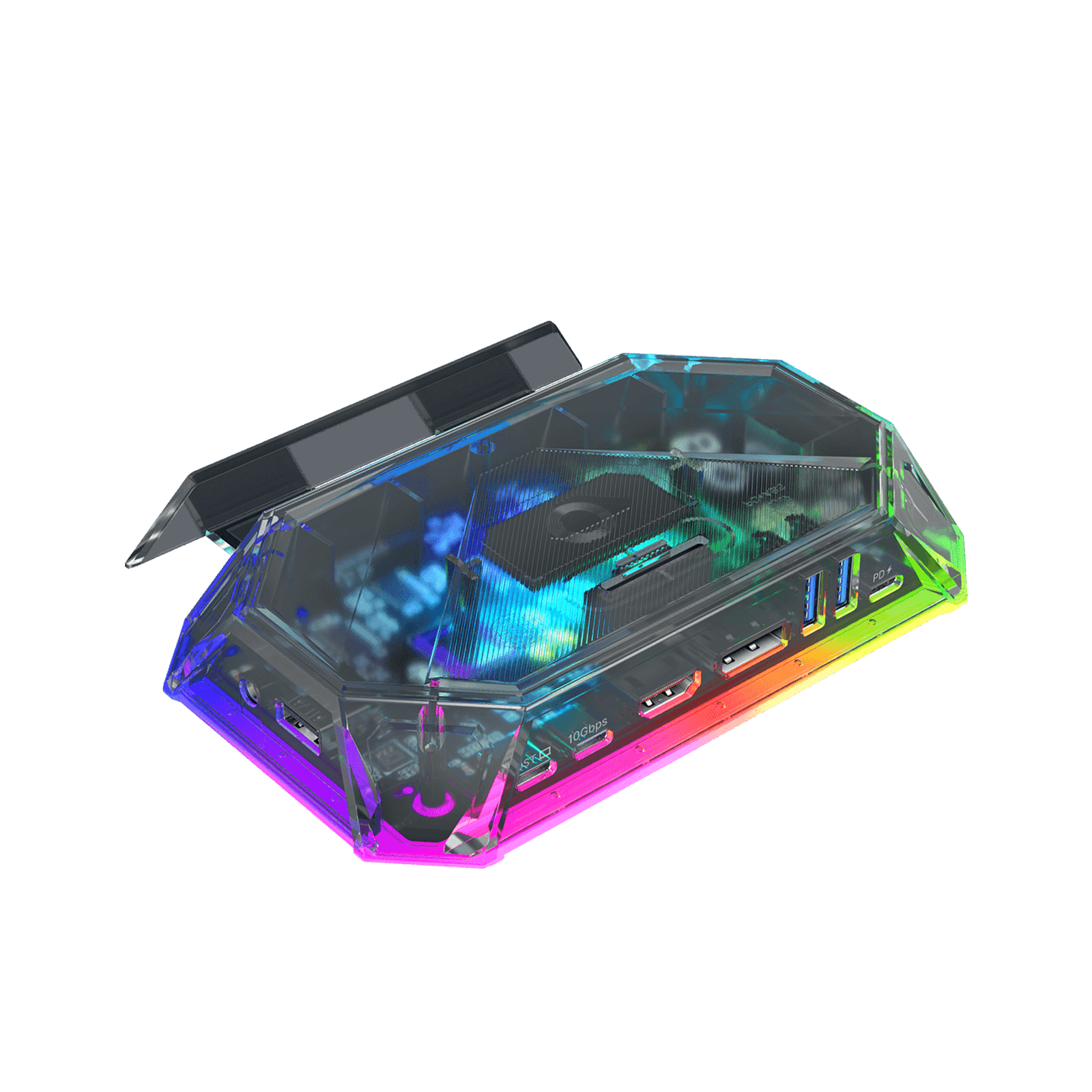
- 【8-in-1および12-in-1のハンドヘルドゲーム用ドッキングステーション】8-in-1および12-in-1構成で利用可能なこのRGBドッキングステーションは、さまざまなゲームおよびデスクトップセットアップに対応するように構築されています。12-in-1バージョンは、HDMI、DisplayPort、Ethernet、カードスロット、オーディオ、充電など、より多くの拡張オプションを提供し、8-in-1バージョンは日常的なハンドヘルドゲームに不可欠な接続性を提供します。
- 【OpenRGB対応の6つのRGBライティングモード】Proバージョンには、ダイレクト、ブリージング、レインボーウェーブ、スペクトルサイクル、レースサイクル、スタッキングの6つのRGBライティングモードがあります。USB-Cアップストリームポートを介してPCに接続すると、OpenRGBソフトウェアでライティング効果をカスタマイズすることもできます。
- 【高速データ転送と100W PD充電】12-in-1バージョンは最大10GbpsのUSB 3.2データ転送をサポートし、8-in-1バージョンは日常のアクセサリやストレージデバイス用に最大5Gbpsの転送をサポートします。すべてのバージョンは、ゲーム、ストリーミング、デスクトップ使用中の安定した充電のために最大100WのPD入力をサポートします。
- 【最大4K 120Hzのビジュアル出力】12-in-1 Pro、8-in-1 Pro、および12-in-1バージョンは最大4K@120HzのHDMI出力をサポートし、8-in-1バージョンは最大4K@60Hzをサポートします。12-in-1 Proおよび12-in-1バージョンにはDisplayPortも含まれており、Proバージョンは互換性のあるディスプレイでALLM、VRR、QFT、およびHDRをさらにサポートします。
- 【人気のハンドヘルドおよびUSB-Cデバイスとの幅広い互換性】Steam Deck LCD/OLED、ROG Ally、ROG Ally X、Legion Go、AYANEOデバイス、iPad、ラップトップ、タブレット、その他のUSB-Cデバイスと互換性があります。ハンドヘルドゲーム、仕事、ストリーミング、デスクトップ拡張に1つの多機能ドックを求めるユーザーに最適です。注:Nintendo Switchとは互換性がありません。
📢注記:
- RGBライティングエフェクトを調整する必要がある場合は、OpenRGB公式ウェブサイト にアクセスして、OpenRGB 0.9をダウンロードしてください。
- ROG Allyの高性能30Wモードをよりよく体験するには、100W充電器の使用をお勧めします。
- OpenRGBソフトウェアでオフモードを開くと、LED全体がオフになります。次に、他のモードをオンにしてLEDを点灯させます。Hubのタッチボタンを2秒間押すと、すべてのモードがオフになります(Hubのライトエフェクトスイッチをオンにするには2秒間押し続ける必要があります。その後、OpenRGBを介して他のモードをデバッグできます)。
- ドッキングステーションで操作上の問題が発生した場合は、USB-Cケーブルが指定された「IN-USB-C」ポートに正しく接続されていることを確認してください。最適な機能性を確保するため、付属のUSB-Cケーブルを使用してデバイスに接続することを強くお勧めします。別のUSB-Cケーブルを使用することを選択した場合は、USB-C 3.2規格に準拠していることを確認してください。
- ドッキングステーションのインターフェースラベルは画像と若干異なる場合がありますが、機能は同じですのでご安心ください。
- RGBドッキングステーションは、ROG Ally X/Legion Go2/Legion Go Sのベアユニットのみと互換性があります。
FAQ
Q1. Difference between 12-in-1 RGB Docking Station/8-in-1 RGB Docking Station:
A1.The main difference between the two products is the number of interfaces and parameters, as follows:
12-in-1 RGB docking station has 12 functional ports, including:1* HDMI port (4K@120Hz), 1*DisplayPort(4K@120Hz),2*USB-A 3.2 (10Gbps ), 1*USB-A 2.0(480Mbps ),1*Gigabit Ethernet port, 1*USB-C PD port, 1*3.5mm audio interface,1*IN:USB-C,1*TF card slot(480Mbps), 1*SD card slot(480Mbps) and 1*USB-C 3.2 port(10Gbps ,!!Only supports data transmission and does not support video output).
8-in-1 RGB docking station has 8 functional ports, including:1* HDMI port (4K@120Hz), 2*USB-A 3.0(5Gbps), 1*USB-A 2.0(480Mbps),1*Gigabit Ethernet port, 1*USB-C PD port, and 2*USB-C port(5Gbps ).
Q2. How to open and retract the bracket?
A2. 1. Please slightly press the middle part of the bracket, then the bracket would eject automatically, which could be adjusted to the proper size for your device.
2. When the bracket needs to be retracted, press the middle part of the bracket again.
Q3. Does this dock work with Switch?
A3. No, it is incompatible with Switch.
Q4. What is the standard of USB-C to C cable enclosed?
A4. The USB C-C cable reaches USB 3.2 standard, which maximum supports 10 Gbps and 100W charging.
Q5. How to customize my lighting effect?
A5. To use OpenRGB to customize RGB lighting effects, please follow the steps below:
Step 1, start the OpenRGB software on your Windows or Linux device.
Step 2, Connect the JSAUX RGB Dock to your device using the provided USB-C cable. Make sure to connect it to the "IN: USBC" port.
Step 3, click "Rescan Device" in the software to detect and load your dock. Once loaded, you will see your dock information displayed in the upper left corner of the software window, such as "JSAUX RGB Docking Station.
Step 4. Navigate to the "Mode" section to choose from different RGB light effect modes. Available modes typically include "Direct", "Breathing", "Rainbow Wave", "Spectrum Cycle", "Stacking" and "Race Cycle".
Step 5, you can adjust the speed, direction, and brightness of the selected light effect according to your preference. Experiment with these settings until you achieve the desired RGB lighting customization.
Q6. Why cannot I enable VRR with my docking station?
A6. The docking station supports VRR function. But the performance and effectiveness of the VRR function are influenced by several factors:
●Display Compatibility: Your monitor must be VRR-compatible, supporting technologies like NVIDIA’s G-Sync, AMD’s FreeSync, or HDMI 2.1’s VRR.
●Device and Graphics Card Support: Ensure that both your device and graphics card are VRR-capable and that all drivers are up-to-date for optimal functionality.
●Connection and Cables: Use the appropriate connection interface (e.g., DisplayPort 1.4, HDMI 2.1) and high-quality cables to facilitate effective VRR.
●Refresh Rate Requirements: VRR often requires specific refresh rates, such as 4K120Hz or 2K120Hz, to function correctly.
●Game Compatibility: Not all games support VRR. Some may need updates or specific settings adjustments to enable this feature.
●Dual Display Limitation: VRR is not supported when using dual display mode.
Please note that the VRR function may currently exhibit varying levels of stability with some handheld and may not be fully compatible with all types of monitors.
We are committed to improving this feature and recommend checking compatibility with your specific devices for the best experience.
●Display Compatibility: Your monitor must be VRR-compatible, supporting technologies like NVIDIA’s G-Sync, AMD’s FreeSync, or HDMI 2.1’s VRR.
●Device and Graphics Card Support: Ensure that both your device and graphics card are VRR-capable and that all drivers are up-to-date for optimal functionality.
●Connection and Cables: Use the appropriate connection interface (e.g., DisplayPort 1.4, HDMI 2.1) and high-quality cables to facilitate effective VRR.
●Refresh Rate Requirements: VRR often requires specific refresh rates, such as 4K120Hz or 2K120Hz, to function correctly.
●Game Compatibility: Not all games support VRR. Some may need updates or specific settings adjustments to enable this feature.
●Dual Display Limitation: VRR is not supported when using dual display mode.
Please note that the VRR function may currently exhibit varying levels of stability with some handheld and may not be fully compatible with all types of monitors.
We are committed to improving this feature and recommend checking compatibility with your specific devices for the best experience.
Q7. Why can’t my ROG Ally turn on the 30W mode when connected to HB1201/HB1201S/HB0801/HB0801S using the charger (65W) provided with ROG Ally?
A7. If you encounter this situation, it is recommended that you try to use a 100W charger to connect.
5-in-1ドッキングステーション
Description
- 【アップグレードされた5-in-1ドッキングステーション】 :HDMI 2.1 4K@120Hz出力により、非常に滑らかでクリアな映像をお楽しみいただけます。さらに、100W PD充電、デュアルUSB A 2.0ポート、信頼性の高いイーサネット接続も搭載しています。ROG Ally XとLegion Go Sにも対応し、シームレスな大画面ゲーミング体験をさらにお楽しみいただけます。注:ROG XBOX Ally / XBOX Ally Xには対応しておりません。
- 【4K@120Hz HDMI出力(アップグレード)】 :従来の4K@60Hzバージョンと比べて2倍のリフレッシュレートを実現。オンラインバトルでも、映画のようなカットシーンの視聴でも、外部モニターへの出力時にティアリングを軽減し、滑らかなゲームプレイをお楽しみいただけます。
- 【フルスピード100W充電】 :最大100WのPD充電に対応し、ターボモードでもハンドヘルドに簡単に電力を供給できます。ゲームセッションを中断することなく、長時間プレイでもバッテリーの消耗を心配する必要はありません。注:ROG Allyは30Wターボモードに完全対応していますが、100W充電器のご使用を推奨します。
- 【信頼性の高い有線イーサネット】 : 内蔵の RJ45 ポートにより、安定した一貫したネットワーク接続が実現し、低遅延のパフォーマンスが確保され、スムーズなオンライン ゲームやストリーミングが楽しめます。
- 【デバイス互換性の拡張】 :Steam Deck LCD/OLED、ROG Ally / Ally X、Legion Go / Go S、MSI Claw に対応。複数の携帯ゲーム機に対応したオールインワンソリューションです。注:ROG XBOX Ally / XBOX Ally X には対応していません。
📢注意: ROG Ally の高性能 30W モードをより快適に体験するには、100W 充電器の使用をお勧めします。
FAQ
Q1. Why do SD cards become inoperable or unwritable?
A1. SD card format is not compatible with the Steam Deck system, you need to back up the SD card in advance and then format it to the correct format.
Q2. Does the docking station output video over a USB-C port?
A2. No, the USB-C port is for power input only.
Q3. Why does the flicker occasionally appear after I connect the Steam Deck to the monitor via Docking Station HB0602 for a period of time?
A3.After a long gaming experience, Steam Deck will enter a self-protection mechanism due to overheating. At this time, the occasional screen flicker is a mechanism of reducing the frequency of the screen, which is a normal phenomenon.
Q4. Some instructions for customers when setting resolution in desktop mode.
A4. 1. You can modify the resolution in desktop mode or game mode (Steam Deck version 3.3.2 and above)
2. It is recommended that after connecting the monitor, only the monitor should be used as the main playing screen, both "Enabled" and "Primary" under "Laptop Screen" should be unchecked.
This will provide a better gaming experience and also reduce the power consumption of the console screen.
3. If you need a split screen experience, we also recommend separating the two screens, otherwise, there will be a screen overlap situation.
(At present, due to Steamdeck system bug, so there is no way to split the screen to put the icons of two screens on one screen)
6-in-1ドッキングステーション
Description
- 【アップグレードされた6-in-1ドッキングステーション】:超スムーズでクリアな映像のためのHDMI 2.1 4K@120Hz出力、100W PD充電、3つの高速USB A 3.0ポート、超高速ギガビットイーサネット接続を搭載。ROG Ally XとLegion Go Sに対応し、シームレスな大画面ゲーミング体験をさらに楽しめます。注意:HB0603SはROG XBOX Ally / XBOX Ally Xには対応していません。
- 【4K@120Hz HDMI出力(アップグレード済み)】:従来の4K@60Hzバージョンと比較して、リフレッシュレートが2倍になりました。オンラインでバトルしている場合でも、映画のようなカットシーンを見ている場合でも、外部モニターで非常にスムーズなゲームプレイと画面のティアリングの低減をお楽しみいただけます。
- 【フルスピード100W充電】:最大100WのPD充電に対応し、ターボモードでもハンドヘルドに簡単に給電できます。マラソンプレイ中もバッテリー切れを心配することなく、ゲームセッションを中断させません。注:ROG Allyの30Wターボモードには完全に対応していますが、100W充電器の使用を推奨します。
- 【ギガビットイーサネット】:ギガビットイーサネットでゲーム体験を向上させ、シームレスなオンラインプレイ、迅速なアップデート、高速ファイル転送を実現します。超高速のダウンロードとアップロードを楽しみ、ラグと遅延をなくして中断のないセッションを。
- 【拡張されたデバイス互換性】:Steam Deck LCD/OLED、ROG Ally / Ally X、Legion Go / Go S、およびMSI Clawに対応し、複数のハンドヘルドに対応するオールインワンソリューションとなります。注意:HB0603SはROG XBOX Ally / XBOX Ally Xには対応していません。
📢注意:
FAQ
Q1.How to ensure the output of 4K@60Hz?
A1. Please use HDMI to HDMI 2.0/2.1 Cable shorter than 15 feet in length and use as few cable adapters as possible. Then manually debug into desktop mode and set 4K@60Hz output. You also need to set it in-game if necessary.
Q2. Why do external devices such as mouse and keyboard not work well when docking?
A2. When you dock your Steam Deck, please connect your power adapter to provide sufficient power supply.
Q3. Why does thr Ethernet not work?
A3. After the SteamOS is upgraded, you need to manually enter the desktop mode and connect the wired network. Turn off Wi-Fi, or set the wired connection priority.
Q4. Why does the TV not recognize my sound barrier and deactivate the CEC device?
A4. In the Steam settings, click Audio, there is output, and click "External Devices", and the audio can be transmitted to the TV.
Q5. Why does my Steam Deck have a black screen and only display images on the monitor when I connect it to a monitor via an HDMI cable in game mode.
A5. This is a normal phenomenon in game mode. Currently, the only way to enable two screens is to reboot into desktop mode.
FAQ
Q1.What should I do when using HB0604 for the first time?
A1.We have partitioned and formatted the SSD before we shipped it, and you can use it directly after receiving the goods.(If you purchased the option with SSD)
Q2.What should I do if the hard drive/SSD is not recognized?
A2.If the SSD cannot be recognized after receiving the products, please open the cover of HB0604 after powering off to check whether the SSD is correctly stuck in the slot.
Please unplug the SSD and reinsert it into the slot. (Be sure to plug and unplug the SSD after the power is off, otherwise the SSD will be damaged!)
Q3.What advice do you have for using an SSD in desktop mode?
A3. As Steam OS system does not support automatic recognition of external SSDs after startup, so you need to click on the external SSD in the bottom right corner of desktop mode to "Mount and Open" it each time before the library file can be loaded in the game platform.
It is recommended to format the SSD first, enter the Steam platform and add the library folder, then download and use our provided auto-mount script so that the SSD will be automatically loaded every time the system is booted.
JSAUX technical team has prepared a script that will automatically mount the SSD after installation, please download it from the "DESCRIPTION".
Q4. Any suggestions for running games with HB0604?
A4.For games that have already been running on Steam Deck internal storage, it is recommended to re-update or download the game to the external SSD, because the background data of the games that are already running on this computer may still be stored on this computer.
If they are directly moved to the SSD, it may cause can not operate.
Q5. Why did not it automatically create a steam folder nor allow me to create as it is "read-only" when I click "mount and open"?
A5.The SSD/Hard Drive format partition needs to be "Readable" and "Writable". If it is set to "read-only", it cannot be operated the SSD/Hard Drive or download games.
Q6.After using the SSD automatic installation script, a password is required to run it. What should I do if I forget the password?
A6.When Steam Deck is purchased, the default password is 1234. If the password has been changed, you need to contact Steam Deck customer service to reset the password.
FAQ
Q1. Does the docking station output video via HDMI to DisplayPort cables?
A1. No, video output only supports HDMI to HDMI cable or DP to DP cable.
Q2. I wanted to know if it supports Multi-Stream Transport(MST) on the DP?
A2. MST connections are not supported currently. If you need to use multiple screens, we recommend connecting the HDMI and DP ports of the docking station to two monitors corresponding to the ports to achieve a multi-screen display.
Q3. What is the version of the DP protocol of HB0702 Docking Station?
A3. HB0702 Docking Station is DP1.2, the highest resolution/refresh rate of 4K@60Hz can be set by connecting an external display (HDMI or DP) through the HB0702 docking station. The monitor that comes with the Steam deck can be set to a resolution of 800*768.
Q4. Why do SD cards become inoperable or unwritable?
A4. SD card format is not compatible with the Steam Deck system, you need to back up the SD card in advance and then format it to the correct format.
Q5. Does the docking station output video over a USB-C port?
A5. No, the USB-C port is for power input only.
11-in-1ドッキングステーション
Description
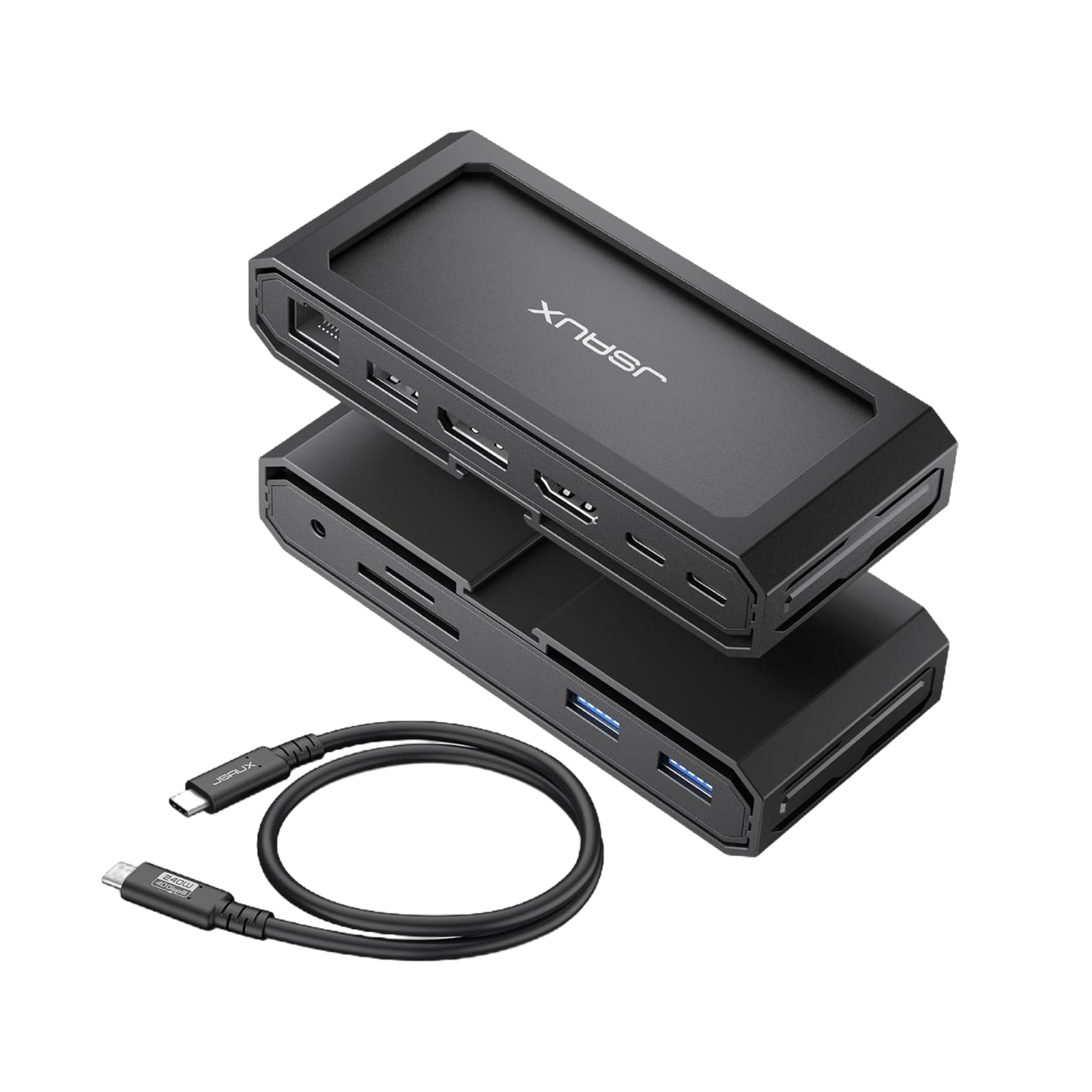
- 【11-in-1 USB Cドッキングステーション】ハンドヘルドゲーミングとノートパソコンのセットアップ向けに設計:1つのドックを接続するだけで、大画面ディスプレイ、有線インターネット、お気に入りの周辺機器を1か所に追加できます。USB C to USB C 3.2ケーブル、ギガビットイーサネット、HDMIおよびDisplayPort、USB Cデータ、最大5Gbpsの2つのUSB A 3.0ポート、キーボード、マウス、またはコントローラーレシーバー用の1つのUSB A 2.0ポート、毎秒最大104MBのSDおよびTFカードリーダー、そしてヘッドセットと音声チャット用の3.5mmマイクおよびオーディオジャックが含まれています。
- 【8Kシングルまたは4Kデュアルディスプレイ対応ドッキングステーション】よりスムーズなセットアップのためのクリアな表示ルール:シングルディスプレイではHDMIまたはDisplayPortで最大8K@30Hz、デュアルディスプレイではHDMIとDisplayPortで最大4Kを使用できます。ビデオ出力には、ホストデバイスがUSB Cビデオ出力とDP Altモードをサポートしている必要があります。実際の解像度は、デバイス、ケーブル、およびモニターのサポートによって異なります。
- 【最大100Wの電力供給】PDパススルー入力は最大100Wで、ディスプレイと周辺機器を同時に稼働させながらデバイスに給電します。充電電力はデバイスによって異なります。Steam Deckの場合:最大充電速度は45Wです。ROG Allyの場合:30Wターボモードは保証されません。65W以上のPD充電器が必要となる場合があり、アクティベーションは充電器と接続設定に依存します。
- 【数秒でファイルを転送】USB CデータポートとUSB A 3.0ポートは、SSD、ドライブ、キャプチャライブラリ向けに最大5Gbpsの転送をサポートしているため、ゲームクリップ、スクリーンショット、大容量ファイルをすばやく移動できます。SDおよびTFリーダーは、メディアの高速インポートのために毎秒最大104MBをサポートします。
- 【幅広い互換性】Windows、Android、macOS、Linuxシステムに対応し、Steam Deck、MacBook、ROG Allyなどのデバイスと互換性があります。ディスプレイ出力には、ホストデバイスがUSB Cビデオ出力をサポートしている必要があり、ゲーム、仕事、旅行のセットアップに信頼性の高いドックを提供します。
注意📢:
- 動作上の問題が発生した場合は、USB-Cケーブルが「IN-USB-C」ポートに正しく接続されていることを確認してください。最良の結果を得るために、付属のUSB-Cケーブルの使用をお勧めします。別のUSB-Cケーブルを使用する場合は、USB-C 3.2規格に準拠していることを確認してください。
- 付属のUSB-Cケーブルは写真に示されているものと異なる場合がありますが、その正常な機能には影響しません。
- ROG Allyの高性能30Wモードをより良く体験するには、100W充電器の使用をお勧めします。
FAQ
Q1. JSAUX Dock: Why & how different from other 11-in-1 models?
A1. Our products feature a DisplayPort as well as HDMI ports that support up to 8K resolution (backward compatible with 4K@165Hz/4K@144Hz/4K@120Hz) when used individually. In dual display mode, they can simultaneously output up to 4K@60Hz.
Q2. How does it work ?
A2. Laptops often feature just a USB-C port, necessitating the use of a multi-functional docking station. By connecting the docking station to the USB-C port, you can access a wide array of connections including Ethernet, HDMI, DisplayPort, and USB-A.
Q3. Can USB-C PD connect to other USB-C devices and transfer data?
A3. The USB-C PD interface is solely designed for device charging purposes and does not support data transfer. It is not intended to connect to other USB-C devices.
Q4. Is it capable of simultaneously reading TF and SD cards?
A4. Yes, but iPad Pro2020 interface restrictions, only single card read and write.
Q5. No video output detected when HDMI and DP ports are connected. What might be the missing component or issue?
A5. Troubleshooting steps:
1.Check proper HDMI cable connection to the display or PC’s HDMI port.
2.Ensure the use of an HDMI cable version 2.1 or higher.
3.Confirm connection of the PD charger to the product.
OmniCase 2シリーズ ドッキングステーション
Description
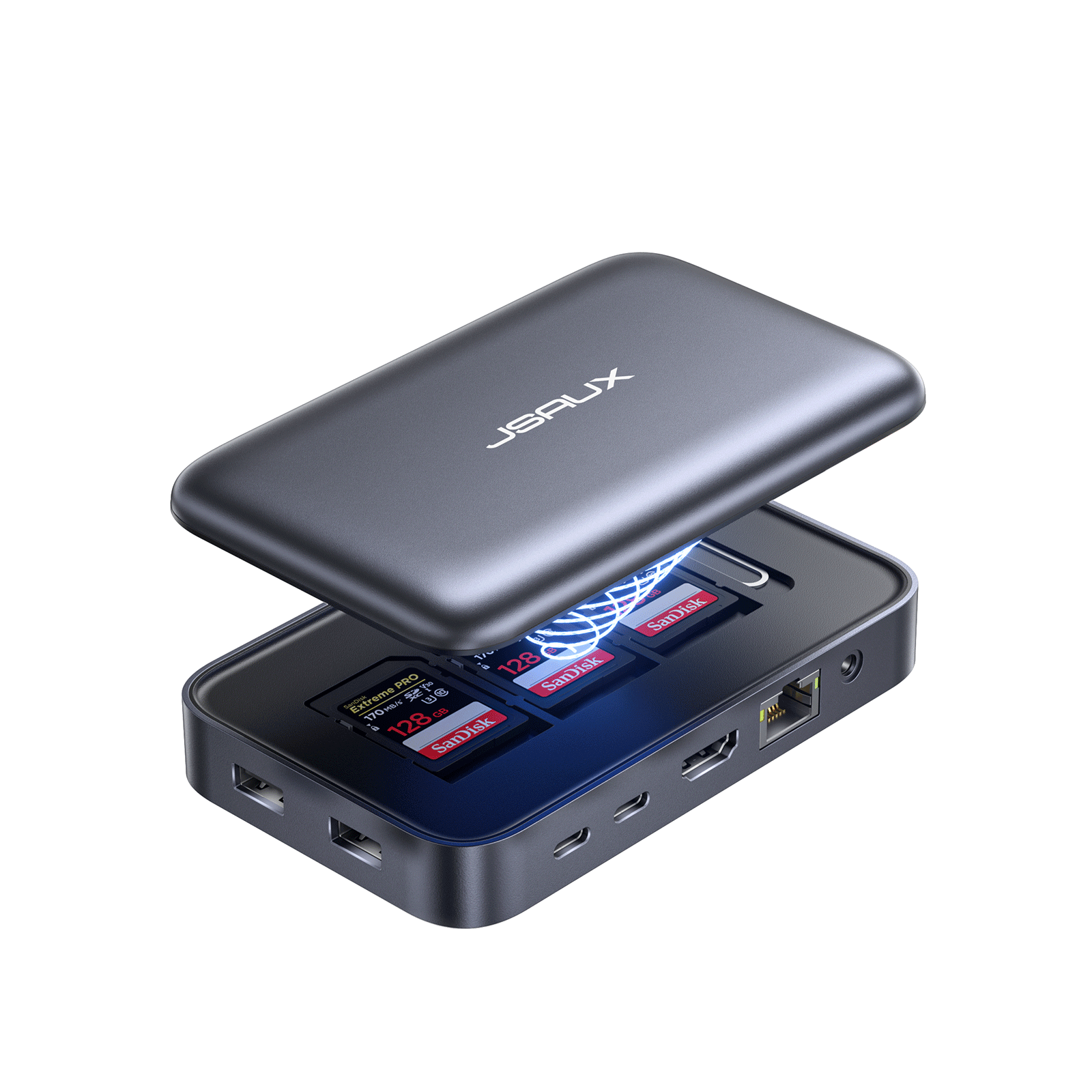
- 【12-in-1 ストレージドッキングステーション】: OmniCase 2 ProとOmniCase 2 Lite+ストレージドッキングステーションには、HDMIポート(4K@60Hz)×2、USB-A 3.0ポート(5Gbpsデータ転送)、USB-A 2.0ポート(480Mbpsデータ転送)、ギガビットイーサネットポート×1、USB C-PDポート×1、3.5mmオーディオインターフェース×1、TFカードスロット×1、SDカードスロット×1、DisplayPort×1(4K@60Hz)、USB Cポート×2を含む、12個の機能ポートが搭載されています。究極の12ポートドッキングステーション。必要なものがすべて1か所に!
- 【電子ストレージ機能設計】:様々な種類のケーブルとアダプターが付属しており、デバイスに簡単に取り出して接続できるため、テクノロジーライフがより快適になります。USB-C - USB-C 3.2ケーブル、USB-C - USB micro-Bアダプター、USB-Cメス - USB-Aオスアダプター、90°メス - オスUSB-Cアダプター、エジェクターピンツールが付属します。
- 【一体型磁気吸着設計】:革新的な一体型磁気吸着設計により、デバイス間のシームレスな接続を実現します。デバイスを近づけるだけで、磁力でしっかりと固定されます。どこへでも便利に持ち運べます。
- 【4K@60Hz ウルトラHD & トリプルディスプレイ】: HDMIとDisplayPort出力で、驚異的な4K@60Hz解像度の映像を堪能できます。12-in-1ストレージドッキングステーションは、Windowsシステムのトリプルスクリーンディスプレイミラーリングと拡張モード(A-AAA、A-BBB、A-BCD)に対応し、Mac OSシステムのトリプルスクリーンディスプレイミラーモード(A-AAAおよびA-BBB)もサポートしています。📢注意: MacOSの制約により、MSTはAppleデバイスではサポートされていません。拡張モードでは、Macユーザーは2つの異なるディスプレイコンテンツのみ利用可能です。( 📢 OmniCase 2 Proのみ対応)
- 【PD100W充電&5Gbpsデータ転送】: USB-C PD3.0 100W充電ポートを搭載し、最大100Wの電力入力に対応。タブレット、ノートパソコン、Steam Deckなどをフルスピードで急速充電し、あらゆるデバイスに安定した電源を提供します。OmniCase 2 Proストレージドッキングステーションは、SDカードスロット、TFカードスロット、USB-A 3.0ポート、USB-C 3.0ポート、USB-A 2.0ポートをそれぞれ1つずつ搭載し、最大5Gbpsの高速データ転送を実現します。
- 注意: 📢ドッキングステーションの動作に問題が発生した場合は、USB-Cケーブルが指定された「IN-USB-C」ポートに正しく接続されていることを確認してください。最適な機能を確保するために、付属のUSB-Cケーブルを使用してデバイスと接続することを強くお勧めします。別のUSB-Cケーブルを使用する場合は、USB-C 3.2規格に準拠していることをご確認ください。
FAQ
Q1. Why are all the ports not working when I just received the docking station?
A1. Please make sure your device and docking station properly connected
IN: The USB-C port can only be used for connecting devices, not for charging.
PD: USB-C port can only be used for charging.
If you connected the charger to the IN:USB-C port, there will be a slow charging prompt.
Q2. What systems do OmniCase 2and OmniCase 2 Pro support?
A2. Windows/Android/MacOS/Linux systems are supported.
Q3. Can it charge and connect the laptop at a same USB C port?
A3. No.Each USB-C port has its own function and cannot be mixed.
For example,OmniCase 2 and OmniCase 2 Pro are equipped with two USB-C ports:
IN: The USB-C port is only used to connect your host device, and the PD: USB-C port is only connected to a charger to power the device. Maximum support for 100W power supply.
Note: OmniCase 2 Pro has one more USB-C 3.0 port than OmniCase 2.
This USB- C 3.0 port only for connecting other external devices such as handles, keyboards, external hard drives, etc.(please do not connect it to the host device/power supply)
Q4. What is the difference between OmniCase 2 and OmniCase 2 Lite?
A4.Both products are 10-IN-1 Docking Stations with the same 10 ports and parameters. The main difference lies in their appearance and design. OmniCase 2 comes with an Accessories Kit and Organizer and also a Magnetic Suction design.
Q5. What is the difference between OmniCase 2 Pro and OmniCase 2 Lite+?
A5.Both products are 12-IN-1 Docking Stations with the same 12 ports and parameters. The main difference lies in their appearance and design. OmniCase 2 Pro comes with an Accessories Kit and Organizer and also a Magnetic Suction design.
FAQ
Q1. What distinguishes the 8-in-1 USB-C Phone Docking Stand with Phone Holder from the 5-in-1 version?
A1. The primary distinction between the two docking stands lies in their interfaces and parameters:
8-In-1 USB-C Phone Docking Stand with Phone Holder includes:
1*HDMI port (4K@30Hz)
3* USB-A 3.0 ports (5Gbps)
1*USB-C PD port (supporting up to 60W)
1*3.5mm audio interface
1*USB-C port
1*TF card slot (5Gbps)
1*SD card slot (5Gbps)
5-in-1 USB-C Phone Docking Stand with Phone Holder includes:
1*HDMI port (4K@30Hz)
1* USB-A 3.0 port (5Gbps)
2* USB-A 2.0 ports (480Mbps)
1*USB-C PD port (supporting up to 60W)
1*USB-C port.
Q2. What is the maximum thickness of my phone case that HB0802 & HB0502 dock is compatible with?
A2. Please ensure that your phone case is less than 3mm thick so as to be compatible with this dock.
Q3. Is it possible to simultaneously read and write to both my TF card and SD card?
A3. In most cases, yes. However, for users of the iPad Pro 2020, due to the port limitations, only one SD card or TF card can be read at a time.
Q4. Can my Earpods be compatible with this dock?
A4. This dock supports the headset or earphone with 3.5mm interface.
Q5. Is the Microphone function supported?
A5.Generally, the Microphone function is compatible. However, due to the wide range of earphone and headset brands in the market, there may be cases where the Microphone function is not fully supported. Nonetheless, the audio playback function remains unaffected.
Q6. Is a PD charger included? How to achieve a 60W charging effect?
A6. PD charger not included, For optimal 60W charging, use a fast charging cable and charger supporting 60W with PD protocol.
Q7. I used a PD 20w charger to charge my mobile phone, but the charging speed does not reach the expectation, any advice?
A7. The dock is capable of connecting multiple external devices such as hard drives, USB disks, keyboards, mice, and monitors, requiring a power consumption of 5w to 8w.
However, the actual charging power for your phone is only around 8w to 10w. We recommend using a charger with a power rating of 20w or higher for optimal performance.
Q8. Is Samsung DeX function supported?
A8.Sure, once you have connected your Samsung mobile to the dock, simply activate DeX on your phone.
SteamデッキLCDおよびOLED用ModCase
Description
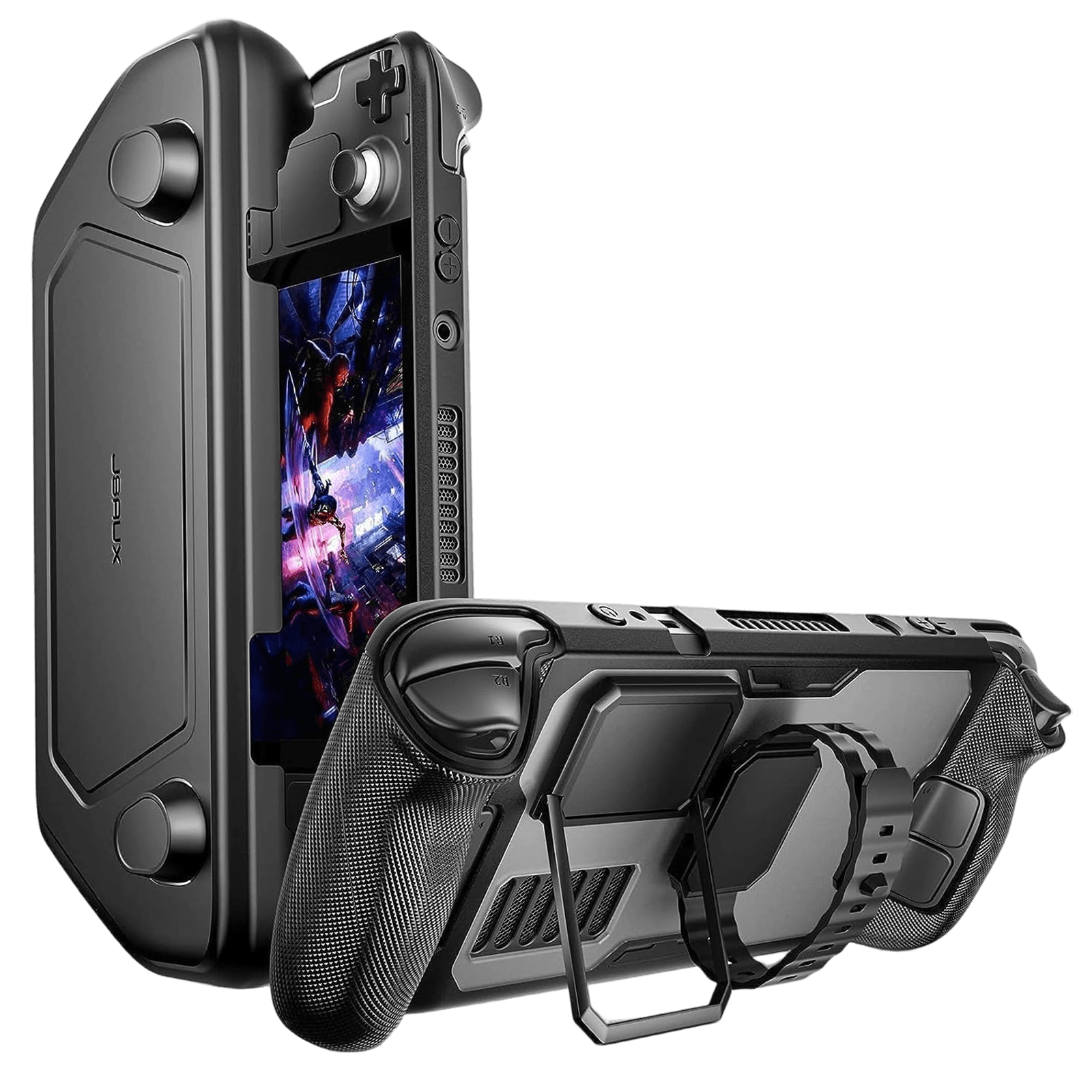
- 完全かつ柔軟:このアクセサリは、専用の金属スタンドを備えた保護背面ケース、他のアクセサリを取り付けるためのストラップ、および Steam Deck LCD と OLED がアイドル状態のときに使用する前面カバーで構成されています。
- 完璧なフィット:モジュラーケースの切り抜きは、ハンドヘルドの出力/入力ポートと完全に一致します。
- 究極の保護:環境に優しいPC-ABSとシリコン素材が画面の傷やひび割れを防ぎ、バックパックやハンドバッグに入れて持ち運ぶ際にも安心です。縁のTPUラップが落下時の衝撃を吸収し、損傷の可能性を軽減します。
- 多ければ多いほど良い: JSAUX ModCaseは、背面カバーにモジュラースライダーを搭載しています。JSAUX冷却ファンなどの互換性のあるアクセサリを追加することで、ゲーミング体験をさらにレベルアップできます。
互換性あり:
- 冷却ファン GP0200:この小型冷却ファンは、デバイスの通気口からの空気の流れを増加させることで、Steamデッキの温度を最大18℃まで下げます。また、負圧を発生させません。ModCaseとのセット販売と単体販売の両方があります。
- 11-in-1 ドッキングステーション HB1101: 4K@120Hz、HDMI 2.1 + DisplayPort 1.4、SD/TFカードスロット、そして充電時の100W電源を搭載。Steam Deckに最適なハブであるだけでなく、PCのあらゆるポートを最大限に活用するための強力なツールでもあります。
- M.2 SSDカードエンクロージャ HB0100:適切なペンでM.2 SSDカードを埃や衝撃から保護します。2230、2242、2260、2280メモリモデルに対応しています。
- パワーバンクPB6501: 65W高速充電、20000mAh大容量、インテリジェントディスプレイ。(注:一部の国と地域では販売されていません。販売可能な国と地域については、FAQをご確認ください。)
- 保護ケース用粘着シート:お気に入りのサードパーティ製アクセサリを保護ケースの背面にある溝に粘着フィルムでしっかりと固定します。(注:PC0104の保護ケースと併用する必要があります)
📢注記:
- 冷却ファンの電源が切れ、充電ケーブルに接続されている場合、デフォルトで最低風速で作動し、調整できません。最高風速で作動させる必要がある場合は、一度ファンの電源をオフにしてから、再度ファンの電源をオンにしてください。
- ハブ キットの場合、付属の USB-C ケーブルは写真に表示されているものと異なる場合がありますが、通常の機能には影響しません。
FAQ
Q1. Is PC0104 case compatible with all JSAUX docking stations and official docking stations?
Q1. The PC0104 case is compatible with all JSAUX docks , but not with official docks.
Q2. After changing to a back plate, can it still be fit with a protective case?
A2. The transparent back plate is the same size as the original back cover. If you choose a lower or medium button , it is compatible with all JSAUX protective cases.
Note: if the SD with jsaux back plate wears a protective case, which would cause the SD to accumulate heat so as to affect heat dissipation function of the back plate to some extent,(as most protective cases on the market do).
No worries, the SD primarily relies on copper pipes and fans for active cooling, so the impact will not be significant.
Q3. Will it fit in a JSAUX carrying bag or the official carrying bag?
A3. Yes, it will fit in any case without the cover, but only the BG0105 will fit in the case with the cover.
Q4. Is the fan noisy when in use?
A4. With regard to cooler fan noise, at a distance of 25cm from the cooler fan,
When the fan is at half speed, the noise level: 44-46DB
When the fan is at maximum speed, the noise level: 48-50DB
At a distance of 15cm from the fan,
When the fan is at half speed, the noise level: 44-48DB
When the fan is at maximum speed, the noise level: 50-53DB
Q5. Why can not I purchase the Power Bank Kit & Ultimate Kit?
A5. Due to the limitations of the logistics provider, the Power Bank Kit & Ultimate Kit can only be shipped to the following countries and regions(we are still looking for a better solution), we are sorry for the inconvenience.
USA / UK / Germany / Austria / Canada / Belgium / Czech Republic / Denmark / Estonia / Spain / Finland / France / Greece / Hungary / Italy / Lithuania / Luxembourg / Netherlands / Poland / Sweden / Slovenia / Slovakia / Portugal / Latvia / Bulgaria / Romania / Croatia / Ireland
Q6. What should I pay attention to when using adhesive sheet?
A6. 1. Clean the surface of the product to be pasted before using the adhesive sheet;
2. Do not pull hard immediately after pasting, it is best to wait for a period of time before fixed use;
3. The back glue of the adhesive sheet does not support electroplating, silicone, leather and other materials or other uneven product surfaces;
4. The maximum weight supported by the adhesive sheet is <300g and heavier products may fall off.
FAQ
Q1. Is this protective case compatible with Travel Cover of Modcase PC0104?
A1. Yes, Steam Deck with PC0105 is compatible with the travel cover.
Q2. Does this fit in the Valve carrying case?
A2. Steam Deck PC0105 is compatible with the Valve Carrying case.
Q3. Is Steam Deck with PC0105 compatible with JSAUX Docking stations?
A3. Yes, Steam Deck installed PC0105 is compatible with JSAUX Docking stations(HB0602/HB0603/HB0604/HB0702). Note: that PC0105 is NOT compatible with Valve dock.
Q4. How should I adjust the angle of the kickstand attached to PC0105?
A4. First, open the kickstand from the top side. Then, adjust the support frame to the groove and make sure it sticks properly without slipping.
Q5. Is it compatible with shoulder bag BG0105?
A5. The Steam Deck installed PC0105 can be put in BG0105
Q6. If my Steam Deck installed PC0105, can 180° USB-C Male to USB-C Female and USB-C Male to USB-A Female Adapter Set DD0009&DD0010 be connected perfectly?
A6. Yes, the design of the charging port in PC0105 is optimized and widened. Supports adapter connection perfectly.
ROG AllyおよびROG Xbox Allyシリーズ用ModCase
Description
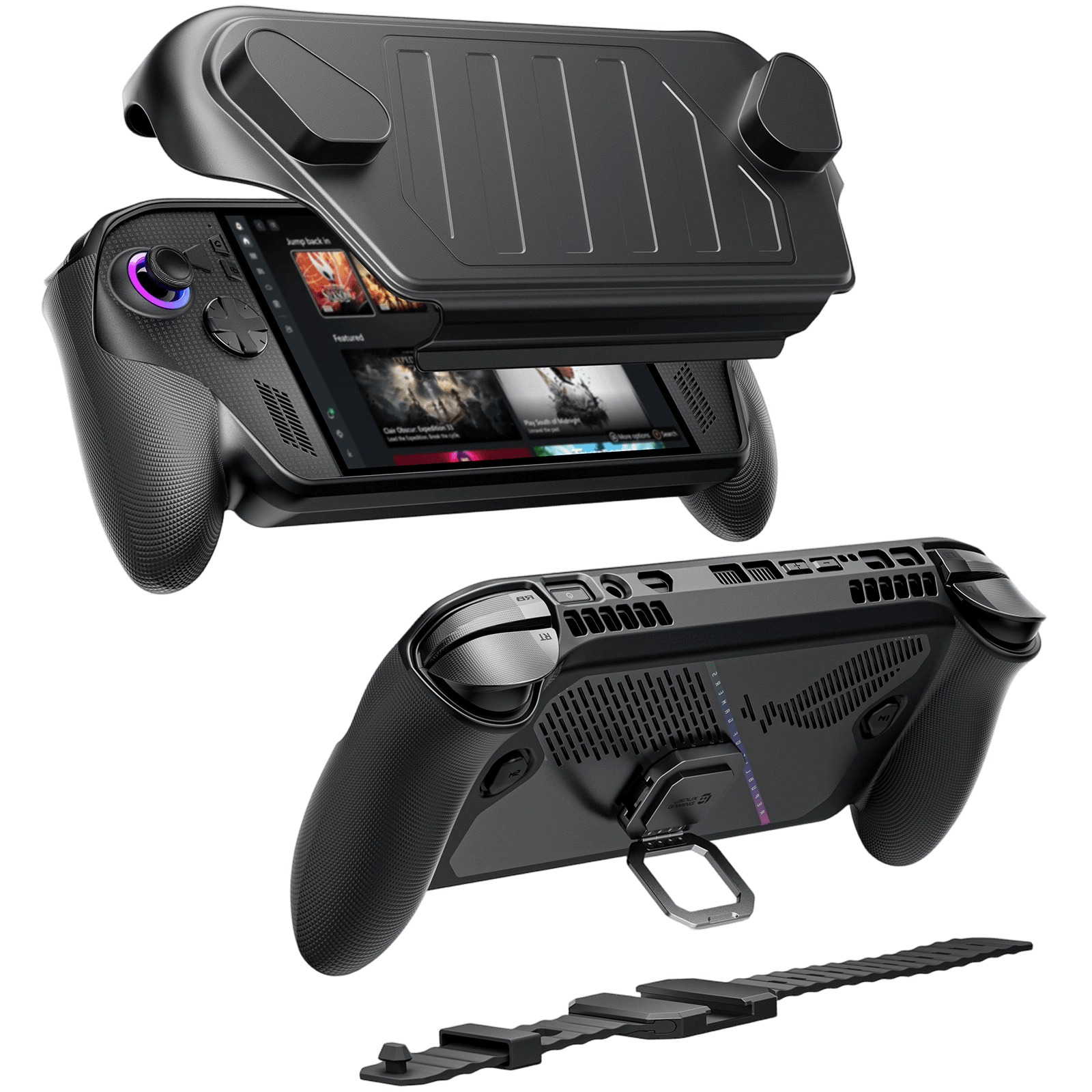
- 【モジュラー分割デザイン - どこでも柔軟な保護】着脱可能なフロントカバーとモジュラーバックケースにより、ROG Ally、Ally X、およびROG Xbox Ally/Xを完全に保護し、かさばることなく旅行、ハンドヘルドゲーム、保管モードを簡単に切り替えることができます。
- 【頑丈な多層保護】耐久性のあるPC-ABSと衝撃吸収TPU層が落下、傷、日常的な摩耗から保護し、バックパックの中や外出先でもハンドヘルドを安全に保ちます。
- 【SDカード収納付きフロントカバー】使用しないときは画面を保護し、内蔵のSDカードスロットでゲームやメディアを整理できます。旅行中やどこでも素早くアクセスするのに最適です。
- 【モジュラーアクセサリでセットアップを拡張】モジュラーバックケースを介してパワーバンク、冷却ファン、その他の互換性のあるアクセサリを取り付け、ハンドヘルドを完全にカスタマイズ可能なゲーミングセットアップに変えましょう。
- 【優れた操作性の滑り止めグリップ】テクスチャ加工された人間工学に基づいたグリップエリアが、ハンドリング、安定性、快適性を向上させ、長時間のゲームセッションでも正確な操作を可能にします。
- 【ROG Allyシリーズに精密フィット】ROG Ally / Ally X / ROG Xbox Ally / X向けにカスタム設計され、ボタン、ポート、エアフローへのアクセスを妨げない正確なカットアウトにより、パフォーマンスが損なわれることはありません。
対応するモジュラーアクセサリ:
- 【パワーバンクPB6501について】65W高速充電、20000mAh大容量、インテリジェントディスプレイ。(注:一部の国と地域では販売されていません。利用可能な国と地域についてはFAQをご確認ください)
- 【RGB冷却ファンGP0202について】ダイナミックな7色RGBライティングを備えたデュアルファンモジュラー冷却により、ROG Ally Xのパフォーマンスと視覚効果が向上します(ROG Ally X用ModCaseとのみ互換性があります)。
注:
- ROG Ally用ModCaseはXG Mobile外付けGPUと互換性があります。
- DD0009 & DD0010 180° USB-C to Cアダプターセットとは互換性がありません。
FAQ
Q1. What is the angle at which the bracket can be opened?
A1. The maximum angle at which the bracket can be opened is approximately 65 degrees.
Q2. What is the maximum weight-bearing capacity of the fixed block on the back?
A2. The maximum weight capacity of the fixed block is approximately 5 KG.
Q3. Can the angle of the bracket be adjusted freely?
A3. No. The bracket can only be opened and avoid naturally close, and it cannot be adjusted to suspend at any angle. And the bottom magnet can secure the bracket onto the protective case.
Q4. Can ROG Ally with PC0109 modcase be put into Jsaux carrying case or Shoulder bag?
A4. 1. If you don not add a travel cover, it fits the BG0105A shoulder bag and BG0106A carrying case.
2. When the travel cover is mounted, only BG0105A shoulder bag can acommodate it.
Q5. Can I still install a travel cover on my ROG Ally after fitting the thumbstick cap?
A5. It would be compatible if the height of thumbstick cap is less than 3 mm.
Q6. Would it compatible with ROG XG Mobile?
A6. Yes.
Q7. Is it compatible with PC0110 RGB Transparent Back Plate for ROG Ally?
A7. No, they are not compatible, the protective case may obstruct the light source behind the PC0110 back plate. And the switch of RGB light may be blocked.
Q8. Is it compatible with Jsaux docks?
A8. Yes, it is compatible with Jsaux docks and adapters.
Q9. Can I just buy a travel cover or Fixed Block instead buying a whole kit of PC0109 ModCase for ROG Ally?
A9. No, the accs in the Basic set are sold together, the Basic set contains the following 4 pieces:
1.Protective Case
2.Travel Cover
3.Fixed Block with short velcro
4.Fixed Block with Long Velcro
But the PB6501 Power Bank in the Power Bank Kits can be sold separately
Q10. Why cannot I purchase the Power Bank Kits?
A10. Due to the limitations of the logistics provider, the Power Bank Kit & Ultimate Kit can only be shipped to the following countries and regions(we are still looking for a better solution), we are sorry for the inconvenience.
USA / UK / Germany / Austria / Canada / Belgium / Czech Republic / Denmark / Estonia / Spain / Finland / France / Greece / Hungary / Italy / Lithuania / Luxembourg / Netherlands / Poland / Sweden / Slovenia / Slovakia / Portugal / Latvia / Bulgaria / Romania / Croatia / Ireland
Q11. How to Properly Install & Remove the Protective Case of ModCase?
A11. For Install: Start by placing your ROG Ally gaming device underneath the protective shell, then secure the top part. Please note that during installation, the protective shell might slightly obstruct the buttons, and you may need to apply some force to ensure a snug fit.
For Remove: Begin by removing the protective cover from the top. It may be snug around the buttons, and you may need to exert some force to push it through the buttons. Then, remove the protective cover from the bottom.
Q12. Can the travel cover be used with thumbstick caps?
A12. We recommend using thumbstick caps with a diameter smaller than 18mm and a thickness less than 3mm.
Q13. How can I maintain the appearance of my white ModCase for ROG Ally if it starts to show signs of yellowing over time?
A13. Our white ModCase for ROG Ally may develop slight yellowing over time due to its material properties, which is a common characteristic of white cases. To help preserve its appearance, we recommend using alcohol wipes for gentle cleaning. While this may not completely eliminate the yellowing, it can effectively reduce its visibility and maintain the overall aesthetic appeal of your ModCase.
FAQ
Q1. Why might the MagSafe Wallet and MagSafe Portable Charger not install properly?
A1. This is because the placement of the stand on the phone case may interfere with the proper installation of the MagSafe Wallet and MagSafe Portable Charger. The design of the stand could obstruct these accessories from securely connecting to the magnetic area on the phone case, thereby affecting their functionality.
携帯型ゲーム機用キャリングケース
Description
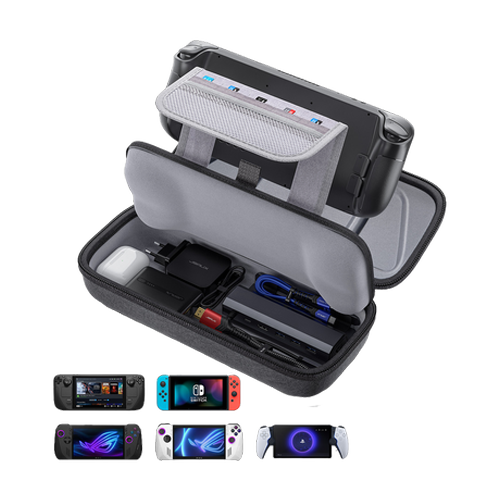
- 【Steam DeckとROG Allyを効率的に保護】:このキャリングケースは、Steam Deck (OLED)、ROG Ally、ROG Ally X (2024)用に設計されており、Nintendo Switch 2、PlayStation Portal Remote Playerにも対応しています。日常の安全な保護を提供し、頑丈で耐久性があります。便利な収納と持ち運びに便利です。
- 【大容量にアップグレード】:内蔵の拡張収納スペースは、より多くのアクセサリーを収納できます。純正AC充電器、ドッキングステーション、小型モバイルバッテリー、ヘッドホンなどのアクセサリーを同時に収納できます。Steam DeckやROG Allyを保護ケースを外さずに楽に置くのに十分なスペースがあります。最大10枚のSDカードを収納できる予備のSDカードケースが付属。整理整頓を保ちます。
- 【多重保護】: JSAUX ROG Ally Xケースは、外部からの押し出しに強い厚手のEVAシェルを採用し、衝突や落下を効果的に防ぎます。溝付きデザインにより、ハンドルへの圧迫を防ぎます。内蔵のフリースコンパートメントが画面を傷から保護します。
- 【ダブルジッパーデザイン】:ジッパーは滑らかで、使用時に簡単に開閉できます。しっかりと閉じることで、アクセサリーが落ちるのを防ぎます。隠しチェーンで錆を防ぎ、美しいデザインです。
-
【持ち運びやすく、しっかり固定】 : 強化されたハンドルで落下を防ぎます。内側のベルクロストラップで本体をしっかりと固定できます。このSteamデッキケースはどこにでも簡単に持ち運べます。
📢注意:
- Switch 2で使用する場合、このケースは保護ケースと併用すると最もフィットします。本体がケース内でずれる場合があります。
- BG0106XはLegion Goと互換性がありません。
FAQ
Q1. Does the original Valve docking station fit in the accessory section of the case?
A1. Yes, the original Valve docking station fits in the accessory section of the JSAUX Carrying Case.
Q2. Will this fit a steam deck with a silicon case on it?
A2. Yes, the JSAUX Carrying Case fits a steam deck with a silicon case on it.
Q3. Is this compatible with the raised back buttons from the Transparent Back Plate?
A3. If you do not put too much on the bottom layer, the raised back buttons will be compatible.
Q4. Is it compatible with the ModCase for Steam Deck PC0104?
A4. Yes, it accommodates Steam Deck with Modcase, but please note that if the travel cover added, it cannot be compatible.
携帯ゲーム機用ショルダーバッグ
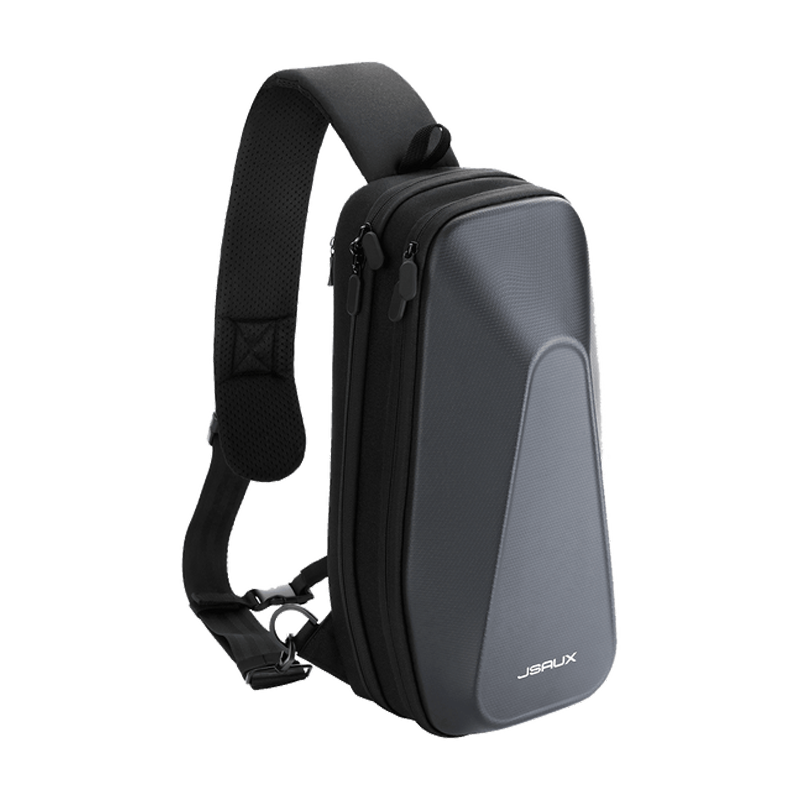
Description
- Steamデッキ、ROG Ally、Switch 2を効率的に持ち運び保護:ショルダーバッグ ROG Ally/XおよびSteam Deck/OLEDデバイスを効果的に保護します。専用コンパートメントが傷や損傷から保護します。
- スマート ストレージ ソリューション: Steam Deck/ROG Ally 専用のキャビン、JSAUX Steam Deck ドッキング ステーション、パワーバンク、AC アダプター、携帯電話、USB ケーブル、スイッチなどのさまざまなサイズの商品用の独立した部屋など、さまざまなニーズを満たす多層スペース。
- 機能的なデザイン、長く愛用できるスタイル:液漏れ防止機能と抵抗バンドを備えたこのケースは、しっかりとフィットし、液体のこぼれを防ぎます。高級オックスフォード生地とスタイリッシュなEVAハードシェルが、耐久性とモダンな外観を実現。
- 幅広い互換性– Steam Deck/OLED、ROG Ally/X、Switch 2、PlayStation Portalと互換性があります。Legion Goとは互換性がありません。
FAQ
Q1. Can the Steam Deck be put into the storage bag after it has case?
A1. JSAUX Protective case (such as PC0101/PC0102/PC0103/PC0104/PC0105) can be put into the shoulder bag.
Q2. Can the net bag hold a water bottle?
A2. Mineral water bottles of up to 350ml are allowed.
Q3. Can the Steam Deck be put into the storage bag with the joystick cover on?
A3. Joystick covers with thickness less than 4mm can be put into the BG0105.
Q4. What size tablet can the net bag hold?
A4. BG0105 can hold iPad mini6 (about 8.3 inches).
FAQ
Q1. Does the Carrying Case for Steam Deck BG0102 fit the steam deck with the travel cover of the ModCase for Steam Deck PC0104?
A1. No, only shoulder bag BG0105 can store the PC0104 protective case with the cover on.
Q2. Will the bottom compartment hold the Valve dock together with the official original charger?
A2. No, the bottom compartment cannot hold the Valve dock and charger in the same space.
Q3. Does the bottom compartment of BG0102 accommodate the UK charger?
A3. No, the UK charger is not compatible with BG0102.
Steamデッキ用アンチグレアスクリーンプロテクター
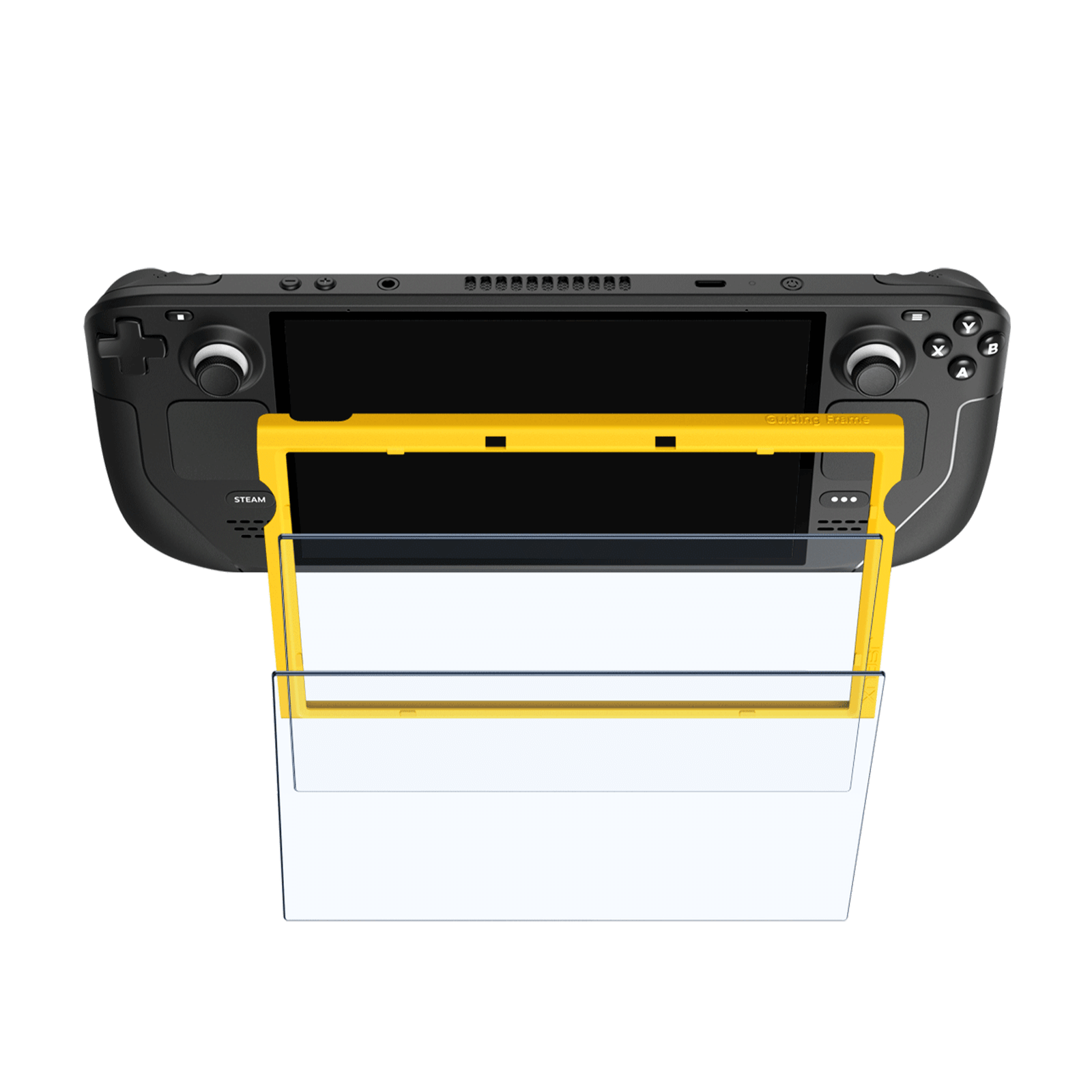
Description
- Steam デッキの画面を保護: Steam デッキの 7 インチ ディスプレイ専用に設計されており、傷、ひび割れ、その他の損傷を防ぎます。
- 優れた視認性を実現するアンチグレア:プレミアムアンチグレアマットテクスチャ仕上げにより、グレアを軽減し、非常にクリアな体験を提供します。
- 簡単装着、完璧なフィット感:気泡が入ってしまったり、何度もやり直さなければならない面倒な取り付け作業はもう終わりです。スクリーンプロテクターにはガイドフレームが付属しており、完璧なフィット感を実現し、素早く簡単に装着できます。
- 指紋防止&超薄型:指紋や汚れがつきにくいマット仕上げ。超薄型設計がゲーム体験を向上させます。0.33mmの超薄型設計は、高い感度も確保し、ゲーム体験を向上させます。
- 究極の保護を体感せよ: Steamデッキのディスプレイを危険にさらすのはもうやめましょう。この高品質スクリーンプロテクターの保護力に信頼を寄せてください。フルスクリーンカバーと高度な機能を備えたこの製品は、あらゆる本格的なゲーマーにとって究極のアクセサリーです。
- 📢注意:このアンチグレア スクリーン プロテクターは、OLED 画面ではうまく機能しない可能性があるため、Steam Deck OLED には推奨されません。
FAQ
Q1. Steam Deck 512G paste the tempered film will affect the original anti-glare effect?
A1. Yes, if the Steam Deck comes with an anti-glare screen, and then we also apply the tempered film, it may make the original anti-glare screen not work. However, tempered film can still protect the screen from external damage (such as cuts, drops).
Q2. Is there an oleophobic layer?
A2. Yes
Q3. What should I do if there are white edges around the edges?
A3. Please try to press the bubble position together with a squeegee.
FAQ
Q1. Is there an oleophobic layer?
A1. Yes.
Q2. What should I do if there are white edges around the edges?
A2. You can try to press the bubble position together with a squeegee.
Q3. Is this product compatible with your protective skin GP0002?
A3. Yes, please install the protective glass GP0108 for the screen first and then install the skin GP0002.
FAQ
Q1. Is there an oleophobic layer?
A1. Yes.
Q2. What should I do if there are white edges around the edges?
A2. You can try to press the bubble position together with a squeegee.
Q3. Is this product compatible with your protective skin GP0002?
A3. Yes, please install the protective glass GP0108 for the screen first and then install the skin GP0002.
SteamデッキLCDおよびOLED用スクリーンプロテクター

Description
- Steam Deck LCD & OLED対応: 7インチ強化ガラススクリーンプロテクターは画面全体をカバーします。
- 5倍の耐久性: 500℃で数時間かけて強化されており、一般的な強化ガラスに比べ5倍の耐久性があります。
- ウルトラHDクラリティ: 透過率99.99%のスクリーンプロテクターで、オリジナルの鮮明さを損ないません。
- 優れた保護: 9Hの硬度と強化されたスクリーンプロテクターが、Steam Deck LCD & OLEDの画面を衝撃や傷から守ります。
- 指紋防止: 疎油性コーティングにより、JSAUX Steam Deck LCD & OLED用スクリーンプロテクターは画面を常に清潔に保ちます。
FAQ
Q1. Is there an oleophobic layer?
A1. Yes
Q2. What should I do if there are white edges around the edges?
A2. You can try to press the bubble position together with a squeegee.
Q3. Why is the Steam Deck 512G version not responding to touch with the tempered film?
A3. The official 512G version of Steam Deck has a batch of machines due to the problem of curing the glue when making the screen bonding is not tight, there may be a broken touch after applying the tempered film.
Q4. Steam Deck 512G paste the tempered film will affect the original anti-glare effect?
A4. Yes, if the Steam Deck comes with an anti-glare screen, and then we also apply the tempered film, it may make the original anti-glare screen not work. However, tempered film can still protect the screen from external damage (such as cuts, drops).
FAQ
Q1. Instructions provided after receiving the parcel of Steam Deck anti glare screen GP0300.
A1.
1)After receiving the package, please promptly unpack it and carefully inspect the screen for any visible physical damage such as cracks, scratches, or breakage.
Tip:You can examine the anti-glare screen under different lighting conditions.
2)According to the item information provided in the USER GUIDE, thoroughly verify the quantity of the products received. If any accessories miss, please refrain from installing the GP0300 anti glare screen and contact JSAUX’s customer support for assistance asap.
3)Please strictly follow JSAUX’s installation tutorial for the anti-glare screen GP0300. Connect it to the Steam Deck as instructed, installation finished, power on the screen, and check the touch sensitivity and display to ensure proper functioning of the screen.
Q2.Is it the same as the original Steam Deck screen?
A2. The functionality of JSAUX anti-glare screen is the same as the original Steam Deck screen. With rigorous oversight by a reputable manufacturer, this screen ensures reliable quality assurance.
Q3.The protective film is covered with bubbles. Is this normal?
A3. The product is brand new. In order to ensure the quality and integrity of the screen product we provide to you, we conduct strict quality inspection procedures before it leaves the factory. Bubbles or smudges on the protective film, caused by the inspection process, are considered normal occurrences. The protective film is applied to safeguard the screen from scratches and dirt during transportation and testing. Upon receiving the package, you can peel off the film to inspect the screen for any damage. After inspection, you can reapply the film to continue protecting your screen during the installation process. Once the final installation is complete, you can remove the protective film and start experiencing the brand-new anti-glare screen!
Q4. Will there be a color difference between the anti-glare screen GP0300 and the original Steam Deck screen?
A4. No, the JSAUX anti-glare screen GP0300 has been strictly tested many times when manufacturing. The functionality of our anti-glare screen is the same as the original Steam Deck screen, and there is no color difference between the two.
Q5. Is this anti-glare screen a bare panel? Does the front side of the screen have a protective film?
A5. Yes, this is a bare panel. The front side of the screen is covered with a protective film, which should be gently peeled off before use.
Q6. More questions about installation.
ROG Ally X用シリコングリップケースセット
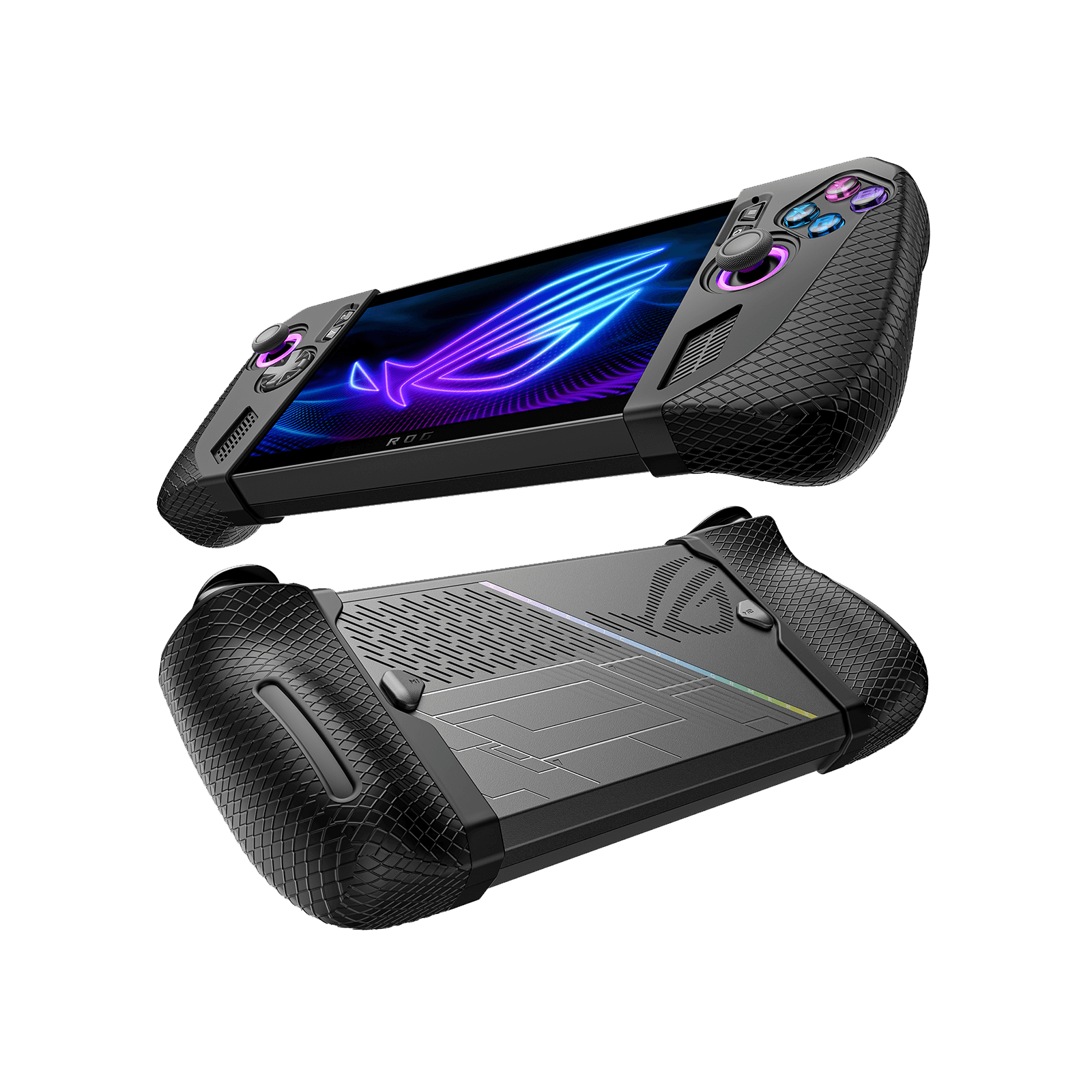
Description
- 【ROG Ally X対応】:ROG Ally X専用の精密なカッティングで完璧にフィットします。シンプルでスタイリッシュなデザインで、ROG Ally Xを新しい外観にします。(ROG AllyまたはROG Xbox Ally/Xには対応していません)
- 【滑り止めと落下保護】:ROG Ally Xシリコンケースを滑り止めシリコンケースにアップグレードし、手触りと摩擦を向上させました。これにより、ゲーム中に汗をかいた手でゲーム機が滑り落ちるのを防ぎます。ゲーム体験を向上させます。誤ってゲーム機を落としてしまっても、このROG Ally Xグリップケースは完璧な保護を提供します。
- 【グリップに優れたデザイン】:滑り止め加工を施したこのデザインは、グリップ感を大幅に向上させます。最適化されたエッジは傷を防ぎ、快適なタッチを提供します。最適化されたエッジは傷を防ぎ、快適なタッチを提供します。
- 【邪魔にならない放熱性】:ROG Ally Xグリップケースの精密なデザインにより、通気口の空気の流れを妨げません。
-
【同梱品】:この保護セットはROG Ally Xグリップ用に設計されており、左右のシリコン保護スリーブが1組含まれています。注:電子部品やROG Ally X本体は含まれていません。より良いユーザー体験のために、ジョイスティックキャップなしでシリコン保護ケースを使用することをお勧めします。
FAQ
Q1. Will the Touch-sensitive Thumbstick Caps wear off its color?
A1. The Touch-sensitive Thumbstick Caps is made of conductive silicone, enabling it to trigger gyroscopes through capacitive touch. It contains conductive particles inside, and minor color fading is considered a normal occurrence.
Q2. Is it compatible with Thumbstick Caps?
A2. Due to the shorter length of the ROG Ally joystick, using Thumbstick Caps and silicone covers simultaneously may cause slight interference, requiring a bit more force to activate the joystick during operation.
Q3. What is the different between Touch-sensitive and Non-touch Thumbstick Caps?
A3. The Steam Deck utilizes capacitive thumbsticks, which can be activated by touch to control the gyroscopic aiming. Non-touch Thumbstick Caps cannot trigger the capacitive thumbsticks, affecting their ability to control the gyroscopic aiming, which serves as an aiming assist during gameplay.
Q4. Will the white silicone covers change color?
A4. It is completely normal for slight discoloration to occur after using white silicone covers for some time. The speed and extent of this change may be influenced by various factors, but rest assured, it will not affect their regular use.
To slow down the discoloration process, you may consider storing the grips in an area not directly exposed to sunlight and regularly cleaning them to prevent the buildup of contaminants.
FAQ
Q1. Can I buy the matching touchable thumb cap for GP0002 separately?
A1. Sorry, we do not sell touchable thumb caps separately.
90° USB-C - USB-C 直角アダプター
![Grey 2-pack 90 degree USB-C to USB-C right angle adapters #style_grey [2-pack]](http://jsaux.com/cdn/shop/files/90_-USB-C-to-USB-C-Right-Angle-Adapter-grey-1.png?v=1755238920&width=1600)
Description
- [90度フル機能データ転送]この上下90度アダプターは、ケーブルを適切な方向に延長できるため、ケーブルやデバイスの入力ポートの摩耗を防ぎ、スペースを節約できます。充電とデータ転送をサポートします。
- 【100W急速充電&40Gbps転送速度】 JSAUX GAMINGの直角USB Cアダプターは、最大5Aの出力電流で、デバイスを最速で充電します。40Gbpsのデータ転送速度を提供します。注:40Gbpsのデータ転送速度を実現するには、Thunderbolt 3以上のケーブルとThunderbolt対応ハードドライブケースが必要です。
- 【4K@60Hzビデオ出力】 USB C 90度エクステンダーは、USB CデバイスをUSB Cインターフェース搭載の別のモニターまたはディスプレイに接続し、最大8Kのビデオ信号とオーディオ転送をサポートします。ご注意:入力デバイスと出力モニターの両方にUSB Type-Cポートがあり、ビデオ入出力に対応していることを確認してください。
- 【高品質保証】他の直角アダプターと比較して、高品質のアルミニウムシェルを採用することで耐久性が向上し、内部のチップや回路の破損を防ぎます。滑り止め設計で、簡単に挿入・取り外しできます。
-
【互換性】ほとんどのType-Cデバイスと幅広く互換性があります。Nintendo Switch 2 (2025)、ROG Xbox Ally/X、ROG Ally/X、Steam Deck/OLED、Legion Go/2、Switch、MacBook Pro、Surface Book 2、iPhone 16/16 Plus/16 Pro/16 Pro Max、iPhone 15/15 Plus/15 Pro/15 Pro Max、Samsung Galaxy S25/S24/S23/S22/S21/S20/S10、Note 20/10、LG G7/V20、Google Pixel、ChromeBookなどに対応しています。
FAQ
Q1. How to reach the fastest speed of data transfer?
A1. You need a Thunderbolt 3 or higher cable paired with a Thunderbolt hard drive case to achieve 40Gbps data transfer speeds.
Q2. What are the exact measurements of the outie plug’s collar?
A2. When plugged in, it is approximately 3/4".
Q3.Will this adapter fit in the cutout in jsaux’s kickstand case for the steam deck?
A3. Yes, the 90 Degrees Right Angle USB-C Male to USB-C Female Adapter fits in the cutout in jsaux’s kickstand case for the steam deck.
Q4. Can I use this usb c adapter to tansfer video to the monitor form my steam deck or switch?
A4. Yes, the USB-C 3.1 90-degree extender supports up to 4K@60Hz video signal and audio transferring for the connection between your USB-C devices to another monitor or display with a USB C interface. (Note: Please make sure both your input device and output monitor have USB type c port and support video input and output).
180° USB-C - C & A アダプターセット
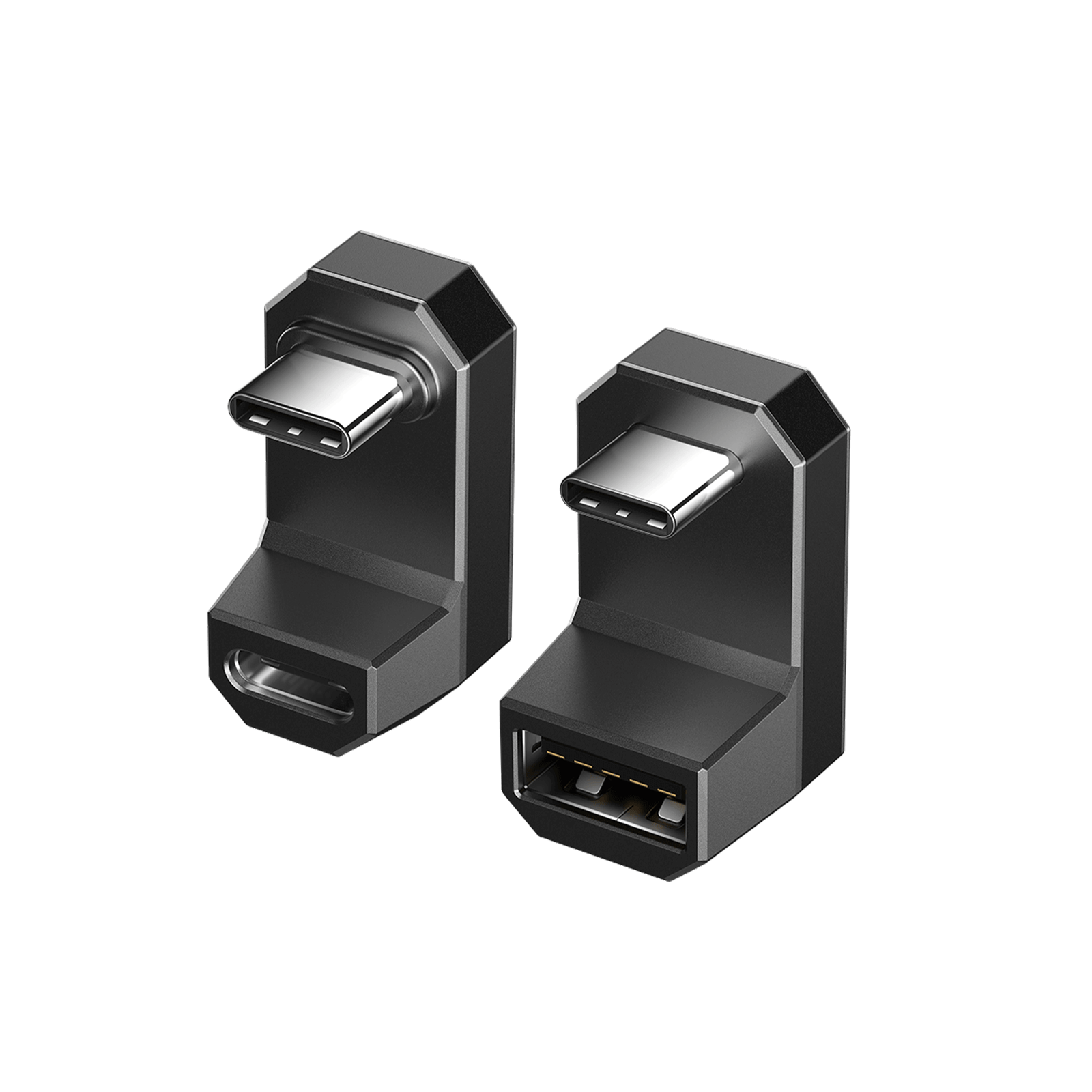
Description
- 180度フル機能データ転送:革新的な180度U字型デザインを採用したこのUSB C - USBアダプターは、充電しながらソファやベッドに横になってゲーム、動画鑑賞、作業を行う際に、より便利で快適です。重要:この180度アダプターは、幅0.46インチ以上、厚さ0.16インチ以上のケースには対応していません。
- 60W 高速充電と 10Gbps の転送速度:高速転送速度でデバイスを可能な限り最速で充電します。
- 4K@60Hz ビデオ & オーディオ伝送: USB-C 3.1 180 度エクステンダーは、USB-C デバイスと USB-C インターフェイスを備えた別のモニターまたはディスプレイ間の接続で、最大 4K@60Hz のビデオ信号とオーディオ転送をサポートします。(注:入力デバイスと出力モニターの両方に USB タイプ C ポートがあり、ビデオ入力と出力をサポートしていることを確認してください)。
- 互換性:ほとんどのType-Cデバイスで幅広く動作します。Steam Deck、ROG Ally、Switch、MacBook Pro、Surface Book 2、Samsung Galaxy S22/S21/S20/S10、Note 20/10、LG G7/V20、Google Pixel、Chromebookなどに対応しています。
- パッケージ内容: USB C オス - USB C メス アダプタ * 1、USB C オス - USB A メス アダプタ * 1。
注記:
- iPhone 15 では、マウスに接続するときに Assistive Touch をオンにする必要があります (設定 > 補助機能 > タッチ > Assistive Touch を有効)。
- AYA NEOコンソールとは互換性がありません。Rog Allyの30Wターボモードの動作を保証することはできません。現時点での情報に基づくと、65W以上の充電器が必要になる可能性があります。最終的には、30Wターボモードの有効化は使用する充電器によって異なります。
- PC0104のスタンドが180°USB-C to C & Aアダプターセットに接続されたUSBケーブルをブロックするため、PC0104では使用できません。
- ROG Ally用PC0109 ModCaseとは互換性がありません。
FAQ
Q1. What about the compatibility with the ModCase PC0104 when the metal bracket is attached?
A1. If you use DD0009&DD0010 when the metal bracket is attached, one of the port of the adapter may be blocked by the metal bracket.
Q2. Can the JSAUX protective cases be supported?
A2. The DD0009&DD0010 is compatible with Steam Deck intalled PC0102/PC0103/PC0104/PC0105.
Q3. What should I be aware of the products when I am using it?
A3. Be sure that the adapter is attachted to the USB-C port of your device tightly, when it is properly attachted, there will be a little click sound from one of the ports of DD0009&DD0010.
Q4. Can DD0009&DD0010 be supported my Steam Deck installed protective cases of other brand?
A4. Only JSAUX cases be supported.
Q5. If I use Anti-Slip Stand for Steam Deck Dock SG0104 / Portable Stand for Steam Deck SG0101 /Anti-Slip Holder for Steam Deck SG0102, can this adapter work still?
A5. Yes, they are compatible with DD0009&DD0010.
FAQ
Q1. Why will my music stop when I unplug the power after charging?
A1. It is normal becausse the main control chip will be restarted if the power supply of the main board system is changed. Please set play music again.
Q2. What devices is this adapter compatible with?
A2. This adapter is compatible with almost any device with one USB-C port.
Q3.Can I use the volume buttons/call controls on my earphone cable with this adapter?
3. Yes, the adapter fully supports inline headphone controls.Note: Adapter does not support inline volume control on Apple’s earPods.
Q4. Will listening to music through this adapter affect charging speed?
A4. No, the adapter is designed for simultaneous audio streaming and PD fast charging. Listening to music will not affect charging speed.
FAQ
Q1. Does it support PD 3.0?
A1. Yes.
Q2. Can it be powered with the default 45W PD 3.0 charger that comes with the Steam Deck
A2. Yes, it can.
Q3. What HDMI cable should I use to support this adapter?
A3. HDMI 2.0
Q4. Can it be compatible with DD0009&DD0010?
A4. The USB-C port of HB0201 can be connected with the USB-C port of that adapter.
FAQ
Q1. Can it be used with the Nintendo Switch?
A1. No, it does not support the Switch.
Q2. Is the USB-C PD port compatible with other USB-C devices?
A2. Is the USB-C PD port compatible with other USB-C devices?
Q3. Why is there no laptop speaker sound after docking station connection?
A3. The docking station includes HDMI and 3.5mm audio/mic ports. HDMI connection to a display triggers laptop audio to switch. To use laptop speakers, on Windows 10 (similar on macOS), click speaker icon, select "Sound," and choose desired sound output.
65W USB-C 折りたたみ式充電器
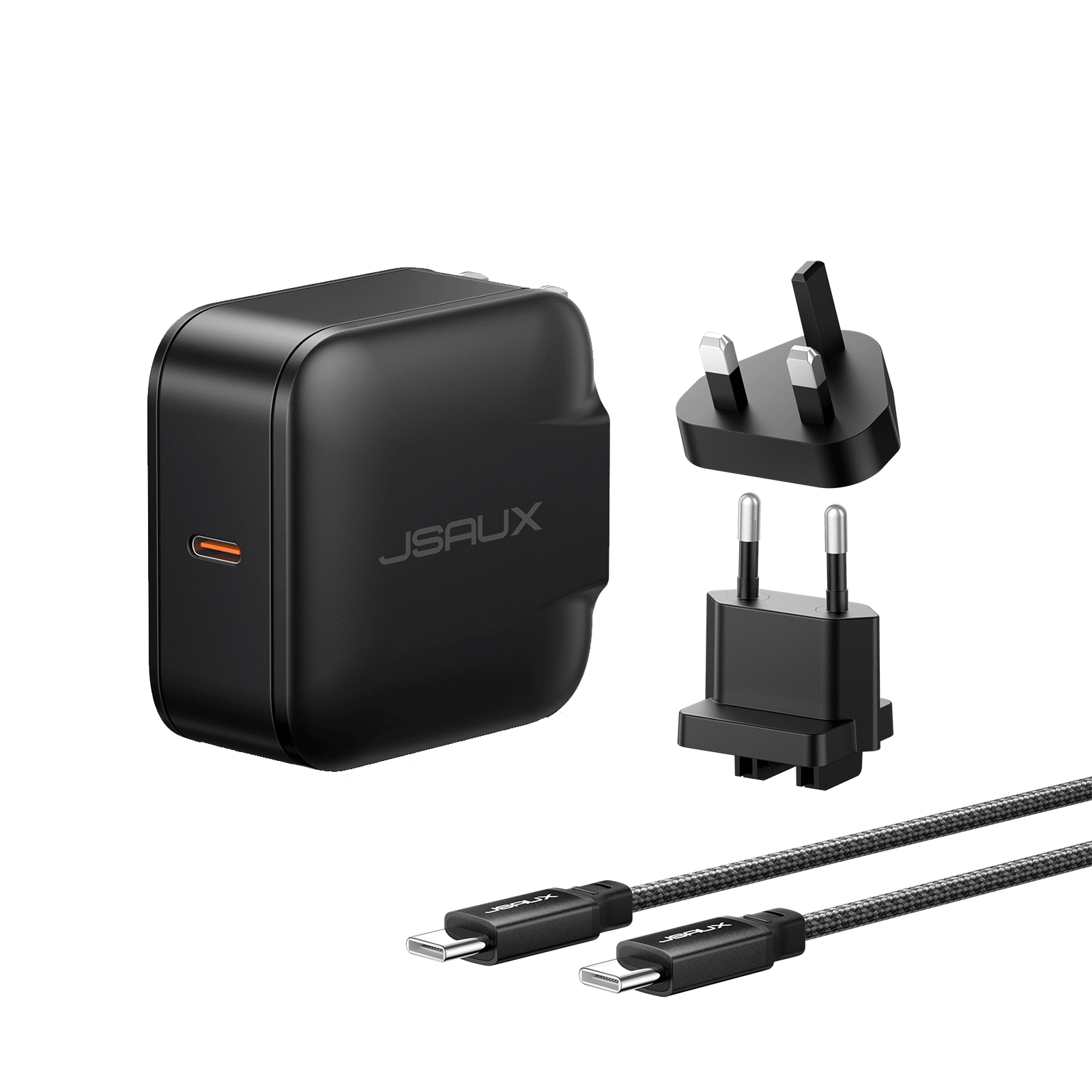
Description
- 【Switch 2 TVモード電源対応】ドックに接続したNintendo Switch 2をTVモードで使用する際、安定した高出力電源を供給します。注:本製品は電源供給のみで、映像信号やHDMI信号は伝送しません。
- 【65W GaN 急速充電】高度な GaN テクノロジーを搭載したこの USB C 充電器は、最大 65W の高速で効率的な充電を実現し、Steam Deck、ROG Ally、MacBook などのノートパソコン、タブレット、ゲーム機などの需要の高いデバイスに最適です。
-
【旅行に最適なオールインワン充電器】米国、英国、EUのプラグアダプターが付属し、150か国以上で充電できます。折りたたみ式の米国プラグとコンパクトなデザインは、機内持ち込みや普段使いに最適です。
耐久性に優れた6.6フィートのUSB Cケーブル付属:Power Delivery 3.0と高速データ転送に対応した、6.6フィート(2メートル)の編み込みUSB C to Cケーブルが付属しています。絡まりにくく、耐久性に優れています。 - 【幅広い互換性&安全充電】 Nintendo Switch 2、Switch OLED、Steam Deck、ROG Xbox Ally、ROG Ally、MacBook Pro/Air、iPad Pro、iPhone Air、iPhone 17/16/15シリーズ、Galaxy S25/S24/S23、Pixel 9/8/7などに対応しています。過電圧、過電流、短絡に対する保護機能を搭載し、安心して充電できます。
FAQ
Q1. What will the product I receive look like and why the charger is not compatible with my outlet?
A1. When you open the packet of the CH6504/CH4504, the EU adapter is defaultly attached to the plug. Please remove the EU adapter and choose the proper adapter you want.
Q2. What will the product I receive look like and why the charger is not compatible with my outlet?
A2. Yes, the charger CH4504/CH6504 can be put in the bottom room of BG0102.
Q3. Could it be placed in the Jsaux Carrying case BG0106?
A3. Yes,CH6504/CH4504 can be put in the bottom space of BG0106.
Q4. What is the difference between CH4504 and CH6504?
A4. The 65W charger and the 45W charger are only different in charging power, and other parameters are the same, and both chargers have an EU adapter and a UK adapter.
Q5. I am worried that when twistering the USB-C port of the cable when charging my Steam Deck directly would cause some effects on the product lifespan of CH4504/CH6504.
A5. When encountering the angle needs to be twistered, you could attach the 90 degrees adapter to the USB-C port of the cable and use the charger.
Q6. What is the difference between charger CH4504 and charger CH4502?
A6.
1.CH4504 comes with EU/UK charger while CH4502 does not.
2.The length of CH4504 is 10 FT while CH4502 is 5 FT long.
3.The output of CH4504 is 5V⎓3A, 9V⎓3A, 15V⎓3A, 20V⎓3.25AAnd the output of CH4502 is 5V⎓3A, 9V⎓3A, 15V⎓3A, 20V⎓2.25A.
FAQ
Q1. Sometimes the charger gets warm when charging, will it be safe?
A1. As with MagSafe Charger, to extend the lifespan of your battery, if the battery gets too warm, software might limit charging above 80 percent. When the temperature drops, it will charge again.Please don’t worry, it will be safe.
Q2. Can i use 5W or 12W USB Power Adapter for it?
A2. I am afraid not. Please use 18W, 20W or higher power wall adapters instead of 5W or 12W APPLE USB Power Adapters to ensure that the device can provide 15W of charging power.
Q3. What is the maximum output power?
A3. Power output of up to 15W MAX , for iPhone is 7.5W MAX.
Q4. Can I use it to charge my AirPods?
A4. YES. But AirPods 2/3 or AirPods Pro have to equipped with AirPods MagSafe Charging Case.
Q5. Does this wireless charger affect battery health over time?
A5. The factors that determine the battery life are the speed and temperature of the battery charging. As long as the phone battery is properly charged, it will not affect the health of the battery.
Q6. Does it stop charging when the battery is full?
A6. When the battery is full, the magnetic wireless charger will not stop charging. It will continue to charge in trickle flow mode.
FAQ
Q1. What is included in this speaker gift?
A1. You will get 1*Bluetooth Speaker, 1*Lanyard, 1*USB C Cable, 1*Manual.
Q2. Can it charge iPhone wirelessly?
A2. Yes, this bluetooth speaker supports MagSafe charging for iPhone 14/13/12 series.
Q3. Is this a Bluetooth speaker?
A3. Yes, it is a 3-in-1 Bluetooth wireless speaker with Bluetooth speaker, phone stand and wireless charger functions.
Q4. Can I buy this Bluetooth speaker as a gift for someone?
A4. Of course, it is ideal as a birthday gift or for your loved ones and friends on Mother
FAQ
Q1. Does this HC4503 fit in my JSAUX Carrying Case?
A1. Yes, it could be put in JSAUX Carrying Case BG0102/BG0103/BG0106/BG0105.
Q2. What HDMI cable should I use to support this Charger Dock?
A2. It supports HDMI 2.0.
20000mAh 65W PD ポータブル パワーバンク
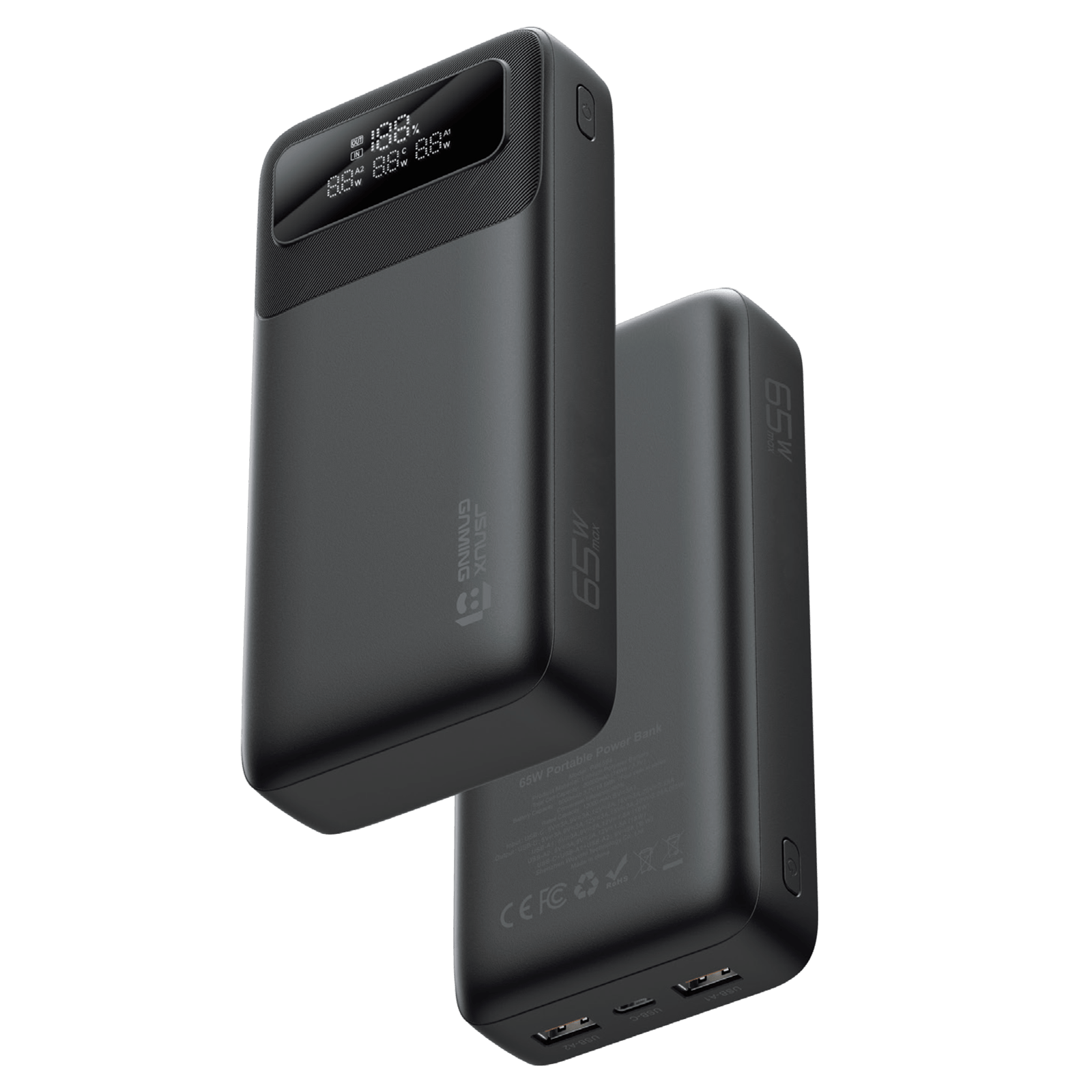
Description
- 【65W急速充電】PD 65Wの急速充電に対応し、USB-C経由で最大65Wを出力し、ノートパソコン、携帯ゲーム機、スマートフォン、タブレットなどを素早く充電します。
- 【20000mAh大容量】このポータブル充電器は、一日中デバイスを充電し続けるのに十分なバッテリー寿命を提供するため、長時間の旅行や外出の多い日には完璧なパートナーとなります。
- 【スマートデジタルディスプレイ】内蔵のデジタルディスプレイには、リアルタイムのバッテリー残量、電圧、電流が表示され、充電状況を簡単に監視できます。
- 【複数の出力ポートと100Wケーブル付属】USB-Cポート1つとUSB-Aポート2つを備え、複数のデバイスを同時に充電できます。利便性を高めるため、0.18mの100W USB-C to USB-Cフラットケーブルが付属しています。
- 【ユニバーサル互換性】Nintendo Switch 2、Switch、Switch OLED、Switch Lite、Steam Deck、Steam Deck OLED、ROG Ally、ROG Ally X、ROG Xbox Ally、ROG Xbox Ally X、Legion Go、Legion Go S、Legion Go 2などの幅広いUSB-C PDデバイス、およびスマートフォン、タブレット、その他のUSB-Cデバイスと互換性があります。ゲームと日常の充電ニーズすべてに1つの充電器で対応します。
- 【多重保護】過電流、過電圧、過熱、短絡に対する内蔵保護機能により、デバイスの安全で信頼性の高い充電を保証します。
FAQ
Q1. Why cannot I purchase the power bank PB6501?
A1. Due to the limitations of the logistics provider, the Power Bank PB6501 can only be shipped to the following countries and regions(we are still looking for a better solution), we are sorry for the inconvenience. USA / UK / Germany / Austria / Canada / Belgium / Czech Republic / Denmark / Estonia / Spain / Finland / France / Greece / Hungary / Italy / Lithuania / Luxembourg / Netherlands / Poland / Sweden / Slovenia / Slovakia / Portugal / Latvia / Bulgaria / Romania / Croatia / Ireland
Q2. Will a powerbank obstruct the intake vents when installed?
A2. The Power Bank is tied horizontally, and there is a certain distance from the game console, which will not block the air inlet and outlet of the game console.
Q3. Iam worried about putting heat into the steam deck from the battery use?
A3. When the power bank is in use, the shell heat will not be very high, and it will not cause the temperature in the game console to rise.
FAQ
Q1. What is the width that can be accommodated?
A1. 2cm is fine.
Q2. Will it block the SD vent and affect heat dissipation?
A2. Of course not.
Q3. Will I still be able to use the SG0104 with the Killswitch case on my Steam Deck?
A3. No, because the groove is not enough to accommodate the thickness of the SD after the Killswitch is installed.
携帯ゲーム機用滑り止めホルダー
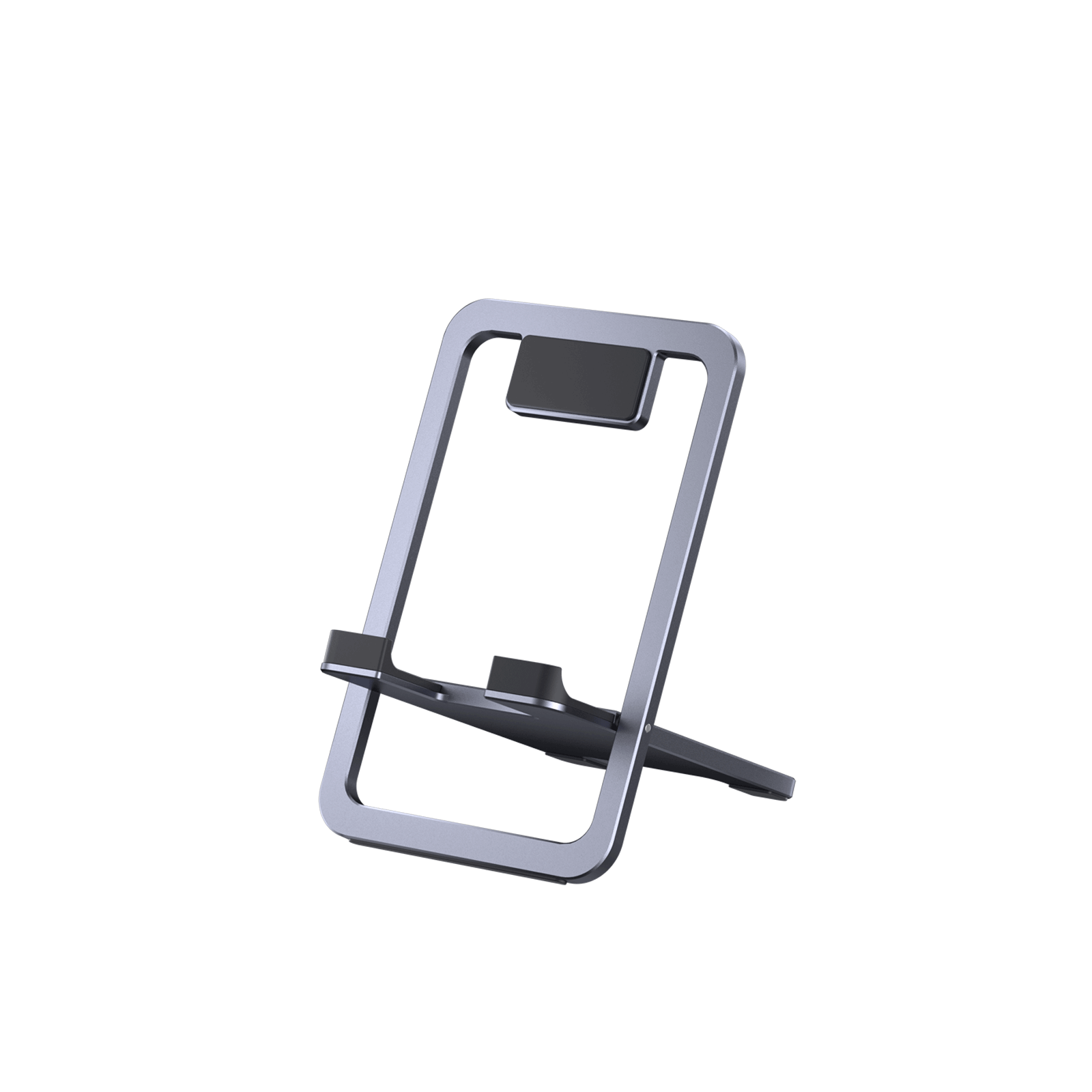
Description
- 【折りたたみ式で便利】このポータブルで折りたたみ可能なスタンドがあれば、Steam DeckやROG Allyのゲームセッションを外出先でも楽しめます。ポケットやバッグに簡単に収まる設計で、旅行や出張に最適です。
- 【両手を自由に】このスタンドを使用すると、両手を自由にして、いつでもどこでも Steam Deck / ROG Allyを楽しむことができます。
- 【角度調節可能】ホルダーは0°から90°までの角度調節をサポートしており、デバイスの角度を柔軟にカスタマイズして、最も快適な視聴角度を見つけることができます。
- 【頑丈なスイベルで緩みにくい】このスタンドのスイベル部分は強化素材で作られており、強度と耐久性に優れています。何度折りたたんだり広げたりしても、壊れたり型崩れしたりすることはありません。スイベルは滑らかでしっかりと固定されるため、Steamデッキを安定してしっかりと固定できます。
- 【幅広い互換性】 Steam Deck/OLED、ROG Ally/X、Switch、Switch 2、Legion Goに対応しています。Legion Go 2 / Legion Go Sの場合、スタンドは本体のみでの使用のみ可能です。ROG Xbox Ally/Xには対応していません。
FAQ
Q1. Would an ipad with a heavy-thick case fit into the groove?
A1. Fit fine. The hook that the iPad sits in has a platform of about 1’’.
Q2. What are the dimensions of the plate that the tablet leans on?
A2. 5.3” x 3.4”, and it supports a 11” tablet very securely, both horizontally and vertically. However, Please note that it does not work with tablets larger than 12 inches.
Q3. Is it made of stainless steel, brushed steel, or plastic?
A3. None of the above. JSAUX tablet holder is made of high quality alloy to ensure its stability and durability. Also its surface is frosted to avoid scratching your tablet.
Q4. Is this tablets holder adjustable in angle?
A4. Yes, you can adjust it to any angle you want.
Q5. Does the stand "give" if you are pressing the home button on the bottom of a tablet or is it locked securely in place?
A5. The stand has a rubber buffer between the upper stand and your device. It keeps the device from sliding. There is also a lip that keeps it from coming off at the bottom. Unless you are very hard on the button it should not slide.
FAQ
Q1.Can the stand adjust the angle arbitrarily according to the direction I want?
A1. Of course! The stand is equipped with two 360° adjustable rotations, and the 360° rotations are shown in the figure below. (It is recommended to hold the bottom firmly before twisting, and you will hear a click when twisting).
Q2.Why do I hard to adjust the height and angle of the Stand?
A2. It is recommended to snap the bottom clip in the position to be fastened, tighten it and then adjust the angle and height.
Q3.I feel that the adjustable rotation is a little loose after I use it for a period of time. What should you do?
A3. We include an L-shape hexagonal wrench for tightening to the right level at any time. Please note, do not tighten it too much, or the rotation will be stuck.
Q4.Does it fit the edge of my table/headboard/cabinet?
A4. The adjustable clamp base can vary from 0 to 2.9 inches (0-75 mm). It can be clamped as long as the thickness of the edge of your furniture is within this range. Also, we recommend clip it to something flat will be more stable.
Q5.Does it fit my phone?
A5. The phone holder can support devices of 2.5 to 4.1 inches (64-105 mm) in width devices. JSAUX Universal Cell Phone Holder is compatible with iPhone 14/14 Pro/14 Pro Max/14 Plus/iPhone 13/13 Pro/13 Pro Max/13 mini/iPhone 12/12 Pro/12 Pro Max/12 mini/iPhone 11/11 Pro/11 Pro Max/iPhone X XR XS Max/iPhone 8, Samsung Galaxy, Google Pixel and almost all cell phones.
FAQ
Q1. What diameter cup holder can it support?
A1. Cup holders with a diameter of 55-110mm are supported.
Q2. What is the length range of the bracket?
A2. The length of the bracket is 255-391mm (excluding the base).
Q3. Will it affect the air vent and interfere with the airflow?
A3. No, the bracket is installed on the cup holder, so it will not interfere with the airflow through the air vent.
Q4. How to use this bracket?
A4. 1. Place the base of the bracket into the cup holder in the car, hold the bracket with one hand, and use the other hand to turn the knob on the base clockwise to tighten the knob until the bracket is steady.
2. Adjust the transverse and longitudinal axles on the bracket until the phone clip is in the right position.
3. Open the phone clip and fix the phone to use it normally.
Q5. How to shorten the length of the bracket correctly?
A5. Pay attention to the Alignment mark, align the two up and down, and compress the short bracket down.
Q6. What should I do if the shaft of the bracket is loose?
A6. The shaft can be tightened with our included hex wrench for extra strength.
FAQ
Q1. Will the pressure from the front mounts damage the screen protector from the pressure placed upon it?
A1. No, it will not. With silicone pads on three sides for protection, the screen stays safe unless you go overboard with force. Once the base mount’s knob is tightened and holds the screen securely, no need to crank it further.
Q2. Can I use my iPhone 14 with a phone case on?
A2. No, unless it is a magnetic phone case. Otherwise, the magnetic force gets weakened through the case and the phone is more likely to fall off.
Q3. Can I use it on a laptop or monitor?
A3. The base clamp can support screens with a frame width > 6mm and a thickness ranging from 12-18mm, as long as the overall thickness of the screen is evenly distributed. If your screen meets these thickness requirements, then it is compatible for use.
Q4. How to use this metal ring?
A4. For non-magnetic phones, attach the metal ring to the back of your device. After applying the adhesive, let it sit for 10 minutes to ensure a stable bond before use. Remember, the magnetic ring is designed to support phones weighing less than 300g.
FlipGo ポータブル デュアルモニター
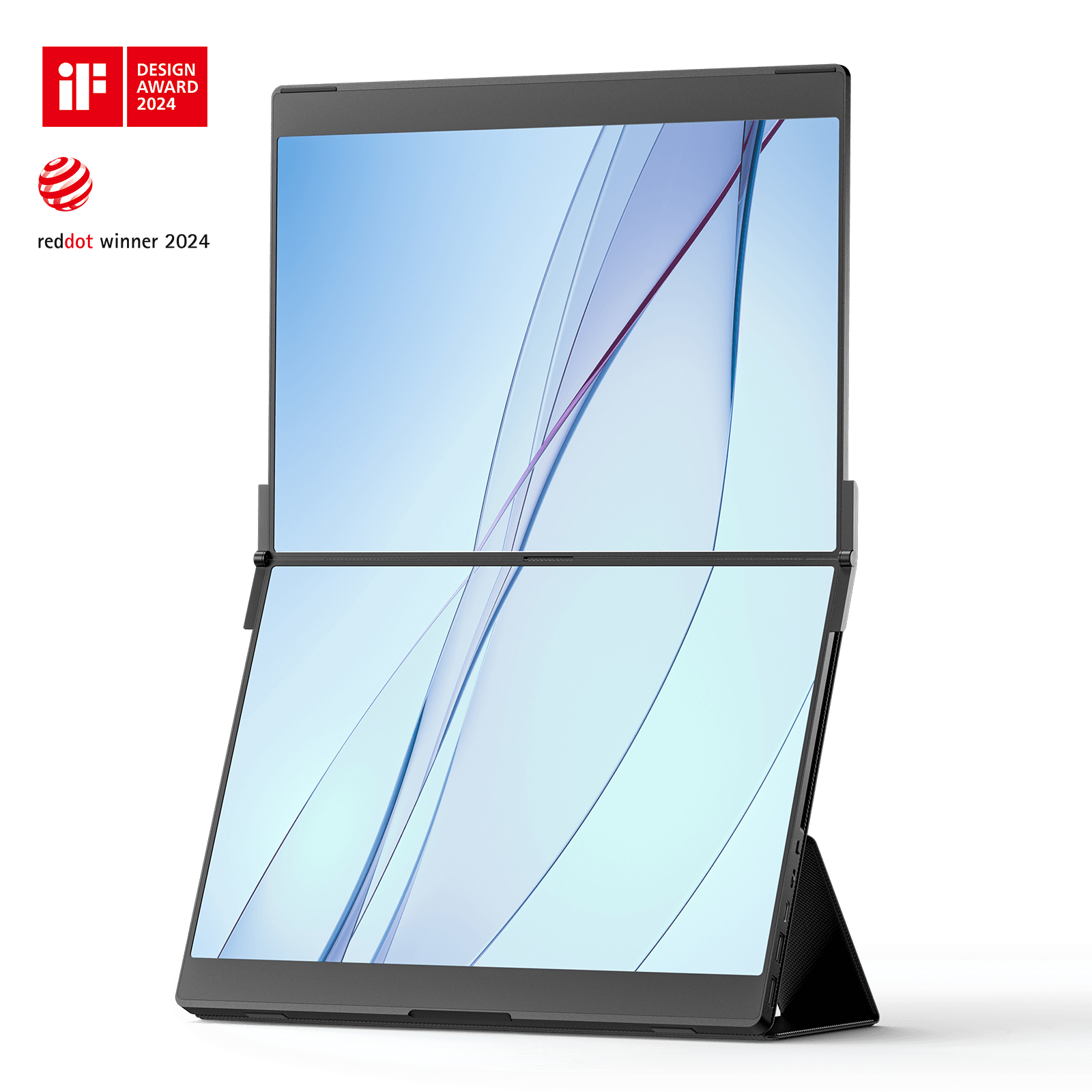
Description
- 【生産性を向上させるスタックディスプレイ】FlipGoは、ディスプレイを垂直に積み重ねることでデスクトップディスプレイに革命をもたらし、首の動きを減らし、集中力と生産性を高める正方形に近いアスペクト比を作り出します。超狭額ベゼルは2つの画面をシームレスに接続し、没入感のある途切れることのない視聴体験を提供します。
- 【デュアルスクリーンで生産性を向上】論文を執筆したり、複数の情報源を扱ったりする場合、デュアルスクリーンポータブルディスプレイはプロセスを簡素化します。効率的な分割画面ブラウジングを可能にし、アイデアやインスピレーションを追跡し、複数のデスクトップウィンドウを簡単に処理できる柔軟性を提供します。
- 【2つの画面を1本のケーブルで接続】FlipGoは、ノートパソコンのUSB-Cポートから直接電源を供給し、1本のケーブルでOne to DuoまたはUltraViewモードで2つの画面を点灯させます。外部電源に接続すると、ノートパソコンが充電されます。
FAQ
Q1. How to enter UltraViews mode?
1. Make sure you are using the FlipGo Pro version and successfully connected to your laptop. Because the non-Pro version does not support UltraViews mode.
2. Wait for the screen to light up and verify the screen mode. If it is not UltraView mode, please click the display switching button on the left side of FlipGo to switch to UltraView mode.
(Note:USB-C port and Mini HDMI port both can support UltraView mode.)
Please refer to the video for details:
Q2. Why can I only get a mirroring screen? How to enter DuoViews mode?
For mac
●If you are using the Pro version, please install and enable the DisplayLink driver first, and then use a USB-C cable to connect the DisplayLink port (marked double rectangles overlapping) and your laptop. Since Macbook only supports SST, you need to use DisplayLink to achieve a dual-screen extended display.
●If you are using the Standard version or the Touch version, please use the following method:
Method 1:
The laptop should be connected to the DP port (marked D-shaped) and HD1 (Mini HDMI) port at the same time to achieve a dual-screen extended display.
Method 2:
The laptop should be connected to the HD1 (Mini HDMI) port and HD2 (Mini HDMI) port at the same time to achieve a dual-screen extended display.
●After the connection is successful, you can go to "System Preferences" -> "Display" to view FlipGo’s settings.
For Windows
●Please use a USB-C cable to connect the DP port (marked D-shaped) and your laptop. (Note: The FlipGo Pro version only supports mirroring mode when using the HDMI port.)
●If you are using the Pro version and connected to the DisplayLink port (marked double rectangle overlapping), please install and enable the DisplayLink driver.
●If you are connecting to the HDMI port.
The laptop should be connected to both the HD1 (Mini HDMI) port and the HD2 (Mini HDMI) port for extended display
●After the connection is successful, in Windows, right-click on the desktop, select Display Settings, and then select Extensions.
Q3. Is there any usage tutorial?
Please check it here.
Q4. There is no signal after connecting.
● Power supply problem:
Please use the included power (PD 65W )supply to power FlipGo.
● DisplayLink problem (Only for Pro version):
If it is connected to the DisplayLink port (marked double rectangles overlapping) , please install and enable DisplayLink. You can check whether the screen is turned on in the DisplayLink settings.
Click here to download DisplayLink.
● Connection cable problem:
Check whether the HDMI to Mini HDMI or USB-C to USB-C cable is firmly connected, and try changing a cable to eliminate the cable problem.
● Laptop does not support video output:
Please check whether your USB-C port supports DP Alt mode. It is recommended that you contact the device manufacturer to confirm.
● Display setting issues:
On the connected device, check the display settings to confirm that the portable screen is detected and set to extended or mirrored display.
In Windows, you can right-click on the desktop, select "Display Settings", and confirm the display status of FlipGo in the settings.
In Mac, you can go to "System Preferences" -> "Display" to view FlipGo’s settings.
If the above checks cannot solve the problem, there may be a hardware failure in the portable screen or the connected device. You can try to connect the portable screen to other devices for testing to eliminate faults in the portable screen or the device itself.
Q5. Where to download DisplayLink?
Q6. Why do I feel the picture is a bit blurry?
Due to Apple system limitations, macOS does not enable its Retina-based high pixel density mode when connecting to a non-4K third-party screen.
1. It is recommended to use the default resolution.
2. Download the free version of BetterDisplay 2 to adjust HiDPI. When connected to the USB-C1 port, installing the free version of BetterDisplay 2 can unlock other clear resolution combinations.
Note: When connecting to the DisplayLink port (marked double rectangle overlapping), additional HiDPI options cannot be enabled due to DisplayLink limitations.
Click here to download BetterDisplay 2
Q7. Why is HiDPI not shown? How do I adjust HiDPI?
Please connect to the DP port(marked shape of a D). After installing the free version of BetterDisplay 2, you can unlock other clear resolution combinations.
Note: When connecting to the DisplayLink port (marked double rectangle overlapping), due to DisplayLink limitations, additional HiDPI options cannot be enabled.
Click here to download BetterDisplay 2
Q8. Why can not I touch it? Why does the FlipGo screen actually respond when I touch it somewhere else?
For Windows
1.Use the included full-featured USB-C cable to connect the FlipGo’s DP port(marked shape of a D) and your computer USB-C port.(Note: HDMI port only provides video signal transmission and cannot realize touch function)
2.Press "Win+R" to open theRun dialog, enter "shell:::{80f3f1d5-feca-45f3-bc32-752c152e456e}" and press Enterkey to bring up the tablet settings interface.
3.Or you can also access the tablet settings page through the Control Panel (for devices equipped with a touchscreen only).
Search for ’Control Panel’ in the search bar > Hardware and Sound > Tablet Settings.
4.In the display section, select "FlipGo-A1," click "Settings," and then choose "Touch Input."
5.Follow the on-screen instructions to designate the current screen as the touch screen, then lightly press the Enter key.
For Mac
The Mac system does not natively support touch. The touch function is implemented through a simulated trackpad. You need to move the cursor to the position of the touch screen to obtain a simulated touch experience.
1.Use the included full-featured USB-C cable to connect theFlipGo’s USB-C2portand your computerUSB-C port.(Note: HDMI port only provides video signal transmission and cannot realize touch function)
2.Open Settings > Display > Arrange Displays, then relocate the menu bar to FlipGo.
3.Move the cursor over to the desktop displayed on the FlipGo.
Click here for more setting details.
★HDMI cannot realize touch function signal transmission, because HDMI only provides video signal transmission, please connect the laptop through a USB-C cable.
Q9. Why can not I adjust the brightness?
When FlipGo is not connected to an external power, due to insufficient power from the laptop power supply port (especially when the battery is low), FlipGo will limit the screen brightness to 10% and disable other functions in order to ensure basic display requirements. For a better experience, we recommend you use an external power supply of 65W or higher to power the FlipGo.
And JSAUX takes customer feedback very seriously. If you would like to be able to adjust the brightness without being connected to external power, please let us know.
Q10. How to use the menu button?
The menu button uses a pulsator button, which needs to be pressed in place to call out the menu.
1-Press the menu dial to open the OSD menu, then press the power/back button briefly to return.
2-Move the dial up and down to adjust the selection box position/adjustment value.
NOTE: When not in menu mode, turn the dial to adjust brightness.
Q11. How to use the stand?
Please go to our manual page -choose “4 different stands” to get the usage guide. There will be tutorials on how to use our four different brackets.
Q12. How to switch between horizontal and vertical screens?
For Mac
When connected (the logo is in the shape of a D), adjust the rotation of FlipGo in macOS system preferences;
When connecting the DisplayLink interface (the logo is a double rectangle overlapping), adjust the rotation of FlipGo in the DisplayLink Manager.
For Windows
Access Windows Settings, navigate to Display Settings, and adjust the rotation angle accordingly.
For reference:
Q13. Does FlipGo support Steam Deck, Switch, iPad, and Samsung Dex?
Our portable screens can support devices equipped with DP Alt Mode (Type-C video output function). However, we do not recommend using it with handheld consoles (such as Steam Deck, Switch), smartphones, tablets, etc. Because these devices may have display limitations (such as the inability to customize the output resolution, the inability to set rotation, and the inability to support MST), compatibility issues may occur during connection (such as abnormal display, distorted images, or even the inability to output the display at all).
SteamデッキLCDおよびOLED用冷却ファン
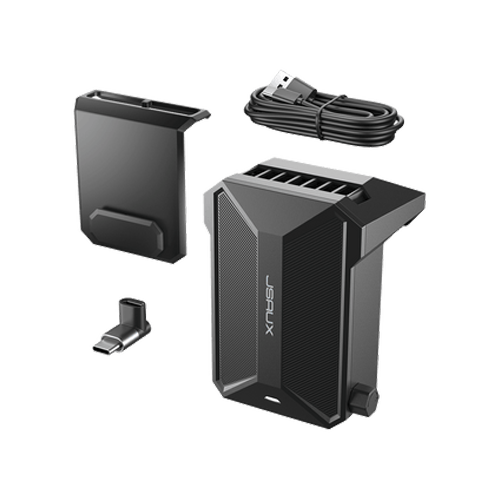
Description
- Steam Deck LCD & OLED 用に設計:この Steam Deck 用冷却ファンは Steam Deck 専用に設計されており、デバイスの使用時間を最大限に延ばして、より長く、より良いゲーム体験を実現します。
- 調整可能な速度ファン:いつでもニーズに応じてファン速度を調整でき、カスタマイズされた冷却体験を提供します。
- 長いバッテリー寿命: 1.5 時間のフル充電で、Steam Deck クーラーは 4 ~ 6 時間連続動作できるため、いつでもどこでも便利に使用できます。
- 急速冷却:急速冷却機能により、ゲーム機の温度が短時間で大幅に下がり、過熱を防ぎ、ゲーム体験が向上します。
- 大幅な温度低下: Steam Deck クーラーは Steam Deck を冷却するのに最適な方法で、温度が大幅に低下するため、過熱を心配することなくゲームを存分に楽しむことができます。
- 冷却ファンの電源が切れ、充電ケーブルに接続されている場合、デフォルトで最低風速で作動し、調整できません。最高風速で作動させる必要がある場合は、一度ファンの電源をオフにしてから、再度ファンの電源をオンにしてください。
- PC0104 のクーラー キットにはGP0200 冷却ファンが装備されています。
FAQ
Q1. How to install the cooling fans?
A1. If you want to use with PC0104:1. Install the PC0104 protective case on the Steam Deck2. Slide the cooling fans down to the chute on the back of PC0104.If you want to use it directly on Steam Deck:1. Paste the mounting sticker on the Steam Deck;2. Slide the radiator from top to bottom and fix it on the chute where the patch is mounted.
Q2. How to adjust the wind speed?
A2. If you turn the switch knob clockwise, the wind speed will gradually increase, and if you turn the switch knob counterclockwise, the wind speed will gradually decrease until it is turned off.
Q3. I do not want to buy the PC0104 kit, can I just want to buy the cooling fans?
A3. Sure you can, Our fans can be directly adapted to the steam deck.
Q4. Will the cooling fans interfere with the internal air pressure of the Steam Deck?
A4. No, the cooling fans are mounted on the Steam Deck’s air outlet (top), not the air inlet (back).Because our cooling fans draw air from the air outlet, it will increase the air intake speed and air intake volume of the air inlet. Resulting in faster air circulation, more heat can be taken away. With the current maximum air volume and rotation speed of our cooling fans, it is not enough to form negative pressure.
Q5. How long does it last on a full charge?
A5. The battery life can be up to 3 hours at the highest wind speed and about 5 hours at the minimum wind speed. The cooling fans will stop working after the power is consumed. It is recommended to use the distribution charging cable and right-angle adapter for charging.
Q6. Is the fan noisy when in use?
A6. With regard to cooler fan noise, at a distance of 25cm from the cooler fan,When the fan is at half speed, the noise level: 44-46DBWhen the fan is at maximum speed, the noise level: 48-50DBAt a distance of 15cm from the fan,When the fan is at half speed, the noise level: 44-48DBWhen the fan is at maximum speed, the noise level: 50-53DB
Q7. What is the difference in compatibility between GP0200 and GP0201?
A7. GP0200:Compatible equipment: Steam deck and steam deck with PC0104 protective case.And compatible with most docks. (Note: The official one needs to be used with our SG0104)GP0201:Compatible equipment: Steam deck and steam deck with PC0101/PC0103/PC0105/PC0106 protective case.(Not with our PC0104/PC0102 case.)
Q8. What is the difference between GP0200 and GP0201?
A8. GP0201 is an upgraded version of GP0200 fan! The new GP0201 fan has a unique telescopic function, you can adjust the height as you like so that it can adapt to more products! Moreover, there is a small upgrade at the bottom of the GP0201 fan, adding a practical bracket function that allows the fan to stand on the table.
Q9. Can GP0201 be disassembled?
A9. Does not support disassembly, GP0201 Cooling Fans are integrated.
Q10. Will the cooling fan GP0201 fit on the docking station?
A10. The cooling fan GP0201 cannot fit on the docking station.