


![Grey 2-pack 90 degree USB-C to USB-C right angle adapters #style_grey [2-pack]](http://jsaux.com/cdn/shop/files/90_-USB-C-to-USB-C-Right-Angle-Adapter-grey-1.png?v=1755238920&width=92)


![JSAUX anti-glare screen protector 2-pack for Lenovo Legion Go 2 with alignment frame #model_for legion go 2 [2-pack]](http://jsaux.com/cdn/shop/files/GP0132-Anti-Glare-Screen-Protector-for-Legion-Go-2-1.png?v=1766136633&width=92)


⚠️Important Note:
Upon receiving the product, please immediately download and install the DisplayLink driver from our official website or download it from the DisplayLink official website.
(Please follow the instructions below for specific steps.)

From
$22.99


From
$17.99


From
$19.99

From
$35.99

![JSAUX anti-glare matte screen protector for ROG Ally and ROG Xbox Ally series #style_[2-pack] for all rog ally models](http://jsaux.com/cdn/shop/files/GP0113A-Anti-Glare-Screen-Protector-for-ROG-Ally-_-ROG-Xbox-Ally-Series-1_jpg.png?v=1762310072&width=92)


From
$55.99

From
$39.99


From
$45.99


From
$22.99

(Please follow the instructions below for specific steps.)
⚠️PM0211-Windows and macOS Please install the DisplayLink Manager before first use.
Please make sure the recording permission is enabled.
System Settings - Privacy&Security - Screen & System Audio Recording - Turn on
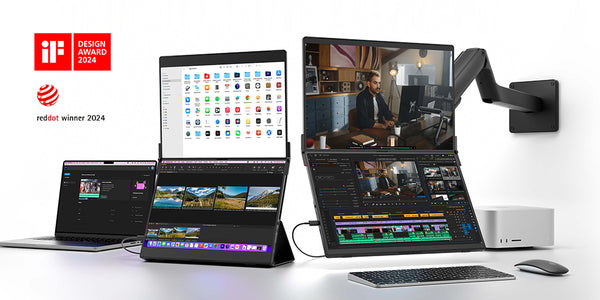
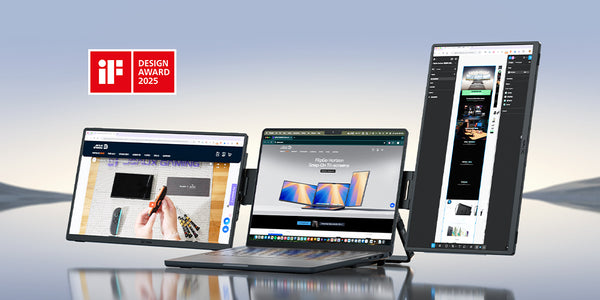
After unfolding the Docking stand, Place your computer on the docking station stand pad,align the portable screens with the magnetic areas on both sides.
Move the screens gently toward the stand until you hear a soft “click.”
The magnetic connection will automatically align and secure the screens in place.
Connect each cable in the correct order to ensure stable power and display output:
PD Charger → USB-C PD port (Power input)
Laptop → IN: USB-C port (Uplink connection)
Screens → USB-C Monitor ports (1 & 2) (Video output)
USB devices / Ethernet cable → respective ports
💡 Use a PD 65 W or higher power adapter for best performance.
Once all cables are connected, both screens will automatically power on.
The JSAUX logo will appear briefly before entering normal display mode.
Windows:
Open Settings → Display → Arrange Displays.
Drag the monitor icons to match your physical layout.
Select Extend or Duplicate (Mirror) mode as needed.
macOS:
Open System Settings → Displays → Arrange Displays.
Drag to adjust screen order.
Choose Extend or Mirror mode.
💡 Tip: Use Extend mode for multitasking with dual screens.
Your JSAUX Horizon Docking Stand is now ready to use!
Enjoy seamless dual-display productivity anytime, anywhere.
⚠️Note for macOS Users:
Please be aware that if you are using macOS, only one Snap Screen can be set to portrait mode.