

![Grey 2-pack 90 degree USB-C to USB-C right angle adapters #style_grey [2-pack]](http://jsaux.com/cdn/shop/files/90_-USB-C-to-USB-C-Right-Angle-Adapter-grey-1.png?v=1755238920&width=92)


![JSAUX anti-glare matte screen protector for ROG Ally and ROG Xbox Ally series #style_[2-pack] for all rog ally models](http://jsaux.com/cdn/shop/files/GP0113A-Anti-Glare-Screen-Protector-for-ROG-Ally-_-ROG-Xbox-Ally-Series-1_jpg.png?v=1762310072&width=92)


![JSAUX anti-glare screen protector 2-pack for Lenovo Legion Go 2 with alignment frame #model_for legion go 2 [2-pack]](http://jsaux.com/cdn/shop/files/GP0132-Anti-Glare-Screen-Protector-for-Legion-Go-2-1.png?v=1766136633&width=92)


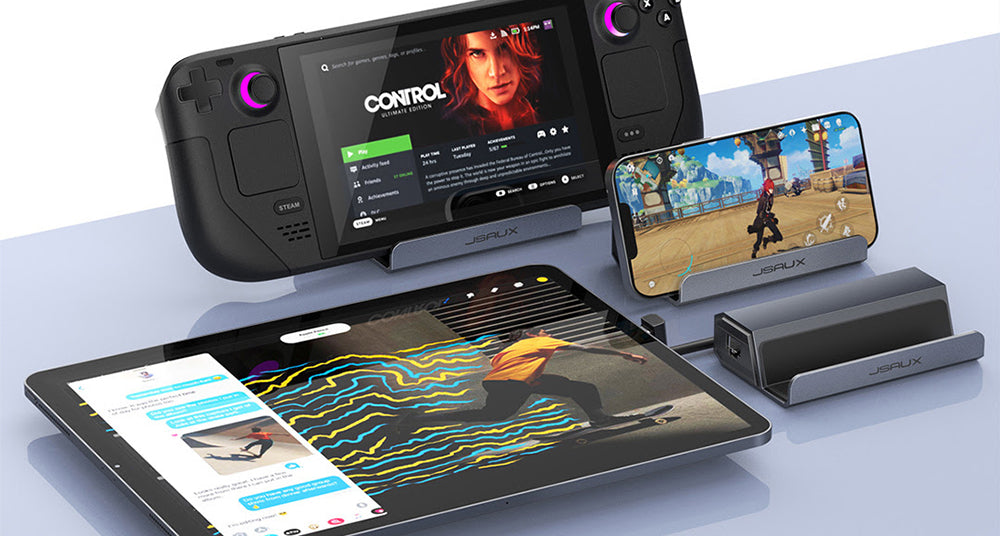
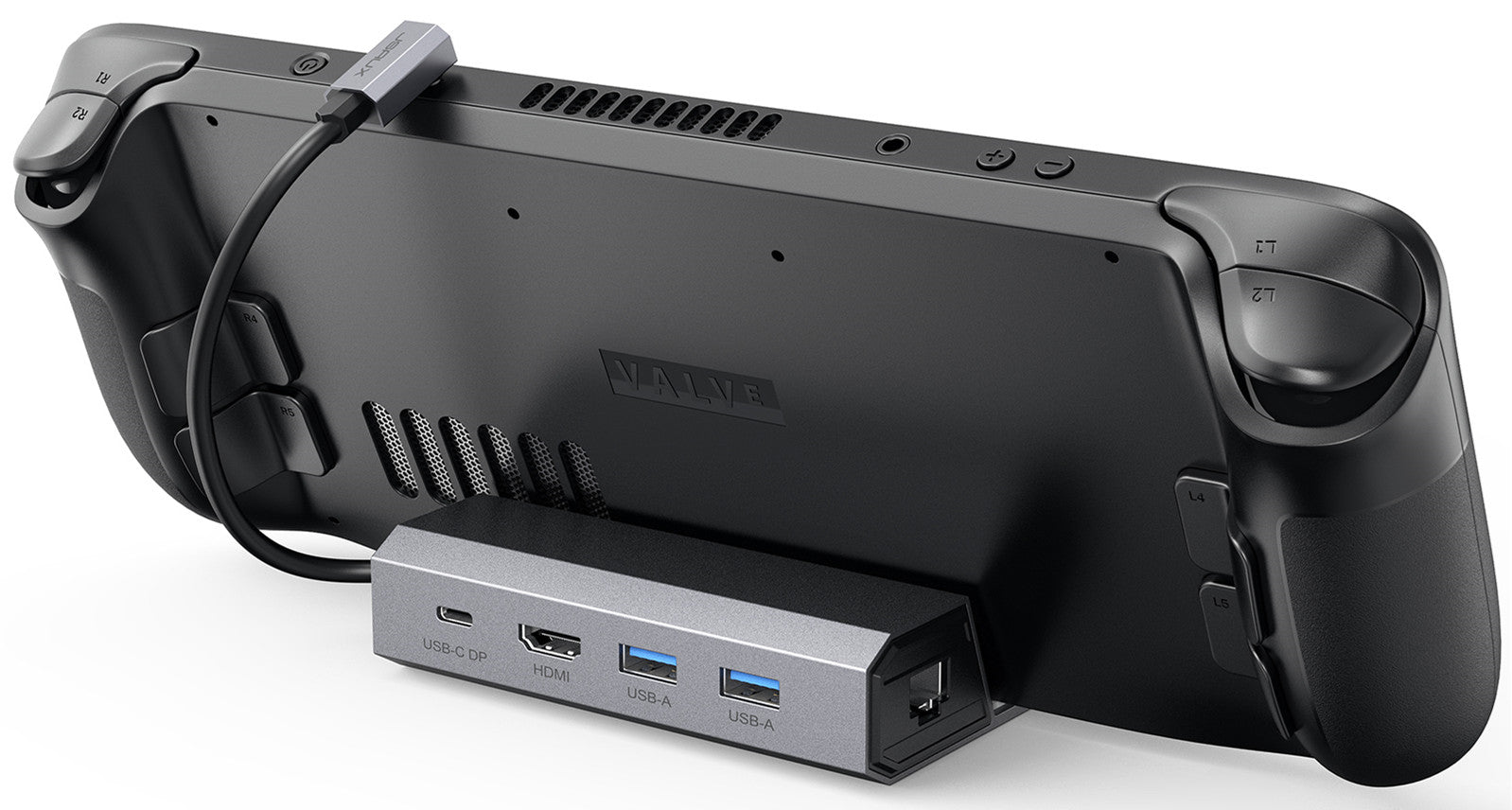
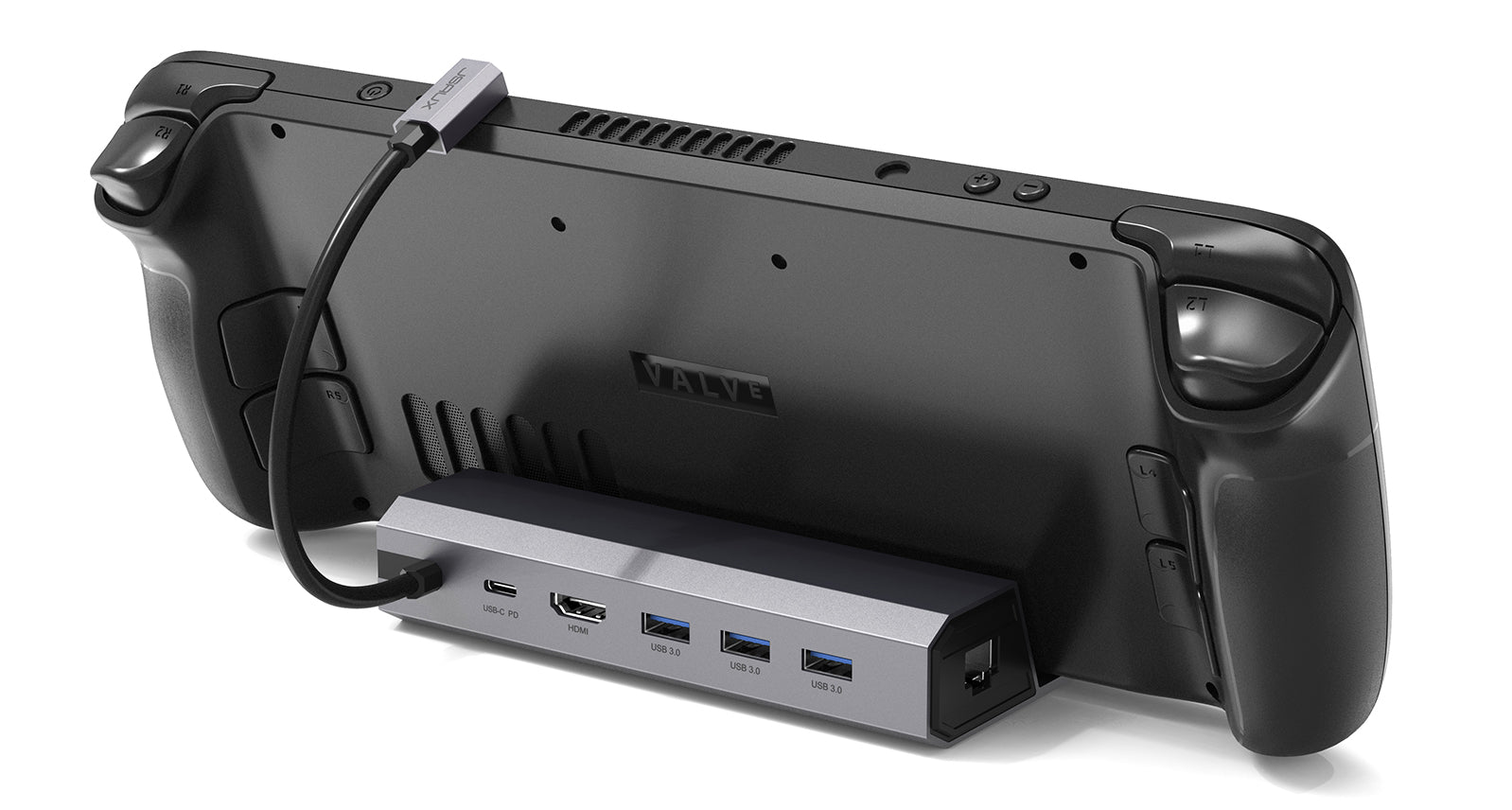
The JSAUX Steam Deck Docking Station
Using a docking station is one of the easiest ways to get more out of your Steam Deck.
It allows you to switch from handheld gaming to a full TV or desk setup in seconds, making it feel much closer to a console or even a compact PC when needed.
If you're exploring different docking setups, you can browse the full docking station collection here: https://jsaux.com/collections/docking-stations
What a Docking Station Actually Does
A docking station connects your Steam Deck to external devices and expands its capabilities. With the right setup, you can:
- Connect to a TV or monitor
- Use controllers, keyboard, and mouse
- Add wired internet for more stable online gaming
- Charge your device while playing
In simple terms, it turns your handheld into a more flexible gaming system.
Display Output and Real-World Performance
Modern docking stations support a wide range of display outputs, depending on your setup. Most setups support:
- Up to 4K output (device and display dependent)
- 4K@60Hz or 1080p for a more stable experience
In real-world use, performance depends on:
- Device capability
- HDMI version
- Game optimization
- Display refresh rate
For most users, 1080p or 4K@60Hz provides a better balance between visual quality and smooth performance.
Charging While Docked (Important)
When your Steam Deck is connected to multiple devices through a dock, power demand increases significantly. This includes:
- Display output
- USB accessories
- Network connection
Using an underpowered charger can lead to slow charging or even battery drain during gameplay. For a stable setup, a 65W USB-C charger or higher is recommended.
If you're not sure what to use, you can check this guide: https://jsaux.com/blogs/news/best-steam-deck-charger-in-2026-complete-charging-setup-guide
Building a Complete Dock Setup
A docking station works best as part of a complete setup rather than a standalone accessory. Most users build around three key components:
- Docking station
- Charging setup
- Protective case
If you're planning a full setup, this guide covers everything together: https://jsaux.com/blogs/news/best-steam-deck-accessories-in-2026-complete-setup-guide
--- Everyday Dock Setup
This is the most common use case. You connect your Steam Deck to a TV, plug in a controller, and start playing.
Typical setup:
- Dock + TV
- Controller
- Standard charging
Simple and effective for everyday gaming.
--- Performance-Focused Setup
For users who want more stable performance, especially in online or demanding games. Focus on:
- Wired Ethernet
- Stable power input
- Consistent display settings
This setup prioritizes stability over maximum resolution.
--- Desk / Hybrid Setup
For users switching between gaming and productivity, a dock can act as a compact desktop hub. You can connect:
- Monitor
- Keyboard and mouse
- Additional accessories
In this setup, stability and cable management become more important than raw specs.
❓ Common Docking Issues and Fixes
No signal on TV: Check HDMI connection, Switch input source, Reconnect the dock
Slow charging or battery drain: Use a 65W+ charger, Avoid low-power adapters
Input lag on TV: Enable Game Mode on your display, Use wired connections where possible
Final Thoughts
A docking station is one of the most useful upgrades for Steam Deck users who want a more flexible setup.
On its own, it expands connectivity—but when combined with the right charger and accessories, it becomes part of a much more complete system.
For most users, starting with a reliable dock and a stable charging setup is enough to significantly improve the overall experience.
🙋FAQ
Q: Which devices are compatible with JSAUX docking stations?
A: Most JSAUX gaming docking stations support Steam Deck, Steam Deck OLED, ROG Ally, ROG Ally X, and other USB-C handheld devices.
Selected models also support ROG Xbox Ally / Ally X, Legion Go, Legion Go 2, and Legion Go S, depending on the specific dock version.
Q: Do JSAUX docking stations support 4K output?
A: Yes. Depending on the model, JSAUX docking stations support up to 4K@60Hz or 4K@120Hz, when paired with compatible displays, HDMI version (HDMI 2.1 required for 4K@120Hz), and supported devices.
Q: Can I charge my device while using a JSAUX dock?
A: Yes. JSAUX docking stations support pass-through charging, allowing you to power your device while connecting external displays and peripherals. A 65W or higher USB-C PD charger is recommended for stable performance.
Q: Do JSAUX docking stations improve gaming performance?
A: Most docking stations do not directly increase FPS, but two JSAUX models include advanced gaming features that enhance responsiveness and display stability:
These models support:
- ALLM (Auto Low Latency Mode)
- VRR (Variable Refresh Rate, HDMI 2.1 only)
- QFT (Quick Frame Transport)
- HDR (High Dynamic Range)
These features help reduce input delay and improve motion smoothness on compatible displays.
Q: Can I use keyboard, mouse, and Ethernet at the same time?
A: Yes. JSAUX docking stations support multi-device expansion, including USB peripherals (keyboard, mouse, controllers) and wired Ethernet, providing a more stable and responsive gaming or desktop experience.
Q: Why is there no display output when using the dock?
A: Common causes include:
- HDMI cable not fully connected
- Incorrect TV/monitor input source
- Insufficient power supply
- Device not properly seated in the dock
Reconnecting the dock and ensuring proper power input usually resolves the issue.
Q: Do I need drivers to use a JSAUX docking station?
A: No. JSAUX docking stations are plug-and-play and do not require any drivers or software installation.

Leave a comment
All comments are moderated before being published.
This site is protected by hCaptcha and the hCaptcha Privacy Policy and Terms of Service apply.