

![Grey 2-pack 90 degree USB-C to USB-C right angle adapters #style_grey [2-pack]](http://jsaux.com/cdn/shop/files/90_-USB-C-to-USB-C-Right-Angle-Adapter-grey-1.png?v=1755238920&width=92)


![JSAUX anti-glare matte screen protector for ROG Ally and ROG Xbox Ally series #style_[2-pack] for all rog ally models](http://jsaux.com/cdn/shop/files/GP0113A-Anti-Glare-Screen-Protector-for-ROG-Ally-_-ROG-Xbox-Ally-Series-1_jpg.png?v=1762310072&width=92)


![JSAUX anti-glare screen protector 2-pack for Lenovo Legion Go 2 with alignment frame #model_for legion go 2 [2-pack]](http://jsaux.com/cdn/shop/files/GP0132-Anti-Glare-Screen-Protector-for-Legion-Go-2-1.png?v=1766136633&width=92)


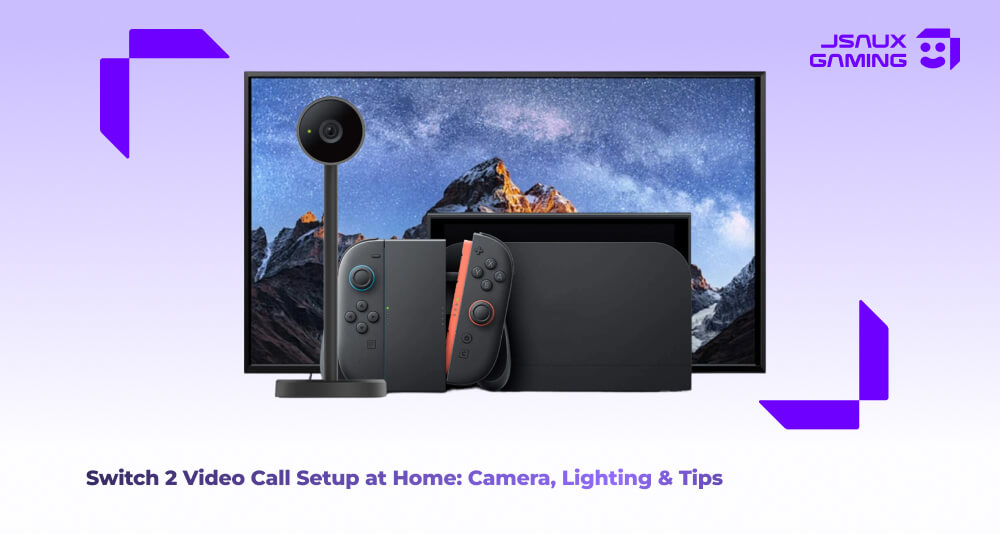
DId you know that the Switch 2 isn't just a platform for playing games or browsing the internet, but can also be used for video calls right from the comfort of your home? It is actually quite easy to set up, much easier than most people expect. All you really need is your handy Switch 2, a compatible camera, a stable internet connection and a quiet spot in the house where you can sit comfortably and undisturbed. The system handles video calls pretty smoothly as long as you give it all the functional tools it needs to work with. No longer do you have the need for building a studio or a desktop or such for a meeting, when you can have what is akin to a casual “facetime” call that just happens to be from the same place you played MarioKart with 20 minutes ago.
Choosing the Best Mode for Home Video Calls
TV mode is usually the best option when it comes to most home video calls. All you need to do is dock your Switch 2 to enable it to use a bigger screen which allows for more natural, longer conversations as well as when you wish to set up a group call. Tabletop mode is a great alternative in tight spaces, but the caveat is that the screen is much smaller and you have to be a little more mindful of camera alignment. Overall though, most people who have used it tend to swear by the TV mode since it offers more room to breathe and move, and also allows you to talk continuously and comfortably without needing to adjust your sitting position to remain in frame.
Lights, Camera, Audio!
One of the most important things with any video call is camera positioning, and this is usually where even the smallest changes can result in big differences. When setting up, try and ensure that the camera is sitting at eye level, or slightly above it angled gently downward toward you. Sitting too close to the camera can feel awkward to the viewer, kind of like when you stand too close to a doorbell camera and you get the fish-eye effect. A good rule of thumb is to ensure you’re framing yourself well, from the chest up with a little bit of space above your head, similar to how you’d sit when getting a picture taken for renewing your passport photo! In fact, there have been a fair few anecdotes from users stating that once they stopped placing the camera below the screen, their calls felt less like a security camera feed and more natural, almost as if they were talking in person.
The camera placement tends to be a pretty important step, but there are also a couple other things to take into account- lighting and audio. Bearing in mind that neither lighting nor audio solutions really need to be super fancy for the video call to work well, there are a couple things to keep in mind. Try to face a window or a soft light source in front of you instead of behind. This will ensure that your face and body is lit up and not covered in shadows, or turning you into a silhouette. Overhead lights work fine as well, just ensure the light your face up well and avoid casting shadows on you. When it comes to the audio side of things, a quiet room is ideal. A big room can cause an echo, but if that room has items in it such as a rug, closed curtains or other furniture, it can help alleviate the problem of bouncing voices and cut back on the echoing.
Now, that was a lot of words and sometimes information can be easier read in bulletpoints, so for our faster readers, here’s a simple checklist for you to adhere to when setting up your Switch 2 for video calls:
- Dock your Switch 2 and enable TV mode (TV mode is recommended for larger screens, better framing and video conferencing)
- Connect a compatible camera
- Position the camera at eye level or slightly higher than yourself
- Ensure the room has ample light, either facing an open window, a soft light source pointed at you or overhead lighting that avoids covering you in shadows
- Lower the TV volume to avoid echo and feedback, and avoid using a big empty room to alleviate echoes
- Enjoy the video call!
Common Problems and Fixes
Most technical problems that you may potentially encounter can be fixed surprisingly easily. For example, if your camera isn't detected, resetting the connection by replugging in the camera or restarting the console fixes it sharpish. Blurry video can be a result of sitting too close to the camera or poor lighting conditions. Echo or feedback can be a myriad of things such as the TV being too loud, the room being too big and empty resulting in echoes, all easily fixable solutions. For users that are in the market looking for a dedicated option, the JSAUX Multifunctional Camera for the Switch 2 fits neatly into your home setup without drawing attention to itself. It even aligns itself easily with both TV or tabletop mode for your Switch without causing a fuss.
Summary
At the end of the day, setting up and using the Switch 2 for video calls while in the comfort of your home (or any other place really) is all about comfort and clarity coming together to give you that perfect experience. It doesn't need to be perfect for you to be able to use the service- a well placed camera, decently lit room and a quiet space will do more than any other complicated and extravagant setup ever could offer. Once you have those covered, you can enjoy hands free video calls in a relaxed, personal space. A little attention upfront goes a long way to ensure an effortless and easy-to-use setup!

Leave a comment
All comments are moderated before being published.
This site is protected by hCaptcha and the hCaptcha Privacy Policy and Terms of Service apply.