


![#style_[2-pack] for all rog ally models](http://jsaux.com/cdn/shop/files/GP0113A-Anti-Glare-Screen-Protector-for-ROG-Ally-_-ROG-Xbox-Ally-Series-1_jpg.png?v=1762310072&width=92)


![#style_blue&orange [2-pack]](http://jsaux.com/cdn/shop/files/90_-USB-C-to-USB-C-Right-Angle-Adapter-blue-orange-1.png?v=1755238920&width=92)



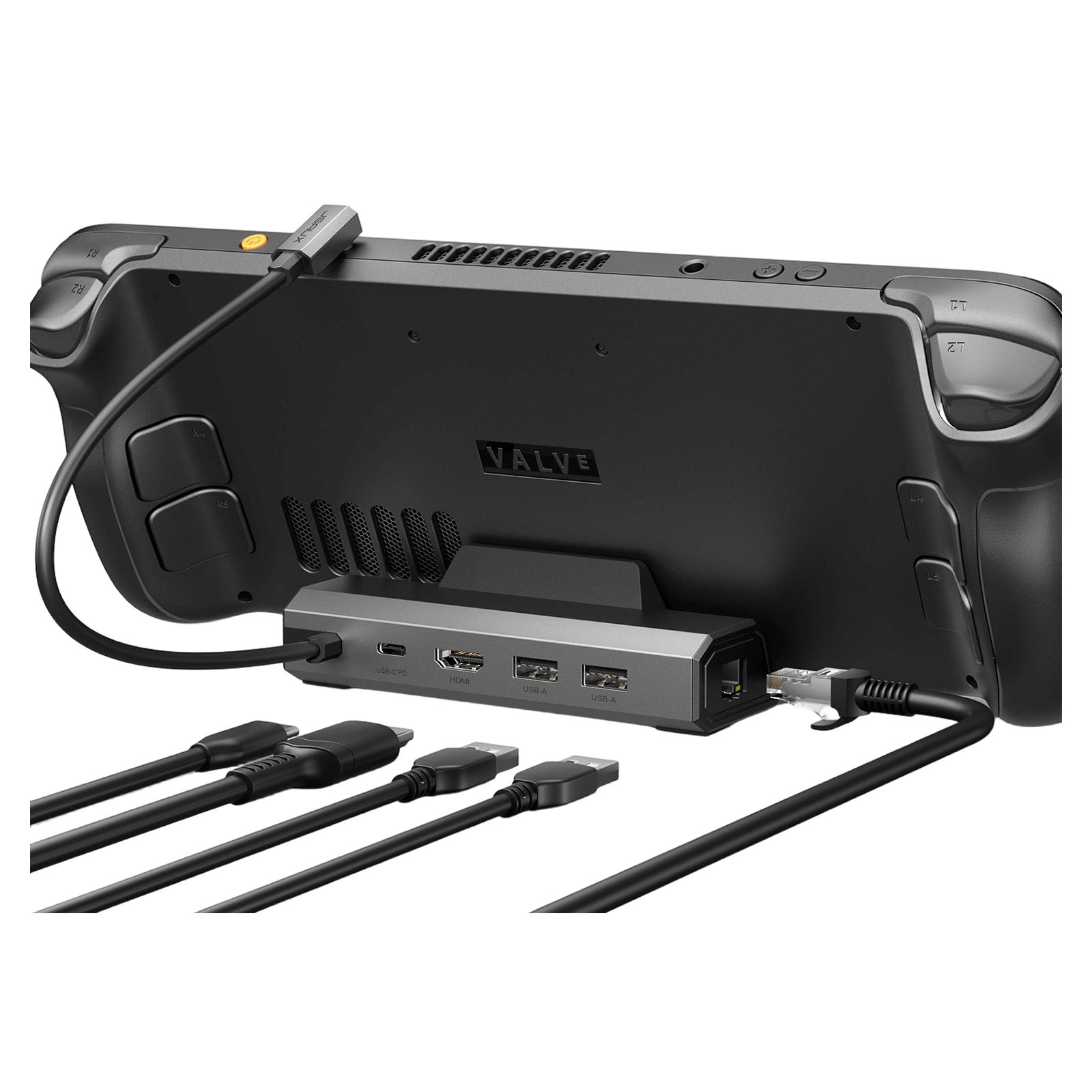
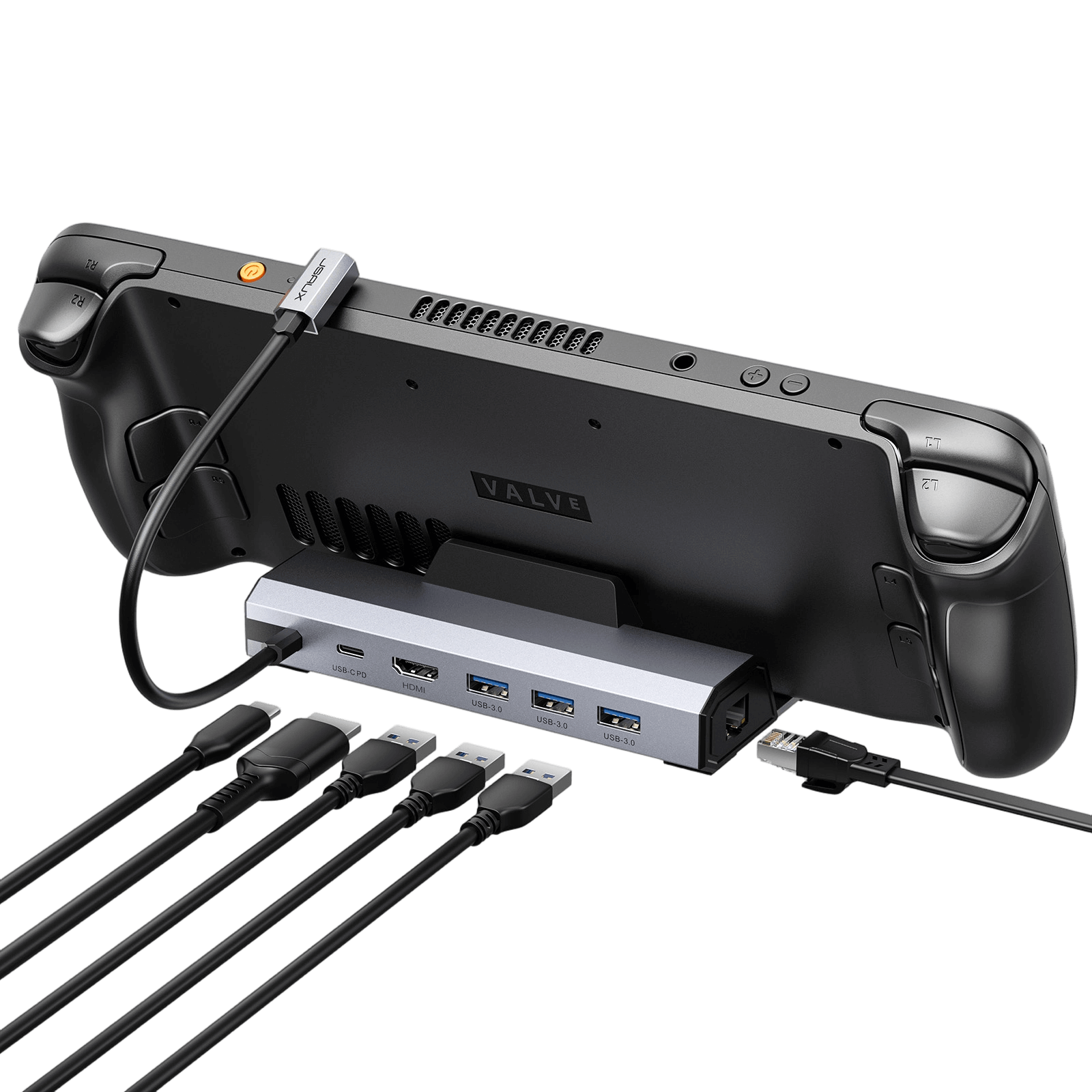
- 【Upgraded 6-in-1 Docking Station】: Features HDMI 2.1 4K@120Hz output for ultra-smooth, crystal-clear visuals, plus 100W PD charging, 3 fast USB A 3.0 ports, and a ultra-fast Gigabit Ethernet connection. Now supports ROG Ally X and Legion Go S, giving you more ways to enjoy a seamless big-screen gaming experience. (Note: HB0603S is not compatible with ROG Xbox Ally/X.)
- 【4K@120Hz HDMI Output (Upgraded)】: Experience double the refresh rate compared to the previous 4K@60Hz version. Whether you’re battling online or watching cinematic cut-scenes, enjoy buttery-smooth gameplay and reduced screen tearing on external monitors.
- 【Full-Speed 100W Charging】: Supports up to 100W PD charging, easily powering your handheld in Turbo Mode. Keeps your gaming sessions uninterrupted — no need to worry about battery drain even during marathon play. Note: The ROG Ally's 30W Turbo Mode is fully supported, but a 100W charger is recommended.
- 【Gigabit Ethernet】: Enhance your gaming with gigabit Ethernet for seamless online play, rapid updates, and quick file transfers. Enjoy lightning-fast downloads and uploads, eliminating lag and latency for uninterrupted sessions.
- 【Expanded Device Compatibility】: Now works with Steam Deck LCD/OLED, ROG Ally / Ally X, Legion Go / Go S, and MSI Claw — making it your all-in-one solution across multiple handhelds. Note: HB0603S is not compatible with ROG Xbox Ally/X.
FAQ
PC0106 RGB — Q1: Why is there only one crystal color and no other colors?
A1: Only one color is currently available. Due to the RGB light effect, only the crystal shell can completely pass through, and the shells of other colors can only pass through part of the light, resulting in poor light effect.
PC0106 RGB — Q2: Can its RGB lighting effects be controlled only by buttons? Is it possible to set it up directly through the Steam deck?
A2: Yes, for the control of RGB lighting effects, the solution we currently provide is indeed controlled by physical buttons. Currently, it is not possible to set it directly through Steam Deck, but this design ensures that you can control the lighting effect conveniently and quickly at any time, regardless of whether Steam Deck is running or not.
PC0106 RGB — Q3: Will its RGB lighting effect consume the battery of the Steam deck and affect the usage time?
A3: The RGB lighting has a built-in 150mAh lithium battery, please rest assured that it will not consume the power of the Steam deck itself when in use.
PC0106 Vents — Q1:Will the open hole affect the original air duct of the original case, resulting in reduced cooling effect?
A1: Please do not worry, we specially considered the effect on the Steam Deck air duct when designing this transparent case.
The position of the opening is carefully selected to directly align with the air intake of the fan, which can shorten the air flow path and increase the air circulation speed, thereby accelerating the heat dissipation process. This design helps to remove the heat from the surface of the heat-conducting copper tube inside the Steam Deck faster, improving the operating efficiency of the device.
In order to keep the original heat dissipation air duct of the equipment unaffected, we used pre-cut silicone grease inside, and reserved a place for the original air intake. This ensures that the function of the original air intake is not disturbed, thus ensuring the air flow inside the device.
PC0106 Vents —Q2: Will dust get in after opening the hole in the back of the Transparent Back Plate ?
A2: Please do not worry, we installed a 50-mesh dust filter on the fan to cover the hole, which can prevent dust particles with a diameter of about 300 microns.
This mesh is typically used to keep larger airborne particles such as dust, pollen, and other impurities from entering the fan area while ensuring good airflow and cooling.
In addition, we also recommend that you clean the dust filter regularly and avoid using it in a dusty environment.
PC0106 Vents — Q3: Can it be used together with a protective case?
A3: The perforated design behind the clear case is precisely designed to maximize air flow, thereby effectively dissipating the heat inside the device.
If Using with other protective cases and silicone cases, etc., may block these cooling vents, interfere with the thermal management of the device, and may reduce the performance of the device.
Therefore, we recommend that you use this clear case alone to get the best Excellent device protection and heat dissipation.
FAQ
Q1. What should I do if the back buttons (R4, R5, L4, L5) cannot be pressed after I replace the back plate?
A1.After installing the button, first, check whether there is a gap between the button and the buckle and whether it can be pressed and rebounded normally.
If there is a gap that can be pressed and rebounded normally, continue to install.
If there are no gaps, proceed as follows:
1) Loosen the button screw for 2-3 turns. This method can make the space inside the button bigger, but it will make the whole button feel loose.
2) Add a gasket of M3 or M4 size to the yellow nut (the size of the gasket is about 5-6mm in outer diameter, 3.2mm in inner diameter, and 0.5mm in thickness. You can also trim a gasket with harder cardboard according to this size) , this method increases the pressing space at the other end by raising the nut.
3) Slightly loosen the back cover screws near the stuck button for 2-3 turns. For example, if R4 will be stuck, loosen the three screws closest to R4. This method can increase the pressing space, please be careful not to screw it too loosely.
2. Check if there is a gap at the top, because the gap is caused by deformation, and deformation may also cause the button to get stuck.
If there is no gap, continue with the installation. If there is a gap, remove the thermal grease and reinstall it.
Q2. After changing to a back plate, can it still be fit with a protective case?
A2. The transparent case is the same size as the original back cover. If you choose a lower or medium button , it is compatible with all JSAUX protective cases.
Q3. Is it normal for the thermal grease to get hot?
A3. That is normal, the thermal grease conducts heat from the Steam Deck circuit board. In addition, because the aluminum itself has good thermal conductivity, it will be hotter than other areas when touched, so be careful not to touch it to avoid being burned.
If you still feel too hot, you can also remove the inner thermal grease.
Q4. Will the thermal grease affect the original heat dissipation of the Steam Deck?
A4. It will not affect the original heat dissipation of the Steam Deck. Because the air inlet and outlet of the steam deck heat dissipation are separate heat dissipation pipes, and the thermal grease will not block the heat dissipation channels.
Q5. I replaced it with a jsaux’s button (medium or higher), can it fit in the valve carrying case/JSAUX case?
A5. It cannot be put into the original valve carrying case and JSAUX-BG0102 carrying case, but it can be put into JSAUX shoulder bag-BG0105 or carrying case-BG0106.
Q6. Why is the color of the product I received a little different from the picture?
A6. Actual colors may vary. This is due to computer monitors & screens displaying colors differently and everyone can see these colors differently.
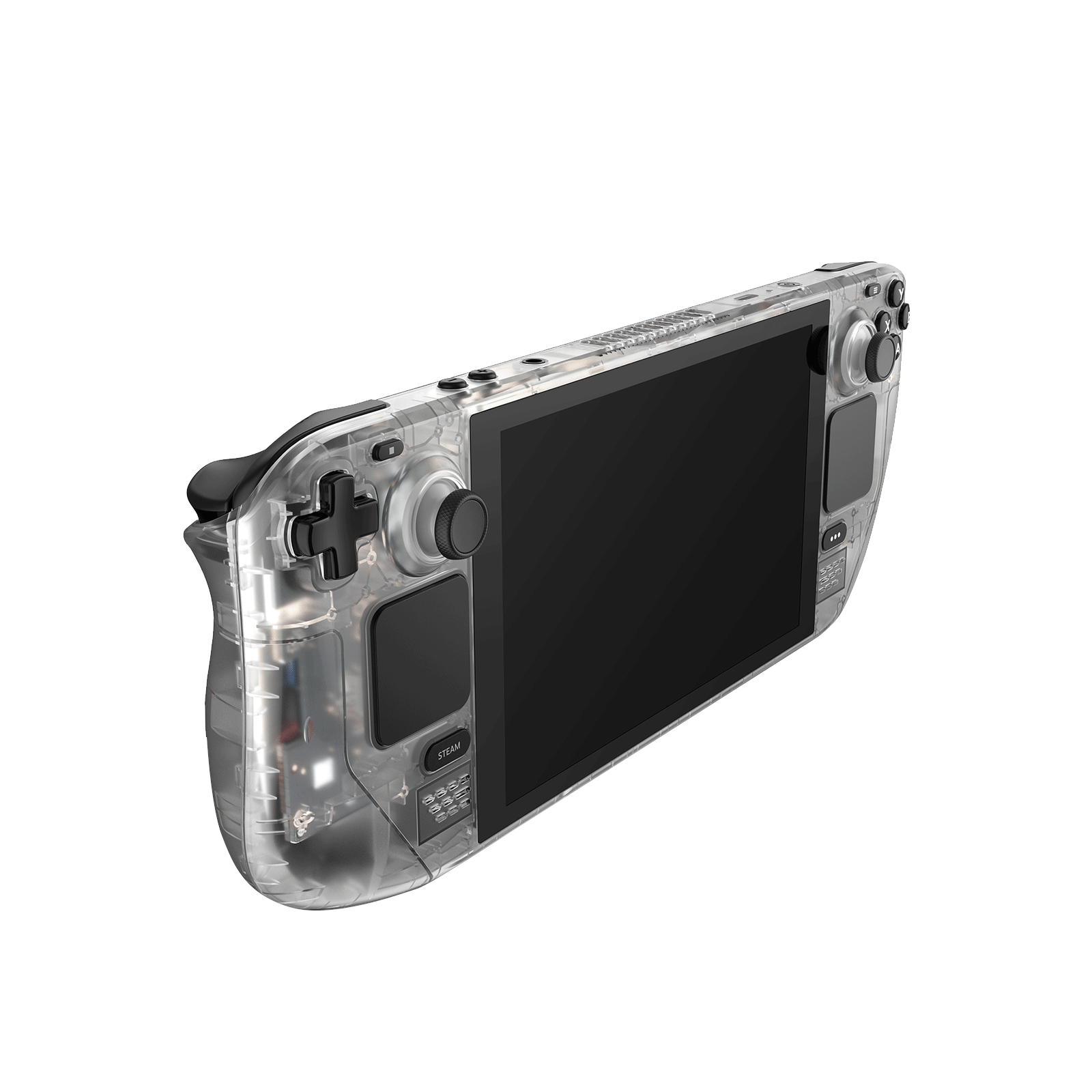
Transparent Shell Series for Steam Deck LCD
Description
About Front Cover
- Clear view of your Steam Deck internal components.
- DIY customization for enthusiasts who enjoy hands-on customization.
- Premium quality materials & accessories that guarantee durability and a premium feel. Also bundled is a comprehensive set of high-quality accessories.
- The transparent front cover perfectly fits your Steam Deck.
- Rigorous testing process to ensure its compatibility with the Steam Deck.
About the Back Plate Vents
-
Transparent Back Plate for Steam Deck PC0106B
The upgraded version of the Transparent Back Plate for Steam Deck PC0106 - Enhanced Airflow: Intake vent added for shorter airflow path, significantly improving heat dissipation.
- Improved Cooling: Thanks to embedded aluminum fins for lower surface temperatures that ensure a cooler casing and reduce the risk of accidental burns.
⚠️Notes:
- The Transparent Front Cover isn’t recommended for users without experience in DIY and/or disassembling electronic devices. We strongly recommend carefully reviewing the Installation videos and Text if you choose to install it or seek the services of a professional. The user shall bear any equipment malfunction caused by the disassembly of the Steam Deck, but not by this product.
- When tightening screws, ensure proper alignment without excessive force. Avoid over-tightening to prevent deformation, which may lead to device damage.
FAQ
Q1. What should be paid attention to when disassembling the machine?
1. Replacing the cover of the Steam Deck involves a significant amount of work. The replacement process takes about 3-5 hours and is very difficult. We recommend that you find professional maintenance personnel to do it.
2. For information on changes to the overall device repair policy resulting from the disassembly, please refer to the official information provided by VALVE.
3. To minimize the risk of damage, please discharge the Steam Deck battery to below 25% before disassembly.
4. Before disassembling, please completely power off the Steam Deck and unplug all cables. Please follow the anti-static safety operation rules, such as washing hands before disassembling the device, wearing anti-static gloves, wearing clothes that are not easy to generate static electricity, and maintaining indoor humidity.
5. If you installed a Micro SD card, make sure to remove it before disassembling the Steam Deck.
6. If you use a screen protector on your screen, please remove the screen protector before disassembly.
7. Avoid touching other internal components of the device as much as possible. Please properly store the original parts and screws that have been removed.
8. For more detailed disassembly tutorials, please refer to the tutorial on the official website of JSAUX: https://jsaux.com/pages/pc0108-installation-tutorial
Q2. Is the front cover compatible with your PC0106 Transparent Back Plate?
A2. Yes
Q3. What is the difference between the PC0108 front cover and the original front cover?
A3. The PC0108 front cover is made of frosted translucent ABS+PC material, and the specifications and dimensions are the same as the original front cover.
Q4. After changing the front cover, can I still install the protective cover?
A4. Yes, the size of the PC0108 transparent front cover is the same as the original front cover, so the compatibility of the PC0108 is the same as that of the original Steam Deck cover, and both can support various types of JSAUX and third-party protective cases.
Q5. Is it normal for the front cover to see through light?
A5. Yes, the cover is transparent, and there are light-emitting elements inside the machine that can directly transmit light to the outside through the cover.
Q6. More questions about installation
RGB Transparent Back Plate for ROG Ally X
Description
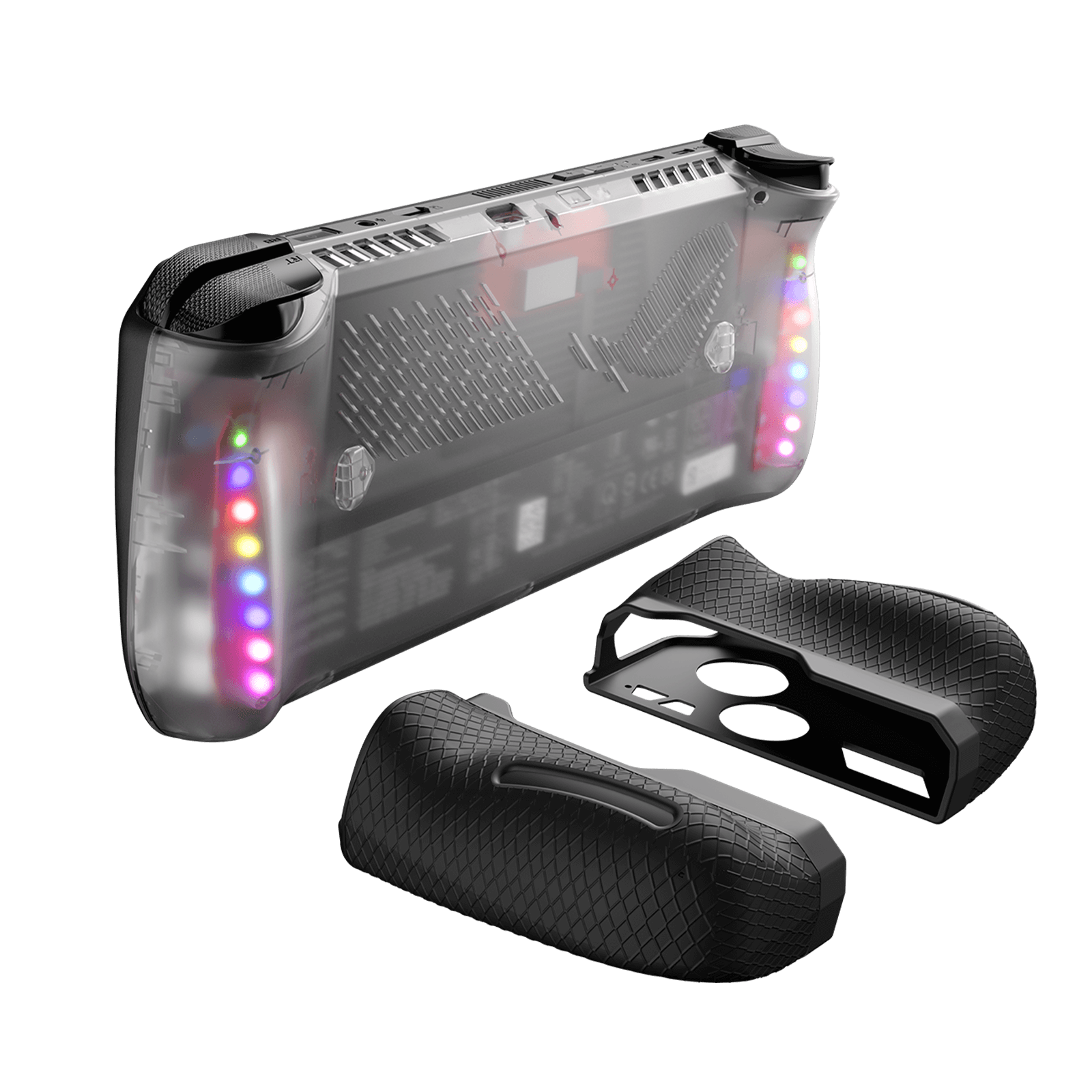
- 【Dynamic RGB Aesthetics】: Experience 6 stunning RGB modes that turn your ROG Ally X into a visual spectacle – including Rainbow Gradient, Rainbow Wave, and breathing effects in Red, Green, Blue, and Purple.
- 【Premium Transparent Shell】: Made with high-quality PC material, featuring a flawless surface finish and precise molding for a sleek, refined look and feel.
- 【Custom Black Silicone Handle Cover】: The included black silicone handle cover (PC0113) perfectly complements the ROG Ally X’s black body, softening the RGB LED glow for a visually pleasing and comfortable touch.
- 【Enhanced Cooling Module】: The aluminum alloy cooling module offers improved heat dissipation, letting you enjoy both RGB lighting and efficient cooling, unlike earlier models that required a trade-off.
- 【Built-in Battery】: Powers RGB for 120 minutes with a 25-minute charge. Supports charging while in use with a charger, stand, or the HB0609 docking station, enhancing your desktop.
FAQ
Q1. After disassembly and reassembly, the ROG Ally fails to power on.
A1: ● After reattaching the back cover, the ROG Ally requires activation through a power adapter to turn on.
● Ensure that the included black light-blocking sticker is properly adhered to the surface of the ROG Ally’s light-sensitive component.→
● The issue may be due to inadequate electrostatic protection measures or damage to the device’s components during disassembly. It is recommended to contact a repair technician for an assessment.
● Ensure that the included black light-blocking sticker is properly adhered to the surface of the ROG Ally’s light-sensitive component.→
● The issue may be due to inadequate electrostatic protection measures or damage to the device’s components during disassembly. It is recommended to contact a repair technician for an assessment.
Q2. Is it compatible with the ROG Ally that has been upgraded with a 2280 SSD?
A2. We have tested the compatibility of certain 2280 SSDs with transparent backshells that come with RGB modules (without installing high heat sinks). Due to potential variations in modifications, there may be cases where components are covered. We recommend taking insulation measures or adjusting the RGB module based on the actual situation.
Q3. Can it compatible with the PC0201 Silicone Grip Case Set for ROG Ally?
A3. Yeah, they are compatible.
Q4. Is it compatible with PC0109 ModCase for ROG Ally?
A4. No, they are not compatible, the protective case may obstruct the light source behind the PC0110 back plate. And the switch of RGB light may be blocked.
Q5. Will installing PC0110 consume power from my ROG Ally?
A5: No, please donnot worry. Our product comes with a built-in 170mAh lithium battery, providing up to 3 hours of continuous RGB lighting without interruption and can be easily recharged via USB-C. Therefore, it will not consume any power from your ROG Ally.
Q6. What are the 4 transparent customizable slides in the packaging for, and how do I use them?
A6. The 4 transparent customizable slides included in the packaging are intended for customizing RGB patterns.
Video version installation tutorial: https://www.youtube.com/watch?v=d7MG3NSLaFU
- Usage Instructions:
1. Cut a piece of cardboard or any other material into your desired shape to be used as a paint mask.
2. Apply double-sided tape to the back of the paint mask, then affix it to the transparent customizable slide to secure it in place.
3. Spray black paint onto the transparent customizable slide, and allow it to dry for approximately 1 hour.
4. After the paint has dried, gently peel off the paint mask to complete your custom design.
Q7. Are there specific dimensions available for the transparent customizable slides?
A7. We provide a size guide for transparent customizable slides ( Download PSD file ). "Group 1" in the file contains all size specifications. You can add your desired graphics into it, hide "Group 1," and then export the image.
Q8. How do I qualify for the 6 free RGB Christmas slides?
A. Simply purchase PC0110 after 00:00 AM Pacific Time on Dec 8th will get them.
RGB Docking Station
Description
- 【12-In-1 RGB Docking Station】:12-in-1 RGB docking station has 12 functional ports, including 1* HDMI port, 2*USB-A 3.2, 1*USB-A 2.0,1*Gigabit Ethernet port, 1*USB-C PD port, 1*3.5mm audio interface,1*TF card slot, 1*SD card slot,1*IN:USB-C,1*DisplayPort and 1*USB-C 3.2 port.Meet a variety of expansion needs, office, and entertainment are not delayed.(Note: 📢Only HB1201S/HB0801S has gaming features. For detailed comparisons, please see the accompanying images and the 'Comparison Of RGB Docking Station' section.)
- 【6 RGB Lighting Modes】: The RGB docking station comes with RGB lights, with 6 lighting modes, including Direct, Breathing, Rainbow Wave, Spectrum Cycle, Race Cycle, and Stacking, which can be perfectly matched with your desktop or other RGB mouse, keyboard, etc. Connect to PC device via USB-C upstream port and adjust various RGB lighting effects using OpenRGB software controls.
- 【10Gbps Data Transfer & PD100W Charging】:12-In-1 RGB Docking Station offers 2 USB-A 3.2 ports, and 1 USB-C 3.2 port to ensure you get fast data transfer at up to 10Gbps. With a USB-C PD3.0 100W charging port, supports 100W max power input, which can quickly charge your tablets, notebooks, and Steam Deck at full speed, providing a reliable power source for all your devices. (Note: 📢The USB-C 3.2 port only supports data transmission and does not support video output.)
- 【Ultra 4K Output and Dual Screen Display】: 12-In-1 RGB Docking Station HDMI port and DisplayPort outputs up to 4K@120Hz resolution, perfect for mirroring or extending your screen to an HDTV, monitor, or projector to create a cinema-like visual experience. Supports Windows system Dual Screen Display mirror and extend mode(A-AA, A-BB, and A-BC), and can support MAC OS system mirror mode (A-AA and A-BB).
- 【Wide Compatibility】: The RGB Docking Station is compatible with Steam Deck/OLED, ROG Ally/X, Legion Go/2/S, ONE PLAYER, AYN Odin, AYANEO, Razer Edge, Logitech G Cloud,iPad, iPad Pro, phone, etc.📢NOTE: Not compatible with Nintendo Switch.
- 【What's in the package】: HB1201 Set Includes HB1201*1, USB-C to USB-C Cable*1, Stickers*1. HB0801 Kit Includes HB0801*1, USB-C to USB-C Cable*1, Stickers*1.HB1201S Set Includes HB1201S*1, USB-C to USB-C Cable*1. HB0801S Kit Includes HB0801S*1, USB-C to USB-C Cable*1.(📢NOTE: The included USB-C cable may vary from the one shown in the picture, but it won't affect its normal functionality.)
If you need to adjust the RGB lighting effect, please go to the OpenRGB official website and download the OpenRGB 0.9
Note: 📢
- It is recommended to use a 100W charger to better experience ROG Ally’s high-performance 30W mode.
- Open the off mode through the OpenRGB software and the entire LED will be turned off, Then turn on other modes to light up the LED; if you press the Hub touch button for 2 seconds, all modes will be turned off (you need to press and hold for two seconds to turn on the Hub light effect switch, Then you can debug other modes through OpenRGB.
- If you encounter any operational issues with your docking station, please ensure that your USB-C cable is correctly connected to the designated 'IN-USB-C' port. We highly recommend using the provided USB-C cable to establish a connection with your device to ensure optimal functionality. If you choose to use an alternative USB-C cable, please ensure that it adheres to the USB-C 3.2 standard.
- The interface labels on the docking station may differ slightly from the image, but their functionality remains the same, so there's no need for concern.
- RGB docking stations are only compatible with the bare ROG Ally X/Legion Go2/Legion Go S unit.
FAQ
Q1. Difference between 12-in-1 RGB Docking Station/8-in-1 RGB Docking Station:
A1.The main difference between the two products is the number of interfaces and parameters, as follows:
12-in-1 RGB docking station has 12 functional ports, including:1* HDMI port (4K@120Hz), 1*DisplayPort(4K@120Hz),2*USB-A 3.2 (10Gbps ), 1*USB-A 2.0(480Mbps ),1*Gigabit Ethernet port, 1*USB-C PD port, 1*3.5mm audio interface,1*IN:USB-C,1*TF card slot(480Mbps), 1*SD card slot(480Mbps) and 1*USB-C 3.2 port(10Gbps ,!!Only supports data transmission and does not support video output).
8-in-1 RGB docking station has 8 functional ports, including:1* HDMI port (4K@120Hz), 2*USB-A 3.0(5Gbps), 1*USB-A 2.0(480Mbps),1*Gigabit Ethernet port, 1*USB-C PD port, and 2*USB-C port(5Gbps ).
Q2. How to open and retract the bracket?
A2. 1. Please slightly press the middle part of the bracket, then the bracket would eject automatically, which could be adjusted to the proper size for your device.
2. When the bracket needs to be retracted, press the middle part of the bracket again.
Q3. Does this dock work with Switch?
A3. No, it is incompatible with Switch.
Q4. What is the standard of USB-C to C cable enclosed?
A4. The USB C-C cable reaches USB 3.2 standard, which maximum supports 10 Gbps and 100W charging.
Q5. How to customize my lighting effect?
A5. To use OpenRGB to customize RGB lighting effects, please follow the steps below:
Step 1, start the OpenRGB software on your Windows or Linux device.
Step 2, Connect the JSAUX RGB Dock to your device using the provided USB-C cable. Make sure to connect it to the "IN: USBC" port.
Step 3, click "Rescan Device" in the software to detect and load your dock. Once loaded, you will see your dock information displayed in the upper left corner of the software window, such as "JSAUX RGB Docking Station.
Step 4. Navigate to the "Mode" section to choose from different RGB light effect modes. Available modes typically include "Direct", "Breathing", "Rainbow Wave", "Spectrum Cycle", "Stacking" and "Race Cycle".
Step 5, you can adjust the speed, direction, and brightness of the selected light effect according to your preference. Experiment with these settings until you achieve the desired RGB lighting customization.
Q6. Why cannot I enable VRR with my docking station?
A6. The docking station supports VRR function. But the performance and effectiveness of the VRR function are influenced by several factors:
●Display Compatibility: Your monitor must be VRR-compatible, supporting technologies like NVIDIA’s G-Sync, AMD’s FreeSync, or HDMI 2.1’s VRR.
●Device and Graphics Card Support: Ensure that both your device and graphics card are VRR-capable and that all drivers are up-to-date for optimal functionality.
●Connection and Cables: Use the appropriate connection interface (e.g., DisplayPort 1.4, HDMI 2.1) and high-quality cables to facilitate effective VRR.
●Refresh Rate Requirements: VRR often requires specific refresh rates, such as 4K120Hz or 2K120Hz, to function correctly.
●Game Compatibility: Not all games support VRR. Some may need updates or specific settings adjustments to enable this feature.
●Dual Display Limitation: VRR is not supported when using dual display mode.
Please note that the VRR function may currently exhibit varying levels of stability with some handheld and may not be fully compatible with all types of monitors.
We are committed to improving this feature and recommend checking compatibility with your specific devices for the best experience.
●Display Compatibility: Your monitor must be VRR-compatible, supporting technologies like NVIDIA’s G-Sync, AMD’s FreeSync, or HDMI 2.1’s VRR.
●Device and Graphics Card Support: Ensure that both your device and graphics card are VRR-capable and that all drivers are up-to-date for optimal functionality.
●Connection and Cables: Use the appropriate connection interface (e.g., DisplayPort 1.4, HDMI 2.1) and high-quality cables to facilitate effective VRR.
●Refresh Rate Requirements: VRR often requires specific refresh rates, such as 4K120Hz or 2K120Hz, to function correctly.
●Game Compatibility: Not all games support VRR. Some may need updates or specific settings adjustments to enable this feature.
●Dual Display Limitation: VRR is not supported when using dual display mode.
Please note that the VRR function may currently exhibit varying levels of stability with some handheld and may not be fully compatible with all types of monitors.
We are committed to improving this feature and recommend checking compatibility with your specific devices for the best experience.
Q7. Why can’t my ROG Ally turn on the 30W mode when connected to HB1201/HB1201S/HB0801/HB0801S using the charger (65W) provided with ROG Ally?
A7. If you encounter this situation, it is recommended that you try to use a 100W charger to connect.
5-in-1 Docking Station
Description
- 【Upgraded 5-in-1 Docking Station】: Features HDMI 2.1 4K@120Hz output for ultra-smooth, crystal-clear visuals, plus 100W PD charging, dual USB A 2.0 ports, and a reliable Ethernet connection. Now supports ROG Ally X and Legion Go S, giving you more ways to enjoy a seamless big-screen gaming experience. NOTE: Not for ROG XBOX Ally / XBOX Ally X.
- 【4K@120Hz HDMI Output (Upgraded)】: Experience double the refresh rate compared to the previous 4K@60Hz version. Whether you’re battling online or watching cinematic cut-scenes, enjoy buttery-smooth gameplay and reduced screen tearing on external monitors.
- 【Full-Speed 100W Charging】: Supports up to 100W PD charging, easily powering your handheld in Turbo Mode. Keeps your gaming sessions uninterrupted — no need to worry about battery drain even during marathon play. Note: The ROG Ally's 30W Turbo Mode is fully supported, but a 100W charger is recommended.
- 【Reliable Wired Ethernet】: Enjoy a stable and consistent network connection with the built-in RJ45 port, ensuring low-latency performance for smooth online gaming and streaming.
- 【Expanded Device Compatibility】: Now works with Steam Deck LCD/OLED, ROG Ally / Ally X, Legion Go / Go S, and MSI Claw — making it your all-in-one solution across multiple handhelds. NOTE: Not for ROG XBOX Ally / XBOX Ally X.
📢Note: It is recommended to use a 100W charger to better experience ROG Ally’s high-performance 30W mode.
FAQ
Q1. Why do SD cards become inoperable or unwritable?
A1. SD card format is not compatible with the Steam Deck system, you need to back up the SD card in advance and then format it to the correct format.
Q2. Does the docking station output video over a USB-C port?
A2. No, the USB-C port is for power input only.
Q3. Why does the flicker occasionally appear after I connect the Steam Deck to the monitor via Docking Station HB0602 for a period of time?
A3.After a long gaming experience, Steam Deck will enter a self-protection mechanism due to overheating. At this time, the occasional screen flicker is a mechanism of reducing the frequency of the screen, which is a normal phenomenon.
Q4. Some instructions for customers when setting resolution in desktop mode.
A4. 1. You can modify the resolution in desktop mode or game mode (Steam Deck version 3.3.2 and above)
2. It is recommended that after connecting the monitor, only the monitor should be used as the main playing screen, both "Enabled" and "Primary" under "Laptop Screen" should be unchecked.
This will provide a better gaming experience and also reduce the power consumption of the console screen.
3. If you need a split screen experience, we also recommend separating the two screens, otherwise, there will be a screen overlap situation.
(At present, due to Steamdeck system bug, so there is no way to split the screen to put the icons of two screens on one screen)
6-in-1 Docking Station
Description
-
Quick Comparison:
HB0603S – Upgraded: HDMI 2.1 (4K@120Hz)
HB0612 – Upgraded (ROG Xbox Ally/X): Same HDMI 2.1 specs as HB0603S, with added compatibility for ROG Xbox Ally/X
HB0603 – Standard: HDMI 2.0 (4K@60Hz), not compatible with ROG Ally X, ROG Xbox Ally/X
- Comparison: The main difference between HB0702S and HB0603S is that HB0702S has one more DP port than HB0603S
-
It is recommended to use a 100W charger to better experience ROG Ally’s high-performance 30W mode.
FAQ
Q1.How to ensure the output of 4K@60Hz?
A1. Please use HDMI to HDMI 2.0/2.1 Cable shorter than 15 feet in length and use as few cable adapters as possible. Then manually debug into desktop mode and set 4K@60Hz output. You also need to set it in-game if necessary.
Q2. Why do external devices such as mouse and keyboard not work well when docking?
A2. When you dock your Steam Deck, please connect your power adapter to provide sufficient power supply.
Q3. Why does thr Ethernet not work?
A3. After the SteamOS is upgraded, you need to manually enter the desktop mode and connect the wired network. Turn off Wi-Fi, or set the wired connection priority.
Q4. Why does the TV not recognize my sound barrier and deactivate the CEC device?
A4. In the Steam settings, click Audio, there is output, and click "External Devices", and the audio can be transmitted to the TV.
Q5. Why does my Steam Deck have a black screen and only display images on the monitor when I connect it to a monitor via an HDMI cable in game mode.
A5. This is a normal phenomenon in game mode. Currently, the only way to enable two screens is to reboot into desktop mode.
6-in-1 Docking Station with M.2 SSD Enclosure
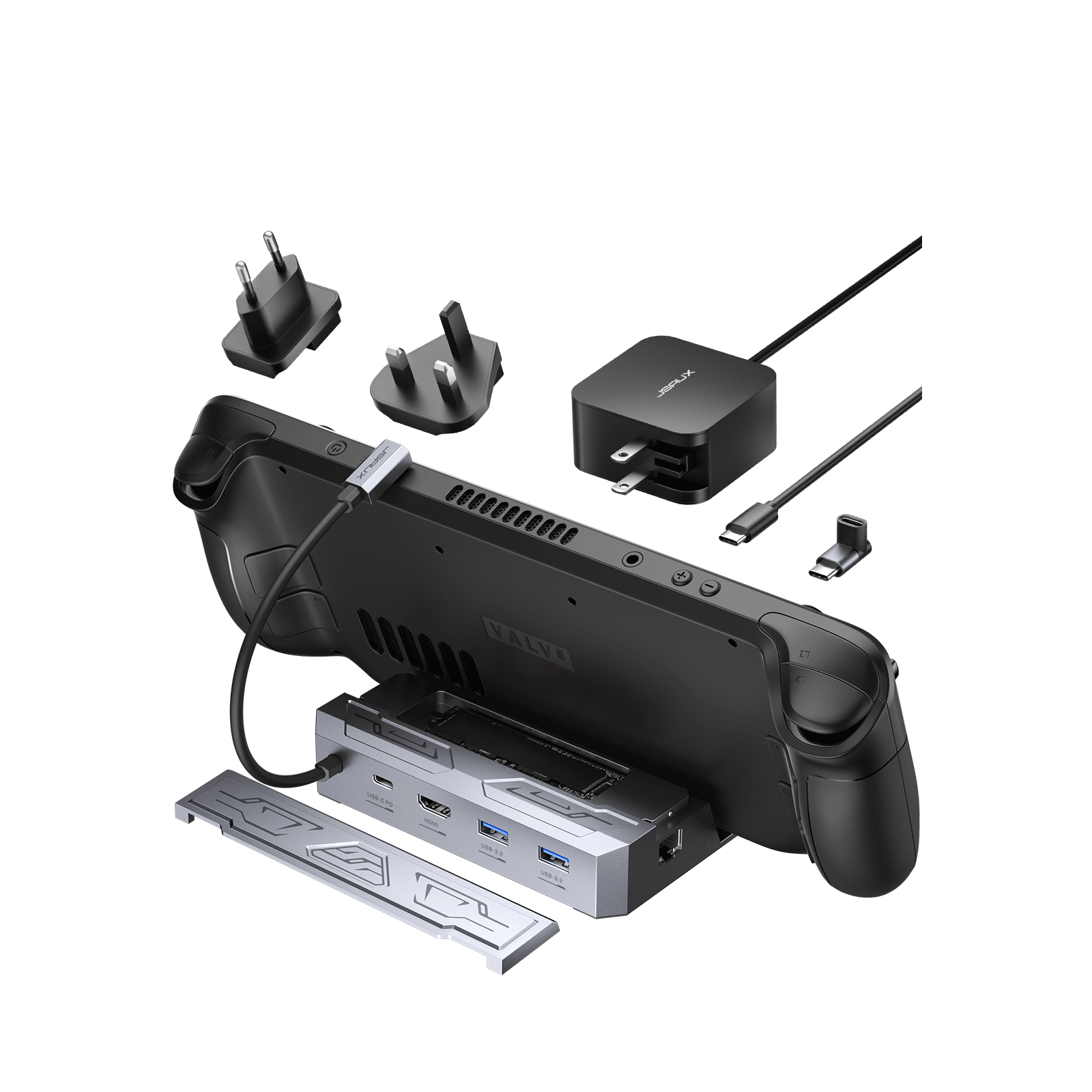
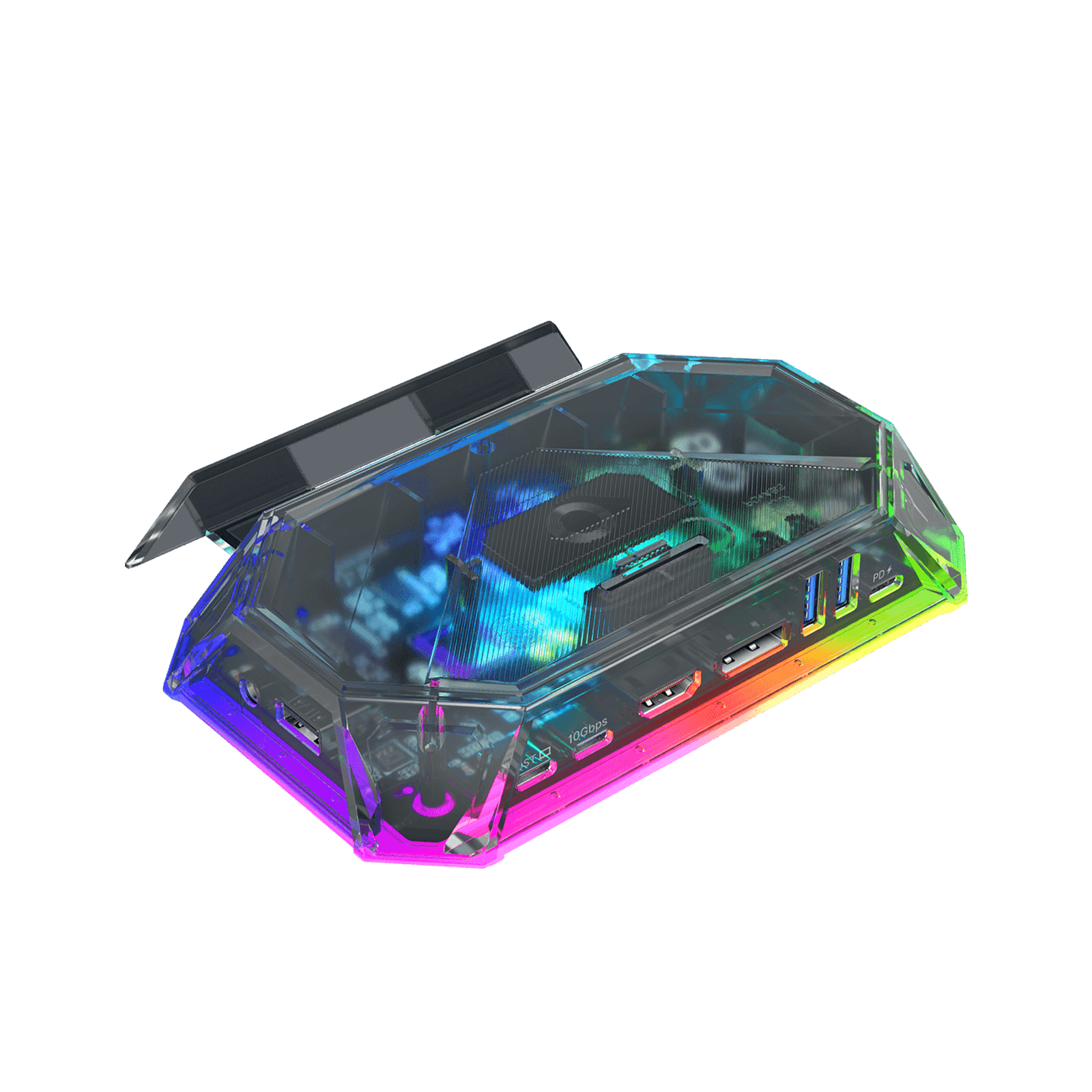
Description
- 6-in-1 Steam Deck Dock HB0604: The 6-in-1 docking station for Steam Deck is equipped with an HDMI 4k@60hz/2K@120Hz output for crisp visuals of every game you play, a Gigabit LAN Ethernet output allowing for a direct connection to the internet, a USB-C port for charging, 2 USB-A 3.2 ports, and last but not least, an M.2 Card slot allowing you to increase your storage capacity for your Steam Deck.
- High-speed Transmission: Elevate your Steam Deck experience with our M.2 interface SSD HD as well as up to 900MB/S data transfers.
- 4K Experience: Enjoy ultra crisp 4k@60Hz or 2k@120Hz HDMI 2.0 output when you connect your Steam Deck to an external 4k Monitor, allowing for a smoother and sharper visual experience.
- Extremely Fast Charging: The JSAUX Steam Deck docking station supports 100W max power delivery which allows you to charge your Steam Deck at full speed when paired with the original charger. All sets with M.2 SSD docking stations include a 65W charger.
- All In One: The JSAUX all-in-1 SteaM Deck Docking Station blends both hubs and stands together into one, allowing you to keep your desk space clear and well-organized without adding to the clutter.
- Compatibility: Supports Steam Deck, Steam Deck OLED, ROG Ally. (Not compatible with ROG Ally X)
Note:
- It is recommended to use a 100W charger to better experience ROG Ally’s high-performance 30W mode.
- Fixed an issue where certain workloads would exhibit severe CPU performance issues unless SMT was manually disabled.
- For older Steam Deck models updated to SteamOS 3.5.5 and the newly released Steam Deck OLED, External storage devices are now auto-mounted when connected to Steam Deck. To format or manage storage devices use the new device management interface in Settings->Storage.
- For Steam Deck devices that have not been updated to SteamOS 3.5.5 yet, Our development team has prepared a script that will automatically mount the SSD after installation, please click the download, and please do not tear the label on the hard drive after receiving it. If the label is torn off that you cannot enjoy any warranty service. (Labels do not cause hard drives to heat up).
- For products using instructions, please click the link.
FAQ
Q1.What should I do when using HB0604 for the first time?
A1.We have partitioned and formatted the SSD before we shipped it, and you can use it directly after receiving the goods.(If you purchased the option with SSD)
Q2.What should I do if the hard drive/SSD is not recognized?
A2.If the SSD cannot be recognized after receiving the products, please open the cover of HB0604 after powering off to check whether the SSD is correctly stuck in the slot.
Please unplug the SSD and reinsert it into the slot. (Be sure to plug and unplug the SSD after the power is off, otherwise the SSD will be damaged!)
Q3.What advice do you have for using an SSD in desktop mode?
A3. As Steam OS system does not support automatic recognition of external SSDs after startup, so you need to click on the external SSD in the bottom right corner of desktop mode to "Mount and Open" it each time before the library file can be loaded in the game platform.
It is recommended to format the SSD first, enter the Steam platform and add the library folder, then download and use our provided auto-mount script so that the SSD will be automatically loaded every time the system is booted.
JSAUX technical team has prepared a script that will automatically mount the SSD after installation, please download it from the "DESCRIPTION".
Q4. Any suggestions for running games with HB0604?
A4.For games that have already been running on Steam Deck internal storage, it is recommended to re-update or download the game to the external SSD, because the background data of the games that are already running on this computer may still be stored on this computer.
If they are directly moved to the SSD, it may cause can not operate.
Q5. Why did not it automatically create a steam folder nor allow me to create as it is "read-only" when I click "mount and open"?
A5.The SSD/Hard Drive format partition needs to be "Readable" and "Writable". If it is set to "read-only", it cannot be operated the SSD/Hard Drive or download games.
Q6.After using the SSD automatic installation script, a password is required to run it. What should I do if I forget the password?
A6.When Steam Deck is purchased, the default password is 1234. If the password has been changed, you need to contact Steam Deck customer service to reset the password.
7-in-1 Docking Station
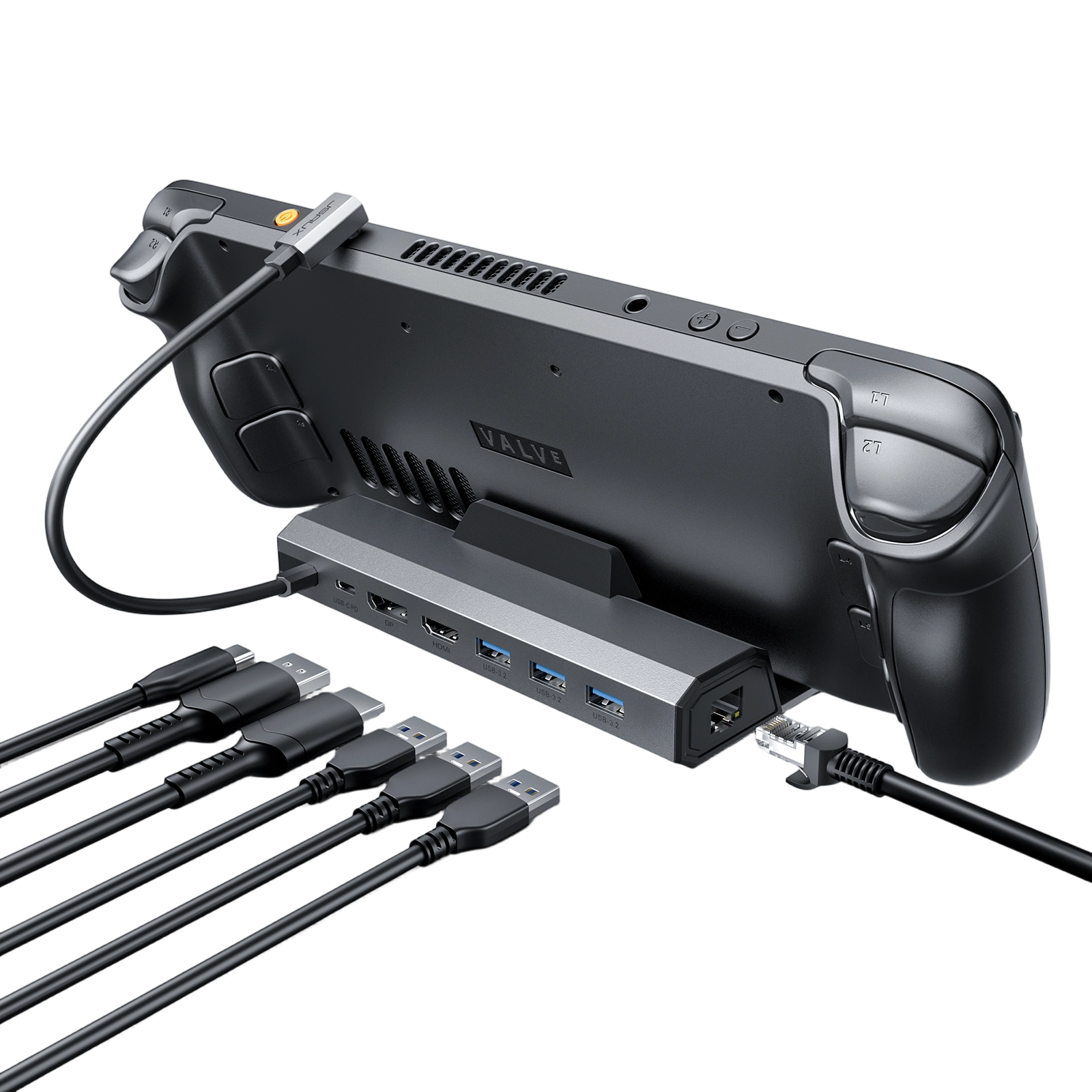
Description
- 【7-in-1 Docking Station for Handheld Gaming PCs】Expand your setup with HDMI 4K@60Hz output, DisplayPort, Gigabit Ethernet, USB-C PD charging, and three USB-A 3.2 ports—designed for Steam Deck, ROG Ally, Legion Go, and other handheld gaming PCs.
- 【True 4K Gaming & Smooth Visuals】Support HDMI 2.0 output up to 4K@60Hz and 1080p@120Hz. Enjoy sharper images, smoother motion, and a console-like big-screen gaming experience.
- 【100W Power Delivery for Full-Speed Charging】Support up to 100W PD input, providing full charging speed for Steam Deck (45W) and stable power output for compatible handheld gaming devices when paired with the original charger.
- 【Dual-Display Expansion for Work & Play】Equipped with HDMI and DisplayPort, enabling dual-monitor output at up to 4K@60Hz simultaneously—ideal for multitasking, streaming, and productivity setups.
- 【10Gbps High-Speed Data Transfer】Three USB-A 3.2 ports deliver up to 10Gbps transfer speeds, perfect for external SSDs, keyboards, mice, controllers, and other accessories.
- 【Wide Compatibility】Compatible with Steam Deck / Steam Deck OLED, ROG Ally / Ally X, Legion Go / Go 2 / Go S, MSI Claw, and other USB-C handheld gaming devices.(❌ Not compatible with ROG Xbox Ally / Ally X.)
📢Note: It is recommended to use a 100W charger to better experience ROG Ally’s high-performance 30W mode.
FAQ
Q1. Does the docking station output video via HDMI to DisplayPort cables?
A1. No, video output only supports HDMI to HDMI cable or DP to DP cable.
Q2. I wanted to know if it supports Multi-Stream Transport(MST) on the DP?
A2. MST connections are not supported currently. If you need to use multiple screens, we recommend connecting the HDMI and DP ports of the docking station to two monitors corresponding to the ports to achieve a multi-screen display.
Q3. What is the version of the DP protocol of HB0702 Docking Station?
A3. HB0702 Docking Station is DP1.2, the highest resolution/refresh rate of 4K@60Hz can be set by connecting an external display (HDMI or DP) through the HB0702 docking station. The monitor that comes with the Steam deck can be set to a resolution of 800*768.
Q4. Why do SD cards become inoperable or unwritable?
A4. SD card format is not compatible with the Steam Deck system, you need to back up the SD card in advance and then format it to the correct format.
Q5. Does the docking station output video over a USB-C port?
A5. No, the USB-C port is for power input only.
11-in-1 Docking Station
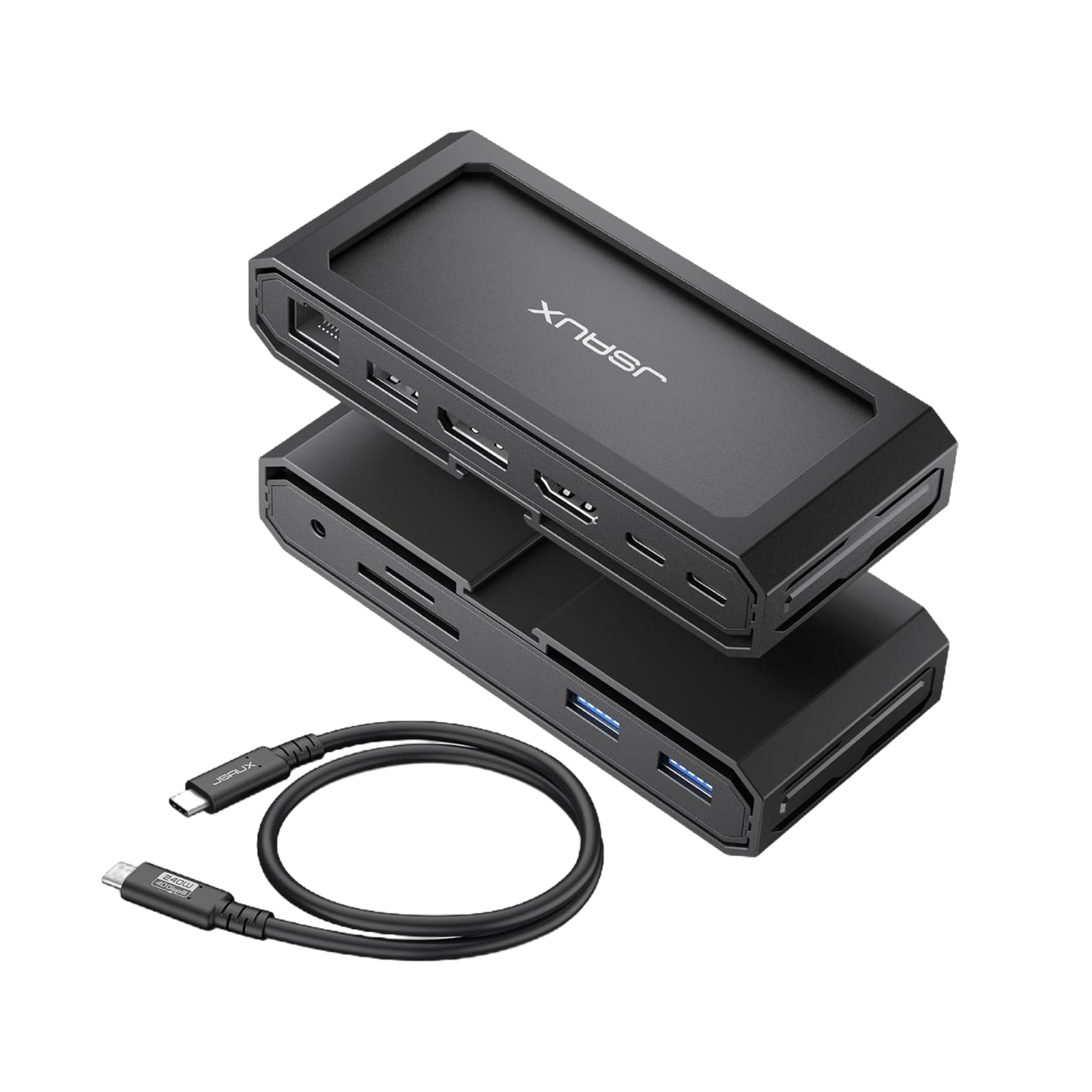
Description
- 11-in-1 USB-C Docking Station: This USB-C Docking Station includes a Gigabit Ethernet network, fast 100W USB-C PD charging, 8K HDMI, 8K DisplayPort, 2 USB 3.0 ports, 1 USB 2.0 port, SD and TF card readers, and 3.5mm Mic/Audio ports.
- Single 8K or Dual 4K Display Docking Station: Connect a single 8K or dual 4K display using DP and HDMI outputs.
- Stability and Efficient Transfer: Enjoy fast data transfer with 2 USB 3.0 ports (5Gbps) and 1 USB 2.0 port (480Mbps). The built-in SD and TF card slots support simultaneous card reading at up to 5Gbps.
- Gigabit Ethernet and 3.5mm Mic/Audio: Support Ethernet 1000Mbps connection, making downloading and running games faster and more stable. Plug and Play, No more additional drivers are required.
- 100W Max Power Delivery: Charge your tablets, notebooks, Steam Deck, ROG Xbox Ally, ROG Xbox Ally X and ROG Ally at full speed.(NOTE:📢NOT compatible with AYA NEO console. Cannot guarantee 30W Turbo Mode for Rog Ally. It may require a charger over 65W, based on current information. Ultimately, enabling 30W Turbo Mode depends on the specific charger used.)
- Wide Compatibility: This docking station works with most systems and supports Windows/Android/macOS/Linux systems, ensuring compatibility with a wide range of devices.
Note📢:
- If you face operational issues, ensure your USB-C cable is correctly connected to the 'IN-USB-C' port. We recommend using the provided USB-C cable for best results. If you choose to use an alternative USB-C cable, please ensure that it adheres to the USB-C 3.2 standard.
- The included USB-C cable may vary from the one shown in the picture, but it won't affect its normal functionality.
- It is recommended to use a 100W charger to better experience ROG Ally’s high-performance 30W mode.
FAQ
Q1. JSAUX Dock: Why & how different from other 11-in-1 models?
A1. Our products feature a DisplayPort as well as HDMI ports that support up to 8K resolution (backward compatible with 4K@165Hz/4K@144Hz/4K@120Hz) when used individually. In dual display mode, they can simultaneously output up to 4K@60Hz.
Q2. How does it work ?
A2. Laptops often feature just a USB-C port, necessitating the use of a multi-functional docking station. By connecting the docking station to the USB-C port, you can access a wide array of connections including Ethernet, HDMI, DisplayPort, and USB-A.
Q3. Can USB-C PD connect to other USB-C devices and transfer data?
A3. The USB-C PD interface is solely designed for device charging purposes and does not support data transfer. It is not intended to connect to other USB-C devices.
Q4. Is it capable of simultaneously reading TF and SD cards?
A4. Yes, but iPad Pro2020 interface restrictions, only single card read and write.
Q5. No video output detected when HDMI and DP ports are connected. What might be the missing component or issue?
A5. Troubleshooting steps:
1.Check proper HDMI cable connection to the display or PC’s HDMI port.
2.Ensure the use of an HDMI cable version 2.1 or higher.
3.Confirm connection of the PD charger to the product.
OmniCase 2 Series Docking Station
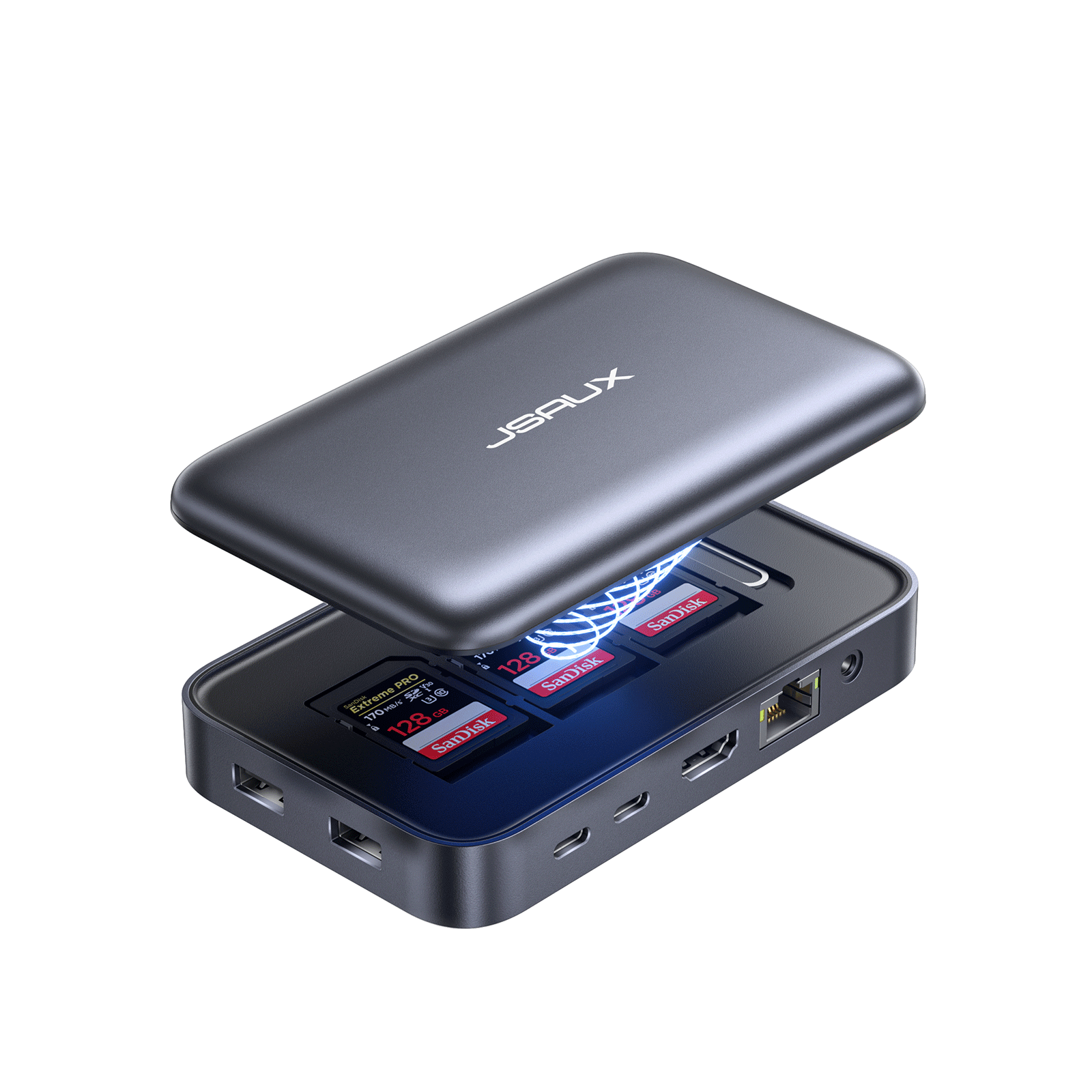
Description
- 【12-in-1 Storage Docking Station】: OmniCase 2 Pro and OmniCase 2 Lite+ storage docking station has 12 functional ports, including 2* HDMI port (4K@60Hz), 1*USB-A 3.0(5Gbps data transmission), 1*USB-A 2.0(480Mbps data transmission),1*Gigabit Ethernet port, 1*USB C-PD port, 1*3.5mm audio interface,1*TF card slot, 1*SD card slot,1*DisplayPort(4K@60Hz) and 2*USB C port. The ultimate 12-port docking station, everything you need in one place!
- 【Electronic Storage Function Design】: Comes with multiple types of cables and adapters, which can be conveniently taken out and connected to your devices, making your tech life easier. You will get a USB-C to USB-C 3.2 cable, a USB-C to USB micro-B adapter, a USB-C Female to USB-A male adapter, a 90° female-to-male USB-C adapter, and an Ejector pin tool.
- 【One-Piece Magnetic Suction Design】: Our innovative one-piece magnetic suction design ensures a seamless connection between your devices. Simply bring them close, and the magnetic force securely holds them in place. You can conveniently take it with you wherever you go.
- 【4K@60Hz Ultra HD & Triple Display】: Immerse yourself in stunning 4K@60Hz resolution via our HDMI and DisplayPort outputs for a visual feast.12-in-1 storage docking station supports Windows system triple screen display mirror and extend mode(A-AAA, A-BBB, and A-BCD), and can support triple screen display MAC OS system mirror mode (A-AAA and A-BBB).📢NOTE: Due to MacOS constraints, MST is unsupported on Apple devices. In extended mode, only two different display contents are available for Mac users.(📢Only available on OmniCase 2 Pro)
- 【PD100W Charging & 5Gbps Data Transfer】: With a USB-C PD3.0 100W charging port, supports 100W max power input, which can quickly charge your tablets, notebooks, and Steam Deck at full speed, providing a reliable power source for all your devices. OmniCase 2 Pro Storage Docking Station offer 1SD Card Slot,1 TF Card Slot,1 USB-A 3.0 port,1 USB-C 3.0 port, and 1 USB-A 2.0 port to ensure you get fast data transfer at up to 5Gbps.
- NOTE:📢If you encounter any operational issues with your docking station, please ensure that your USB-C cable is correctly connected to the designated 'IN-USB-C' port. We highly recommend using the provided USB-C cable to establish a connection with your device to ensure optimal functionality. If you choose to use an alternative USB-C cable, please ensure that it adheres to the USB-C 3.2 standard.
FAQ
Q1. Why are all the ports not working when I just received the docking station?
A1. Please make sure your device and docking station properly connected
IN: The USB-C port can only be used for connecting devices, not for charging.
PD: USB-C port can only be used for charging.
If you connected the charger to the IN:USB-C port, there will be a slow charging prompt.
Q2. What systems do OmniCase 2and OmniCase 2 Pro support?
A2. Windows/Android/MacOS/Linux systems are supported.
Q3. Can it charge and connect the laptop at a same USB C port?
A3. No.Each USB-C port has its own function and cannot be mixed.
For example,OmniCase 2 and OmniCase 2 Pro are equipped with two USB-C ports:
IN: The USB-C port is only used to connect your host device, and the PD: USB-C port is only connected to a charger to power the device. Maximum support for 100W power supply.
Note: OmniCase 2 Pro has one more USB-C 3.0 port than OmniCase 2.
This USB- C 3.0 port only for connecting other external devices such as handles, keyboards, external hard drives, etc.(please do not connect it to the host device/power supply)
Q4. What is the difference between OmniCase 2 and OmniCase 2 Lite?
A4.Both products are 10-IN-1 Docking Stations with the same 10 ports and parameters. The main difference lies in their appearance and design. OmniCase 2 comes with an Accessories Kit and Organizer and also a Magnetic Suction design.
Q5. What is the difference between OmniCase 2 Pro and OmniCase 2 Lite+?
A5.Both products are 12-IN-1 Docking Stations with the same 12 ports and parameters. The main difference lies in their appearance and design. OmniCase 2 Pro comes with an Accessories Kit and Organizer and also a Magnetic Suction design.
USB-C Docking Station with Phone Holder
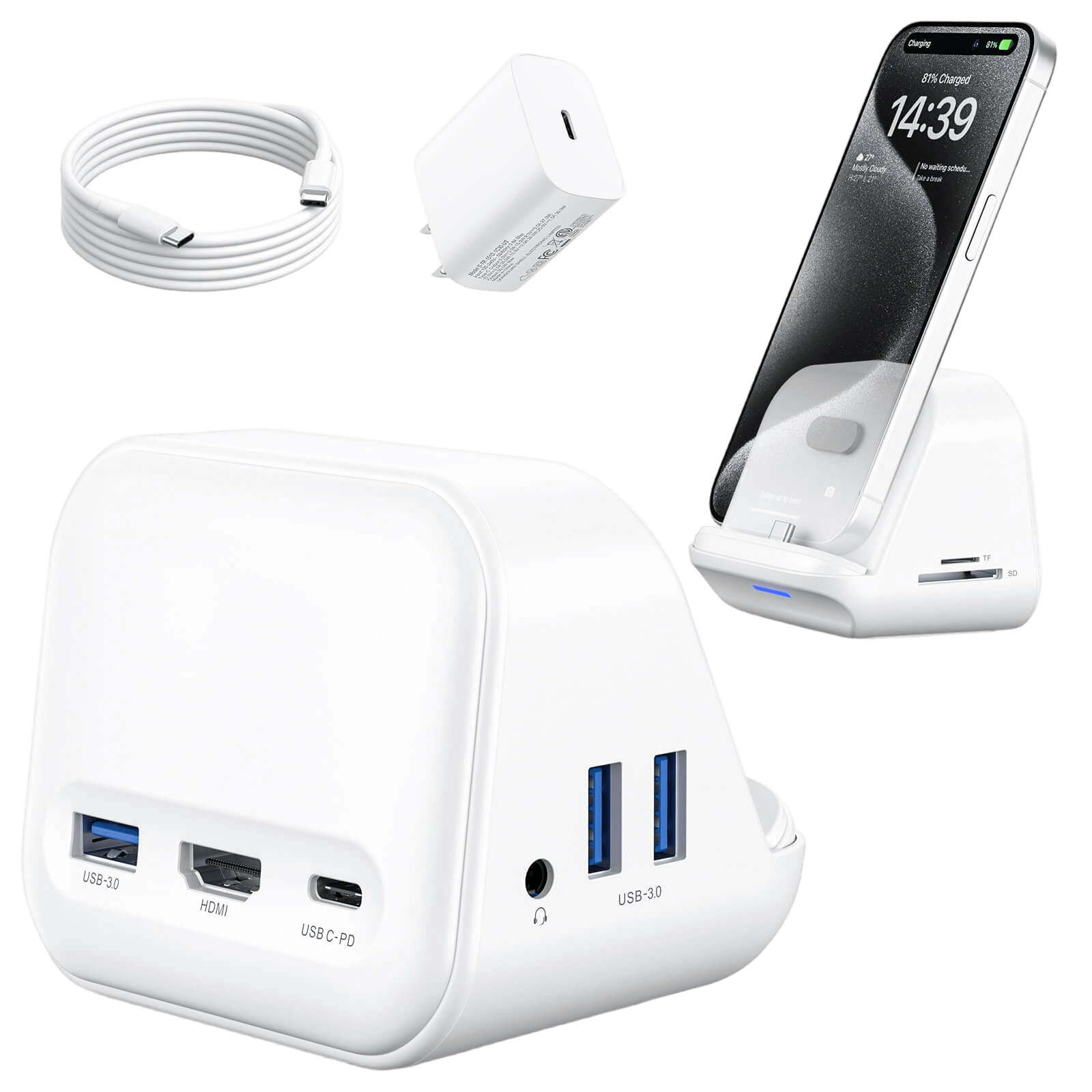
Description
- 【Versatile USB C Input Port】: The device features a USB C female input port, supporting functional expansion for all mobile devices with a USB C interface. This means that nearly all modern smartphones can connect to this accessory through this port
- 【USB C PD Charging Capability】: Equipped with a USB C port supporting PD3.0, it can provide up to 60W of power supply. This allows the device not only to charge rapidly but also to power other devices simultaneously
- 【HDMI Video Output】: The HDMI port supports 4K@30Hz video output, enabling users to project their phone screen onto larger display devices, ideal for presentations or entertainment
- 【USB A 3.0 Data Transfer】: Three USB A 3.0 ports offer data transfer speeds of up to 5Gbps, convenient for connecting external storage devices like USB drives and hard disks, enhancing data transfer efficiency
- 【TF Card Slot】: Supports connecting external storage via the TF card slot, with data transfer speeds also reaching 5Gbps; compatible with various types of TF cards, such as Micro SD, Micro SDHC, Micro SDXC
- 【SD Card Slot】: Similar to the TF card slot, the SD card slot also supports high-speed data transfer and is compatible with various SD card formats, including SD, SDHC, SDXC, MMC Micro, RS MMC cards
-
Note:
1.For the iPhone 15 Plus: When an HDMI connection is used, the USB 3.0 port may not work.
2. For Samsung S21, Samsung Note20 Ultra:The hub cannot recognize TF and SD cards simultaneously
FAQ
Q1. What distinguishes the 8-in-1 USB-C Phone Docking Stand with Phone Holder from the 5-in-1 version?
A1. The primary distinction between the two docking stands lies in their interfaces and parameters:
8-In-1 USB-C Phone Docking Stand with Phone Holder includes:
1*HDMI port (4K@30Hz)
3* USB-A 3.0 ports (5Gbps)
1*USB-C PD port (supporting up to 60W)
1*3.5mm audio interface
1*USB-C port
1*TF card slot (5Gbps)
1*SD card slot (5Gbps)
5-in-1 USB-C Phone Docking Stand with Phone Holder includes:
1*HDMI port (4K@30Hz)
1* USB-A 3.0 port (5Gbps)
2* USB-A 2.0 ports (480Mbps)
1*USB-C PD port (supporting up to 60W)
1*USB-C port.
Q2. What is the maximum thickness of my phone case that HB0802 & HB0502 dock is compatible with?
A2. Please ensure that your phone case is less than 3mm thick so as to be compatible with this dock.
Q3. Is it possible to simultaneously read and write to both my TF card and SD card?
A3. In most cases, yes. However, for users of the iPad Pro 2020, due to the port limitations, only one SD card or TF card can be read at a time.
Q4. Can my Earpods be compatible with this dock?
A4. This dock supports the headset or earphone with 3.5mm interface.
Q5. Is the Microphone function supported?
A5.Generally, the Microphone function is compatible. However, due to the wide range of earphone and headset brands in the market, there may be cases where the Microphone function is not fully supported. Nonetheless, the audio playback function remains unaffected.
Q6. Is a PD charger included? How to achieve a 60W charging effect?
A6. PD charger not included, For optimal 60W charging, use a fast charging cable and charger supporting 60W with PD protocol.
Q7. I used a PD 20w charger to charge my mobile phone, but the charging speed does not reach the expectation, any advice?
A7. The dock is capable of connecting multiple external devices such as hard drives, USB disks, keyboards, mice, and monitors, requiring a power consumption of 5w to 8w.
However, the actual charging power for your phone is only around 8w to 10w. We recommend using a charger with a power rating of 20w or higher for optimal performance.
Q8. Is Samsung DeX function supported?
A8.Sure, once you have connected your Samsung mobile to the dock, simply activate DeX on your phone.
ModCase for Steam Deck LCD & OLED
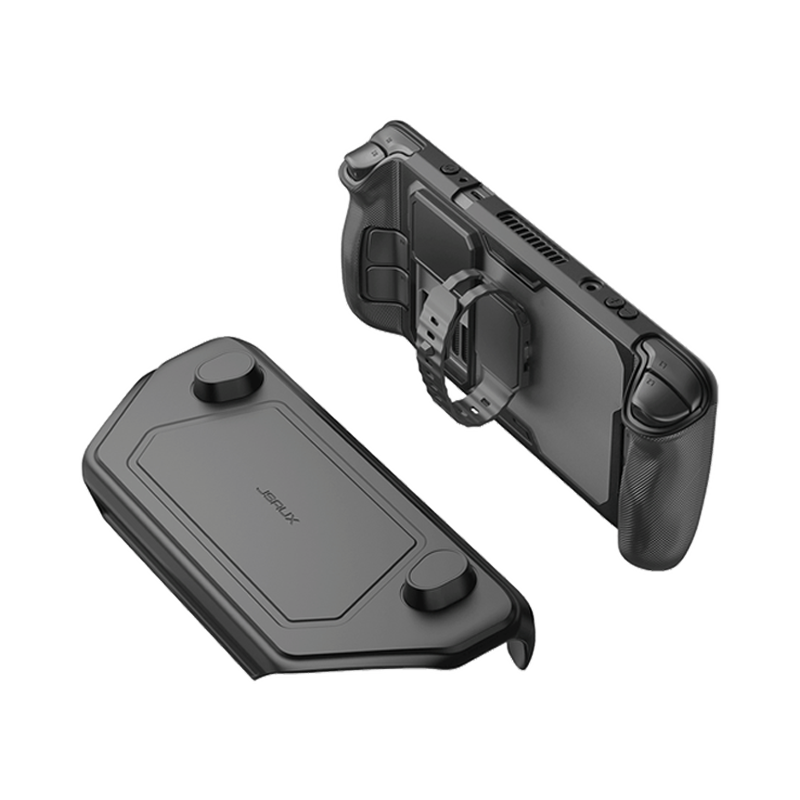
Description
- Complete and flexible: This accessory consists of a protective back case with its own metal stand, a strap to attach other accessories, and a front cover to use when the Steam Deck LCD & OLED is idle.
- Perfect Fit: The modular case cut-outs are perfectly aligned with the handheld’s output/input ports.
- Ultimate Protection: Its eco-friendly PC-ABS and silicone material prevent the screen from scratching or cracking, so it's safe to use when you carry your Steam Deck/OLED in a backpack or a handbag. The TPU wrap on its edges dampens the shock of a fall, reducing its potential damage.
- The More, The Better: The JSAUX ModCase also features a modular slider on its back cover. Level up your gaming experience by adding up other compatible accessories, such as the JSAUX cooling fan.
Compatible with:
- Cooling fan GP0200: By increasing the airflow coming from the device vents, this small cooling fan reduces the temperature of your Steam Deck up to 18ºC. Also, it doesn’t create negative pressure. It’s sold both along with the ModCase and separately.
- 11-in-1 Docking Station HB1101: 4K@120Hz, HDMI 2.1 + DisplayPort 1.4, SD/TF card slots and 100W power supply when charging. It’s not only the most powerful hub for Steam Deck but also a great ally to optimize the use of all ports on a PC.
- M.2 SSD card enclosure HB0100: Protect your M.2 SSD card from dust and bumps with a proper pen. Available for 2230, 2242, 2260, and 2280 memory models.
- Power bank PB6501: 65W High-Speed Charging,20000mAh Large Capacity, Intelligent Display. (Note: Some countries and regions are not available for sale, please check FAQs for available countries and regions)
- Adhesive sheet for Protective case: Securely attach your favorite third-party accessories to the groove on the back of your Protective Case with adhesive film. (Note: It must be used with the Protective Case of PC0104)
📢Notes:
- When the cooling fan runs out of power and is connected to the cable for charging, it will turn on the lowest wind speed by default and can't be adjusted. If you need to turn on the highest wind speed, you must turn off it first and then turn it on.
- For the Hub Kits, The included USB-C cable may vary from the one shown in the picture, but it won't affect its normal functionality.
FAQ
Q1. Is PC0104 case compatible with all JSAUX docking stations and official docking stations?
Q1. The PC0104 case is compatible with all JSAUX docks , but not with official docks.
Q2. After changing to a back plate, can it still be fit with a protective case?
A2. The transparent back plate is the same size as the original back cover. If you choose a lower or medium button , it is compatible with all JSAUX protective cases.
Note: if the SD with jsaux back plate wears a protective case, which would cause the SD to accumulate heat so as to affect heat dissipation function of the back plate to some extent,(as most protective cases on the market do).
No worries, the SD primarily relies on copper pipes and fans for active cooling, so the impact will not be significant.
Q3. Will it fit in a JSAUX carrying bag or the official carrying bag?
A3. Yes, it will fit in any case without the cover, but only the BG0105 will fit in the case with the cover.
Q4. Is the fan noisy when in use?
A4. With regard to cooler fan noise, at a distance of 25cm from the cooler fan,
When the fan is at half speed, the noise level: 44-46DB
When the fan is at maximum speed, the noise level: 48-50DB
At a distance of 15cm from the fan,
When the fan is at half speed, the noise level: 44-48DB
When the fan is at maximum speed, the noise level: 50-53DB
Q5. Why can not I purchase the Power Bank Kit & Ultimate Kit?
A5. Due to the limitations of the logistics provider, the Power Bank Kit & Ultimate Kit can only be shipped to the following countries and regions(we are still looking for a better solution), we are sorry for the inconvenience.
USA / UK / Germany / Austria / Canada / Belgium / Czech Republic / Denmark / Estonia / Spain / Finland / France / Greece / Hungary / Italy / Lithuania / Luxembourg / Netherlands / Poland / Sweden / Slovenia / Slovakia / Portugal / Latvia / Bulgaria / Romania / Croatia / Ireland
Q6. What should I pay attention to when using adhesive sheet?
A6. 1. Clean the surface of the product to be pasted before using the adhesive sheet;
2. Do not pull hard immediately after pasting, it is best to wait for a period of time before fixed use;
3. The back glue of the adhesive sheet does not support electroplating, silicone, leather and other materials or other uneven product surfaces;
4. The maximum weight supported by the adhesive sheet is <300g and heavier products may fall off.
FAQ
Q1. Is this protective case compatible with Travel Cover of Modcase PC0104?
A1. Yes, Steam Deck with PC0105 is compatible with the travel cover.
Q2. Does this fit in the Valve carrying case?
A2. Steam Deck PC0105 is compatible with the Valve Carrying case.
Q3. Is Steam Deck with PC0105 compatible with JSAUX Docking stations?
A3. Yes, Steam Deck installed PC0105 is compatible with JSAUX Docking stations(HB0602/HB0603/HB0604/HB0702). Note: that PC0105 is NOT compatible with Valve dock.
Q4. How should I adjust the angle of the kickstand attached to PC0105?
A4. First, open the kickstand from the top side. Then, adjust the support frame to the groove and make sure it sticks properly without slipping.
Q5. Is it compatible with shoulder bag BG0105?
A5. The Steam Deck installed PC0105 can be put in BG0105
Q6. If my Steam Deck installed PC0105, can 180° USB-C Male to USB-C Female and USB-C Male to USB-A Female Adapter Set DD0009&DD0010 be connected perfectly?
A6. Yes, the design of the charging port in PC0105 is optimized and widened. Supports adapter connection perfectly.
ModCase for ROG Ally & ROG Xbox Ally Series

Description
- 【Modular Split Design – Flexible Protection Anywhere】Detachable front cover and modular back case provide full protection for your ROG Ally, Ally X, and ROG Xbox Ally/X—switch easily between travel, handheld gaming, or storage modes without adding bulk.
- 【Heavy-Duty Multi-Layer Protection】Durable PC-ABS and shock-absorbing TPU layers protect against drops, scratches, and everyday wear—keeping your handheld safe in backpacks or on the go.
- 【Front Cover with SD Card Storage】Protect your screen when not in use and organize your games and media with built-in SD card slots—ideal for traveling or quick access anywhere.
- 【Expand Your Setup with Modular Accessories】Attach power banks, cooling fans, and other compatible accessories via the modular back case to turn your handheld into a fully customizable gaming setup.
- 【Anti-Slip Grip for Better Control】Textured ergonomic grip areas enhance handling, stability, and comfort, giving you precise control during extended gaming sessions.
- 【Precision Fit for ROG Ally Series】Custom-engineered for ROG Ally / Ally X / ROG Xbox Ally / X with accurate cutouts for seamless access to buttons, ports, and airflow—ensuring performance is never compromised.
Compatible Modular Accessories:
- 【About Power bank PB6501】65W High-Speed Charging,20000mAh Large Capacity, Intelligent Display. (Note: Some countries and regions are not available for sale, please check FAQs for available countries and regions)
- 【About RGB Cooling Fan GP0202】Dual-fan modular cooling with dynamic 7-color RGB lighting enhances performance and visuals for your ROG Ally X (compatible only with ModCase for ROG Ally X).
Note:
- ModCase for ROG Ally is compatible with XG Mobile External GPU.
- Not compatible with the DD0009 & DD0010 180° USB-C to C Adapter Set.
FAQ
Q1. What is the angle at which the bracket can be opened?
A1. The maximum angle at which the bracket can be opened is approximately 65 degrees.
Q2. What is the maximum weight-bearing capacity of the fixed block on the back?
A2. The maximum weight capacity of the fixed block is approximately 5 KG.
Q3. Can the angle of the bracket be adjusted freely?
A3. No. The bracket can only be opened and avoid naturally close, and it cannot be adjusted to suspend at any angle. And the bottom magnet can secure the bracket onto the protective case.
Q4. Can ROG Ally with PC0109 modcase be put into Jsaux carrying case or Shoulder bag?
A4. 1. If you don not add a travel cover, it fits the BG0105A shoulder bag and BG0106A carrying case.
2. When the travel cover is mounted, only BG0105A shoulder bag can acommodate it.
Q5. Can I still install a travel cover on my ROG Ally after fitting the thumbstick cap?
A5. It would be compatible if the height of thumbstick cap is less than 3 mm.
Q6. Would it compatible with ROG XG Mobile?
A6. Yes.
Q7. Is it compatible with PC0110 RGB Transparent Back Plate for ROG Ally?
A7. No, they are not compatible, the protective case may obstruct the light source behind the PC0110 back plate. And the switch of RGB light may be blocked.
Q8. Is it compatible with Jsaux docks?
A8. Yes, it is compatible with Jsaux docks and adapters.
Q9. Can I just buy a travel cover or Fixed Block instead buying a whole kit of PC0109 ModCase for ROG Ally?
A9. No, the accs in the Basic set are sold together, the Basic set contains the following 4 pieces:
1.Protective Case
2.Travel Cover
3.Fixed Block with short velcro
4.Fixed Block with Long Velcro
But the PB6501 Power Bank in the Power Bank Kits can be sold separately
Q10. Why cannot I purchase the Power Bank Kits?
A10. Due to the limitations of the logistics provider, the Power Bank Kit & Ultimate Kit can only be shipped to the following countries and regions(we are still looking for a better solution), we are sorry for the inconvenience.
USA / UK / Germany / Austria / Canada / Belgium / Czech Republic / Denmark / Estonia / Spain / Finland / France / Greece / Hungary / Italy / Lithuania / Luxembourg / Netherlands / Poland / Sweden / Slovenia / Slovakia / Portugal / Latvia / Bulgaria / Romania / Croatia / Ireland
Q11. How to Properly Install & Remove the Protective Case of ModCase?
A11. For Install: Start by placing your ROG Ally gaming device underneath the protective shell, then secure the top part. Please note that during installation, the protective shell might slightly obstruct the buttons, and you may need to apply some force to ensure a snug fit.
For Remove: Begin by removing the protective cover from the top. It may be snug around the buttons, and you may need to exert some force to push it through the buttons. Then, remove the protective cover from the bottom.
Q12. Can the travel cover be used with thumbstick caps?
A12. We recommend using thumbstick caps with a diameter smaller than 18mm and a thickness less than 3mm.
Q13. How can I maintain the appearance of my white ModCase for ROG Ally if it starts to show signs of yellowing over time?
A13. Our white ModCase for ROG Ally may develop slight yellowing over time due to its material properties, which is a common characteristic of white cases. To help preserve its appearance, we recommend using alcohol wipes for gentle cleaning. While this may not completely eliminate the yellowing, it can effectively reduce its visibility and maintain the overall aesthetic appeal of your ModCase.
RingLax Case For iPhone 15 Series
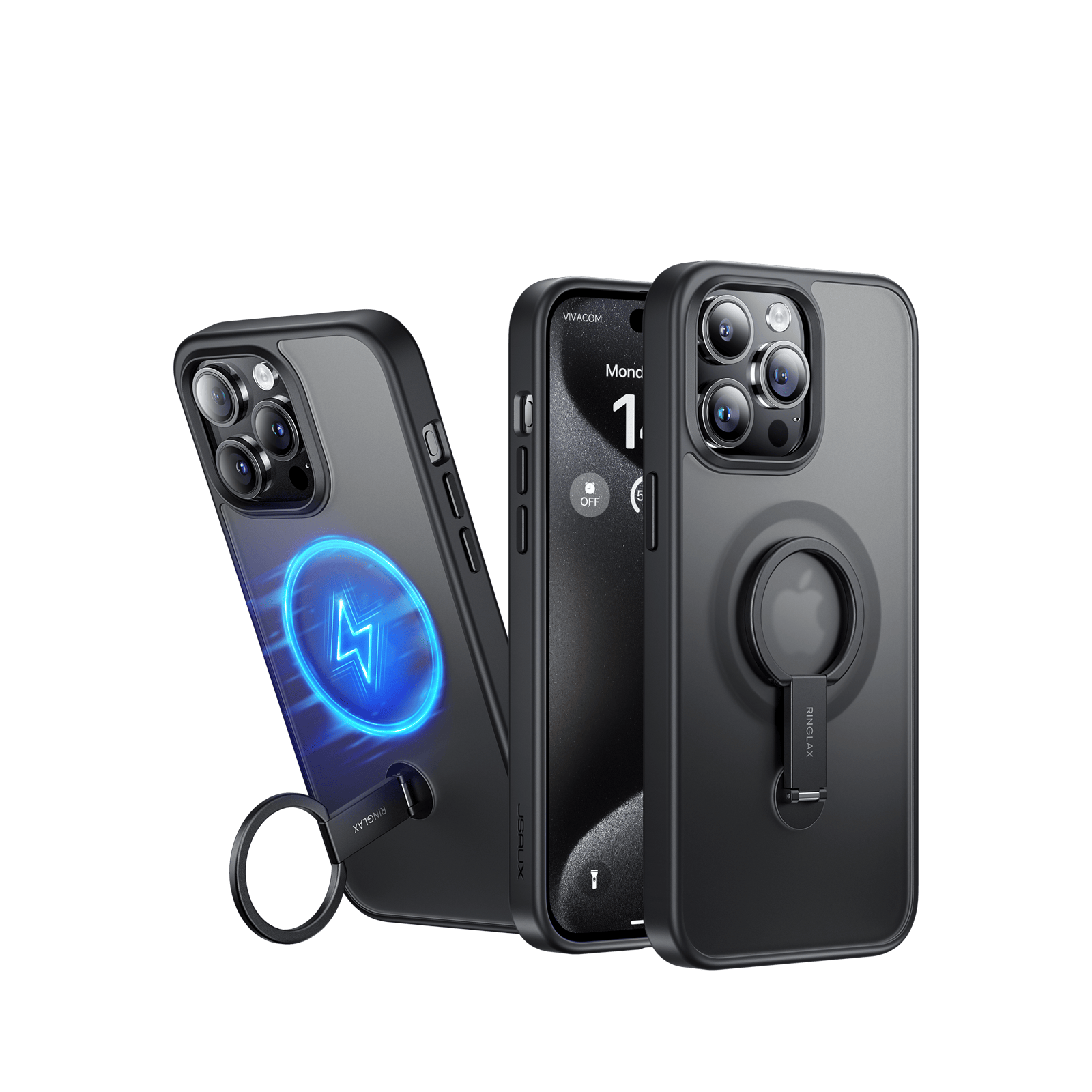
Description
- 【All-IN-1】: JSAUX iPhone 15 Pro new RingLax series cases can be used as a Stand, freeing up your hands, but also as a Finger Ring to assist in holding the phone, and has a strong magnetic suction function, to meet the needs of advocating the wireless charging; the use of military-grade materials, so that the protection of the phone to further enhance the ability;
- 【Stand Hands-Free】: JSAUX iPhone 15 Pro Case with stand realizes a dual-position 360-degree rotational adjustment of the stand with 180-degree rotation, in addition to vertical, horizontal, etc. can also be programmed to define the angle of the stand that suits you better; the stand uses a more lightweight and durable carbon steel material and combines with an aerospace aluminum alloy to ensure durability and at the same time increase the lightness of the stand;
- 【Ring Holder Hassle-Free】: The JSAUX iPhone 15 Pro Case with Ring Holder can be used to assist in holding your phone as well as hanging it; for example, when you're viewing your phone in bed, you can slip your fingers through the ring to increase the stability of your hand grip and avoid dropping it; or when you're in the fitting room, you can hang your phone on the fitting room hook;(📢Note: MagSafe Wallet & MagSafe Portable Charger may not install effectively due to bracket placement.)
- 【Ultra Magnetic-Compatible Mag-safe】: The JSAUX iPhone 15 Pro RingLax case is compatible with MagSafe chargers and other Qi wireless chargers. It features a ring-shaped construction with exclusive RingLax magnetic ring fusion technology that makes the magnetic force 3x stronger than the official one, ensuring virtually no power loss during wireless charging, making charging faster and safer while shortening the overall charging time, further improving your wireless charging experience.
- 【Military Grade Drop Protection】: The RingLax iPhone 15 Pro case is based on several extreme drop tests, making the durability surpass most ordinary cell phone cases. It also features an exclusive 4-in-1 unibody shockproof back with airbag cushioning to dramatically increase its protection, keeping your phone safe from everyday drops and bumps. The lens and screen locations are specially designed with protruding bezels to prevent scratches to the lens and screen;
- 【Pursuing Excellence in Experience】: JSAUX RingLax Case for iPhone 15 Pro is designed with separate metal buttons to bring the same touch feeling of the buttons as the original phone; at the same time, the semi-transparent back panel design with soft material makes the case more fashionable and at the same time has a more comfortable hand feeling;
- 【Climate Pledge Friendly】Products with trusted sustainability certification(s). Carbonfree Certified determine the carbon footprint of the product, and associated carbon emissions are offset with reduction projects.
FAQ
Q1. Why might the MagSafe Wallet and MagSafe Portable Charger not install properly?
A1. This is because the placement of the stand on the phone case may interfere with the proper installation of the MagSafe Wallet and MagSafe Portable Charger. The design of the stand could obstruct these accessories from securely connecting to the magnetic area on the phone case, thereby affecting their functionality.
Carrying Case for Handheld Consoles
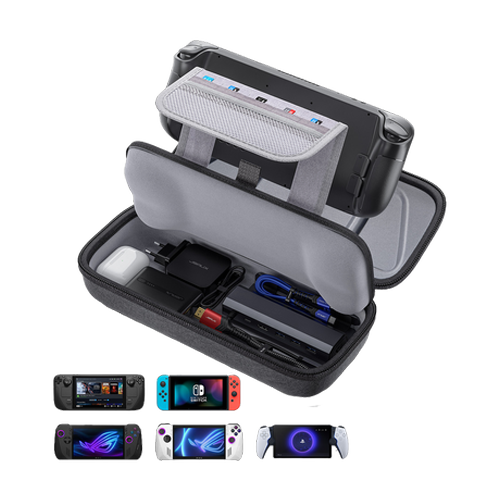
Description
- 【Efficient Carrying Protection for Steam Deck & ROG Ally】: This carrying case is designed for Steam Deck (OLED) , ROG Ally and ROG Ally X (2024), also compatible with Nintendo Switch 2, PlayStation Portal Remote Player, providing safe daily protection, sturdy and durable. Giving you convenient storage and portable travel
- 【Newly Upgraded Large Capacity】: Built-in expanded storage space can accommodate more accessories. You can put original AC charger, docking station, small power bank, headphones and other accessories at the same time. Plenty of space to easily place the Steam Deck or ROG Ally without removing the protective case. Comes with an extra SD card case that can store up to 10 SD cards. Keeps everything in order
- 【Multiple Protection】: JSAUX ROG Ally X Case uses a thickened EVA shell to resist external extrusion, effectively preventing collisions and falls. With groove design, it will not press on the handle. The built-in fleece compartment protects the screen from scratches
- 【Double Zipper Design】: The zipper is smooth and can be easily opened and closed when using. A good closure ensures that accessories will not fall out. Concealed chain, prevent rust and beautiful design
-
【Handable and Fixed】: Reinforced handle, will not fall off. Velcro straps inside can secure the body. You can easily take this Steam Deck Case anywhere
📢Note:
- When used with Switch 2, this case fits best with a protective case. The bare console may shift inside.
- The BG0106X is not compatible with the Legion Go.
FAQ
Q1. Does the original Valve docking station fit in the accessory section of the case?
A1. Yes, the original Valve docking station fits in the accessory section of the JSAUX Carrying Case.
Q2. Will this fit a steam deck with a silicon case on it?
A2. Yes, the JSAUX Carrying Case fits a steam deck with a silicon case on it.
Q3. Is this compatible with the raised back buttons from the Transparent Back Plate?
A3. If you do not put too much on the bottom layer, the raised back buttons will be compatible.
Q4. Is it compatible with the ModCase for Steam Deck PC0104?
A4. Yes, it accommodates Steam Deck with Modcase, but please note that if the travel cover added, it cannot be compatible.
Shoulder Bag for Handheld Consoles
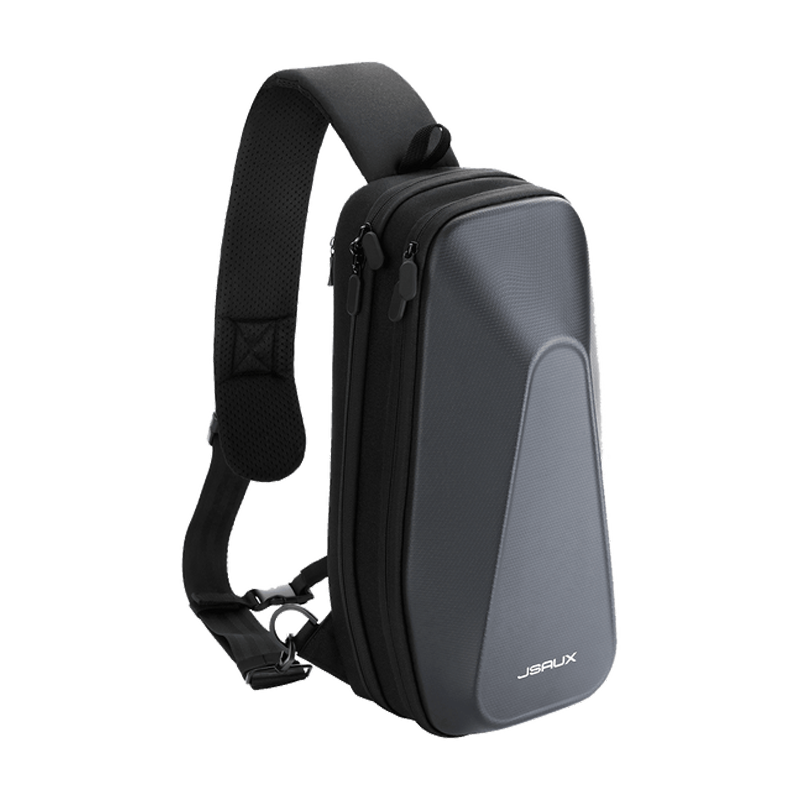
Description
- Efficient Carrying Protection for Steam Deck, ROG Ally & Switch 2: Our Shoulder Bag Provides efficient protection for your ROG Ally/X and Steam Deck/OLED devices. Dedicated compartments ensure safety against scratches and damage.
- Smart Storage Solution: Multiple-layer space that meets different demand, including unique cabin for Steam Deck/ROG Ally, separated rooms for different sizes of goods such as JSAUX Steam Deck docking station, powerbank, AC adapter, cellphones, USB cables, Swicth, etc.
- Functional Design, Lasting Style: Featuring anti-sloshing, and resistance bands, our case ensures a snug fit and prevents spills. Premium Oxford fabric and a stylish EVA hard shell deliver durability and a modern look.
- Broad Compatibility – Compatible with Steam Deck/OLED, ROG Ally/X, Switch 2, and PlayStation Portal. Not compatible with Legion Go.
FAQ
Q1. Can the Steam Deck be put into the storage bag after it has case?
A1. JSAUX Protective case (such as PC0101/PC0102/PC0103/PC0104/PC0105) can be put into the shoulder bag.
Q2. Can the net bag hold a water bottle?
A2. Mineral water bottles of up to 350ml are allowed.
Q3. Can the Steam Deck be put into the storage bag with the joystick cover on?
A3. Joystick covers with thickness less than 4mm can be put into the BG0105.
Q4. What size tablet can the net bag hold?
A4. BG0105 can hold iPad mini6 (about 8.3 inches).
FAQ
Q1. Does the Carrying Case for Steam Deck BG0102 fit the steam deck with the travel cover of the ModCase for Steam Deck PC0104?
A1. No, only shoulder bag BG0105 can store the PC0104 protective case with the cover on.
Q2. Will the bottom compartment hold the Valve dock together with the official original charger?
A2. No, the bottom compartment cannot hold the Valve dock and charger in the same space.
Q3. Does the bottom compartment of BG0102 accommodate the UK charger?
A3. No, the UK charger is not compatible with BG0102.
Anti-Glare Screen Protector for Steam Deck
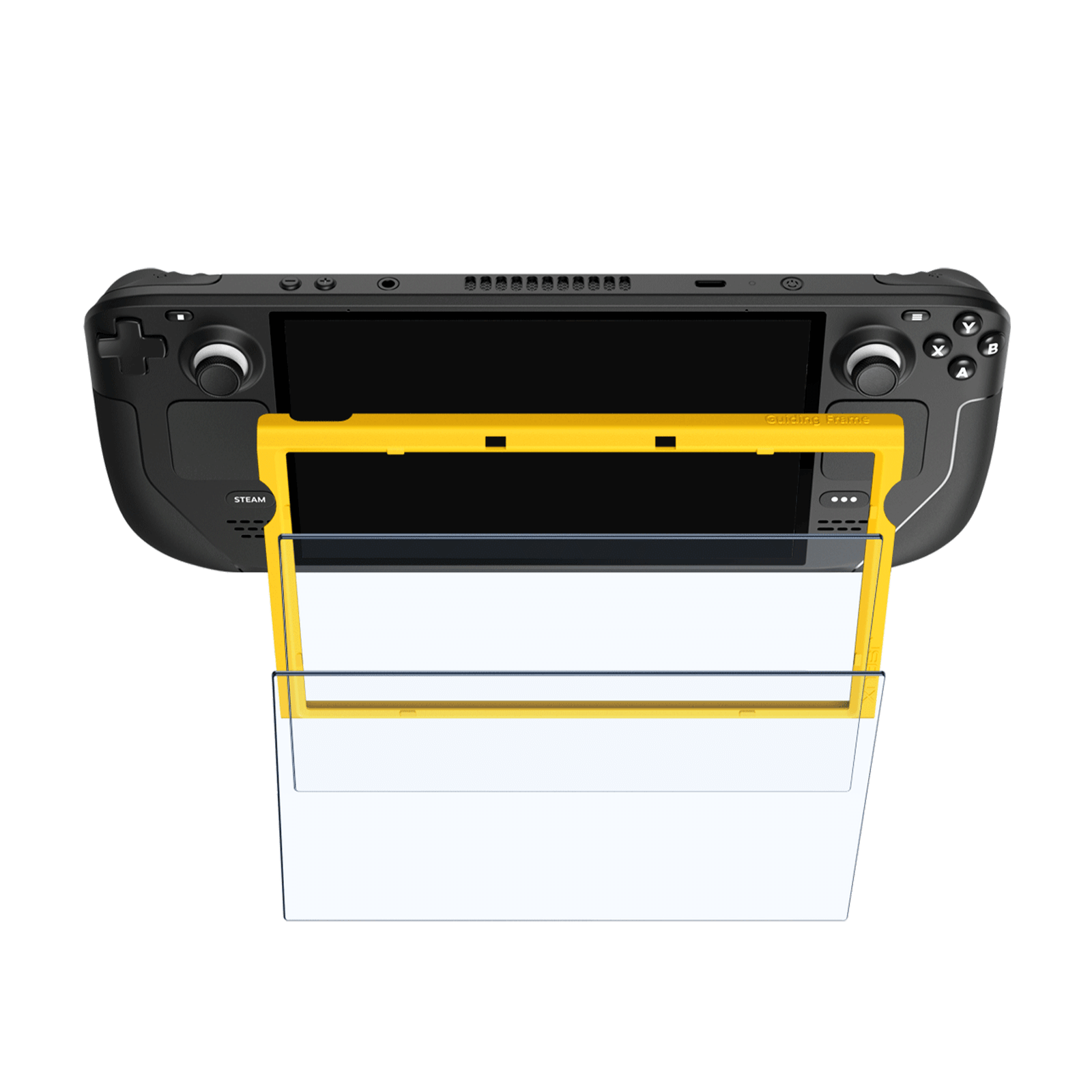
Description
- Protect Your Steam Deck Screen: Designed exclusively for the 7-inch display of the Steam Deck to avoid scratches, cracks, and other types of damage.
- Anti-Glare for Better Visibility: Premium anti-glare matte texture finish reduces glare, providing a crystal clear experience.
- Easy Installation, Perfect Fit: Say goodbye to frustrating installations that leave bubbles or require multiple attempts. The screen protector comes with a guiding framework that ensures a perfect fit and makes installation quick and easy.
- Anti-Fingerprint and Ultra-Thin: Coated with a matte finish that resists fingerprints and smudges. The ultra-thin design enhances the gaming experience. The ultra-thin 0.33mm design also ensures high sensitivity for an enhanced gaming experience.
- Experience the Ultimate Protection: Don't take any chances with the Steam Deck's display - trust in the protection of this high-quality screen protector. With full-screen coverage and advanced features, it's the ultimate accessory for any serious gamer.
- 📢Note: This anti-glare screen protector is not recommended for the Steam Deck OLED, as it may not work well with the OLED screen.
FAQ
Q1. Steam Deck 512G paste the tempered film will affect the original anti-glare effect?
A1. Yes, if the Steam Deck comes with an anti-glare screen, and then we also apply the tempered film, it may make the original anti-glare screen not work. However, tempered film can still protect the screen from external damage (such as cuts, drops).
Q2. Is there an oleophobic layer?
A2. Yes
Q3. What should I do if there are white edges around the edges?
A3. Please try to press the bubble position together with a squeegee.
Anti-Blue Light Screen Protector for Steam Deck LCD & OLED
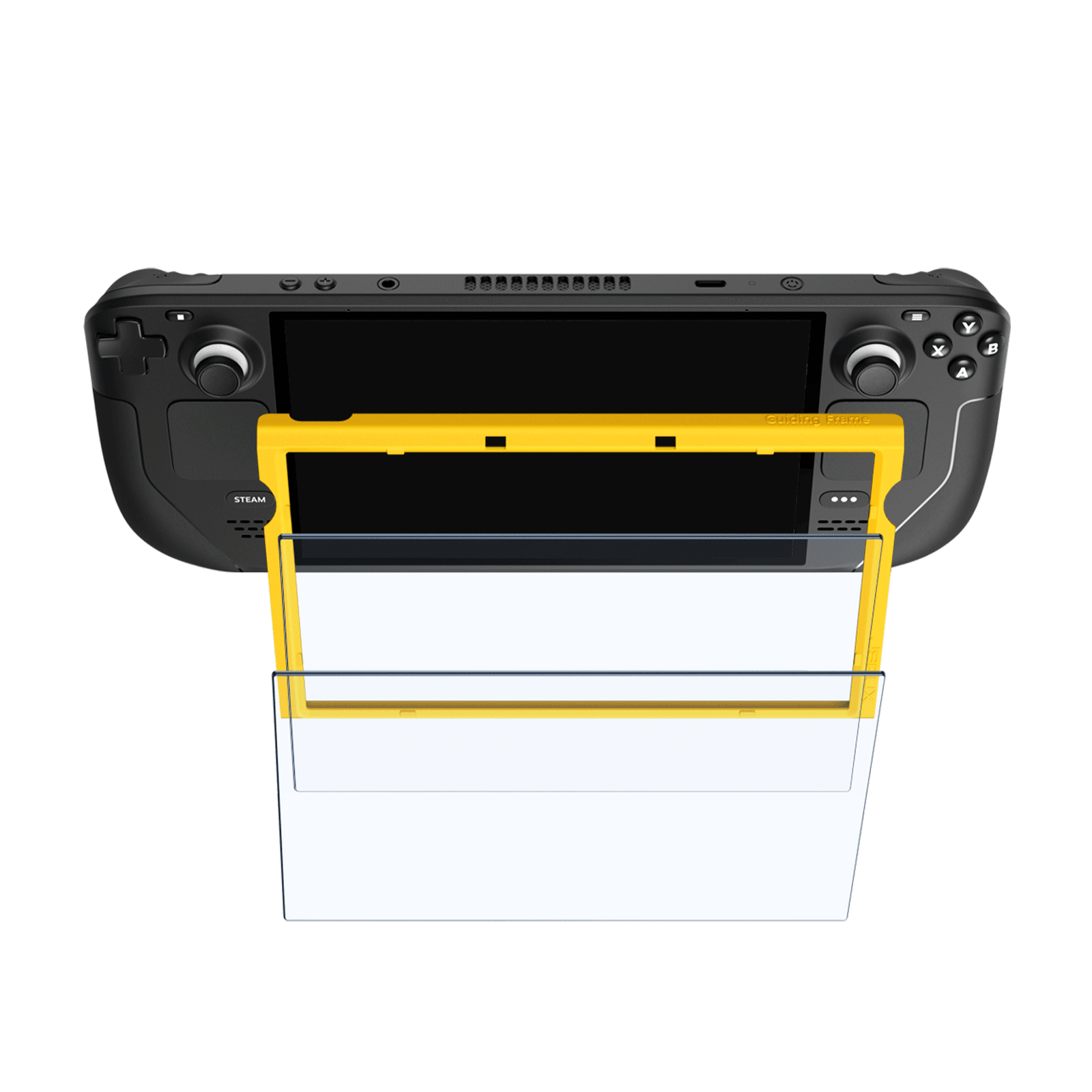
Description
- Only for Steam Deck/OLED: This full-screen coverage 7-inch tempered glass screen protector is designed specifically for Steam Deck/OLED.
- Harmful Blue Light Blocking: This Steam Deck screen protector is designed to filter out harmful blue light from digital screens, which can cause insomnia, eye strain, headaches, dry eyes, and blurred vision, especially for children and teens.
- Easy to Install: With a guiding frame included, the JSAUX Steam Deck/OLED screen protector is easy to install without having to repeatedly align the edges.
- Superior Protection: Featuring 9H hardness and extra reinforcement, this screen protector provides superior protection against bumps and scratches, keeping your Steam Deck's screen safe.
- Anti-fingerprint: The oleophobic coating ensures that the JSAUX Steam Deck/OLED screen protector stays clean and free of fingerprints, keeping your screen looking great at all times.
FAQ
Q1. Is there an oleophobic layer?
A1. Yes.
Q2. What should I do if there are white edges around the edges?
A2. You can try to press the bubble position together with a squeegee.
Q3. Is this product compatible with your protective skin GP0002?
A3. Yes, please install the protective glass GP0108 for the screen first and then install the skin GP0002.
FAQ
Q1. Is there an oleophobic layer?
A1. Yes.
Q2. What should I do if there are white edges around the edges?
A2. You can try to press the bubble position together with a squeegee.
Q3. Is this product compatible with your protective skin GP0002?
A3. Yes, please install the protective glass GP0108 for the screen first and then install the skin GP0002.
Screen Protector for Steam Deck LCD & OLED

Description
- Designed for Steam Deck LCD & OLED: 7-inch tempered glass screen protector with full-screen coverage.
- 5X More Durable: Extra-reinforced at 500℃ for several hours, 5X more durable than other regular screen protectors that have been reinforced only once.
- Ultra HD Clarity: Experience 99.99% transparency with our screen protector, providing you with original clarity without any blemishes.
- Superior Protection: 9H hardness and Extra-reinforcement allow the screen protector to protect the screen of the Steam Deck LCD & OLED from bumps and scratches.
- Anti-fingerprint: With the oleophobic coating, the JSAUX Steam Deck LCD & OLED screen protector will keep your screen clean and tidy at all times.
FAQ
Q1. Is there an oleophobic layer?
A1. Yes
Q2. What should I do if there are white edges around the edges?
A2. You can try to press the bubble position together with a squeegee.
Q3. Why is the Steam Deck 512G version not responding to touch with the tempered film?
A3. The official 512G version of Steam Deck has a batch of machines due to the problem of curing the glue when making the screen bonding is not tight, there may be a broken touch after applying the tempered film.
Q4. Steam Deck 512G paste the tempered film will affect the original anti-glare effect?
A4. Yes, if the Steam Deck comes with an anti-glare screen, and then we also apply the tempered film, it may make the original anti-glare screen not work. However, tempered film can still protect the screen from external damage (such as cuts, drops).
FAQ
Q1. Instructions provided after receiving the parcel of Steam Deck anti glare screen GP0300.
A1.
1)After receiving the package, please promptly unpack it and carefully inspect the screen for any visible physical damage such as cracks, scratches, or breakage.
Tip:You can examine the anti-glare screen under different lighting conditions.
2)According to the item information provided in the USER GUIDE, thoroughly verify the quantity of the products received. If any accessories miss, please refrain from installing the GP0300 anti glare screen and contact JSAUX’s customer support for assistance asap.
3)Please strictly follow JSAUX’s installation tutorial for the anti-glare screen GP0300. Connect it to the Steam Deck as instructed, installation finished, power on the screen, and check the touch sensitivity and display to ensure proper functioning of the screen.
Q2.Is it the same as the original Steam Deck screen?
A2. The functionality of JSAUX anti-glare screen is the same as the original Steam Deck screen. With rigorous oversight by a reputable manufacturer, this screen ensures reliable quality assurance.
Q3.The protective film is covered with bubbles. Is this normal?
A3. The product is brand new. In order to ensure the quality and integrity of the screen product we provide to you, we conduct strict quality inspection procedures before it leaves the factory. Bubbles or smudges on the protective film, caused by the inspection process, are considered normal occurrences. The protective film is applied to safeguard the screen from scratches and dirt during transportation and testing. Upon receiving the package, you can peel off the film to inspect the screen for any damage. After inspection, you can reapply the film to continue protecting your screen during the installation process. Once the final installation is complete, you can remove the protective film and start experiencing the brand-new anti-glare screen!
Q4. Will there be a color difference between the anti-glare screen GP0300 and the original Steam Deck screen?
A4. No, the JSAUX anti-glare screen GP0300 has been strictly tested many times when manufacturing. The functionality of our anti-glare screen is the same as the original Steam Deck screen, and there is no color difference between the two.
Q5. Is this anti-glare screen a bare panel? Does the front side of the screen have a protective film?
A5. Yes, this is a bare panel. The front side of the screen is covered with a protective film, which should be gently peeled off before use.
Q6. More questions about installation.
Silicone Grip Case Set for ROG Ally X
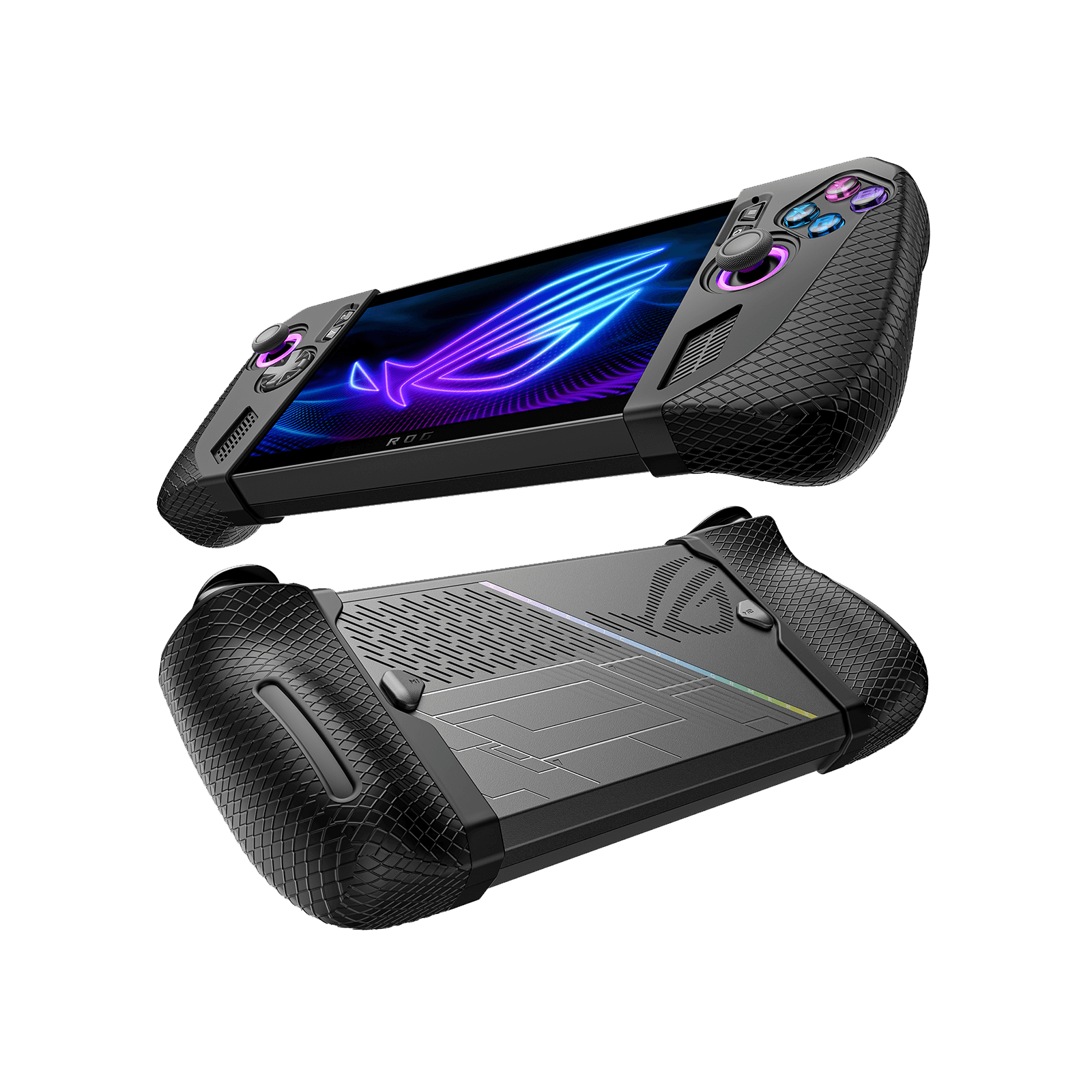
Description
- 【Compatible for ROG Ally X】: The smart machine cuts precisely and perfectly compatible for the ROG Ally X. Simple and stylish style gives your ROG Ally X a new look. (Not compatible with ROG Ally or ROG Xbox Ally/X)
- 【Anti-slip and Drop Protection】: We upgraded ROG Ally X silicone case to a non-slip silicone case to improve the feel and friction so that you can avoid the game console from slipping off due to sweating hands when playing games. Improve gaming experience. Even if you accidentally drop your console, this ROG Ally X grip case will provide perfect protection
- 【Superior Design for Grip】: Enhanced with slip-prevention texture, this design significantly improves the gripping experience. OptimizedSuperior Design for Grip: Enhanced with slip-prevention texture, this design significantly improves the gripping experience. Optimized edges prevent scratches while providing a comfortable touch edges prevent scratches while providing a comfortable touch
- 【Unobstructed Heat Dissipation】: The precise design of ROG Ally X grip case ensures unobstructed airflow in vents
-
【What's Included】: This protection set is designed for ROG Ally X grips and includes one left and one right silicone protection sleeve in the package. NOTE: It does not contain any electronic components or the ROG Ally X console. For a better user experience, it is recommended to use the silicone protective case without joystick caps
FAQ
Q1. Will the Touch-sensitive Thumbstick Caps wear off its color?
A1. The Touch-sensitive Thumbstick Caps is made of conductive silicone, enabling it to trigger gyroscopes through capacitive touch. It contains conductive particles inside, and minor color fading is considered a normal occurrence.
Q2. Is it compatible with Thumbstick Caps?
A2. Due to the shorter length of the ROG Ally joystick, using Thumbstick Caps and silicone covers simultaneously may cause slight interference, requiring a bit more force to activate the joystick during operation.
Q3. What is the different between Touch-sensitive and Non-touch Thumbstick Caps?
A3. The Steam Deck utilizes capacitive thumbsticks, which can be activated by touch to control the gyroscopic aiming. Non-touch Thumbstick Caps cannot trigger the capacitive thumbsticks, affecting their ability to control the gyroscopic aiming, which serves as an aiming assist during gameplay.
Q4. Will the white silicone covers change color?
A4. It is completely normal for slight discoloration to occur after using white silicone covers for some time. The speed and extent of this change may be influenced by various factors, but rest assured, it will not affect their regular use.
To slow down the discoloration process, you may consider storing the grips in an area not directly exposed to sunlight and regularly cleaning them to prevent the buildup of contaminants.
FAQ
Q1. Can I buy the matching touchable thumb cap for GP0002 separately?
A1. Sorry, we do not sell touchable thumb caps separately.
90° USB-C to USB-C Right Angle Adapter
![#style_blue&orange [2-pack]](http://jsaux.com/cdn/shop/files/90_-USB-C-to-USB-C-Right-Angle-Adapter-blue-orange-1.png?v=1755238920&width=1600)
Description
- [90 Degree Full Function Data Transmission】This Up & Down 90 degree adapter allow the cable to have a suitable extension direction, which can avoid wear and tear on your cables and devices' input ports and save space. Support charging & data transmission.
- 【100W Fast Charging & 40 Gbps Transfer Speed】JSAUX GAMING right angle USB C adapter up to 5 Amp of output current, providing the fastest possible charging for your devices. Offers data transfer speed of 40Gbps. Note: You need a Thunderbolt 3 or higher cable paired with a Thunderbolt hard drive case to achieve 40Gbps data transfer speeds.
- 【4K@60Hz Video Output】The USB C 90 degree extender supports up to 8K video signal and audio transferring for the connection between your USB C devices to another monitor or display with USB C interface. Note: Please make sure both your input device and output monitor have usb type c port and support video input and output.
- 【High-Quality Assurance】Compared with other right angle adapter, we use premium Aluminum shell add better durability, preventing internal chips and circuits from breaking. Non-Slip Design for easier insertion and removal.
-
【Compatibility】Widely work with most Type C devices. For Nintendo Switch 2 (2025), ROG Xbox Ally/X, ROG Ally/X, Steam Deck/OLED, Legion Go/2, Switch, MacBook Pro, Surface Book 2, iPhone 16/16 Plus/16 Pro/16 Pro Max, iPhone 15/15 Plus/15 Pro/15 Pro Max, Samsung Galaxy S25/S24/S23/S22/S21/S20/S10, Note 20/10, LG G7/V20; Google Pixel, ChromeBook, etc.
FAQ
Q1. How to reach the fastest speed of data transfer?
A1. You need a Thunderbolt 3 or higher cable paired with a Thunderbolt hard drive case to achieve 40Gbps data transfer speeds.
Q2. What are the exact measurements of the outie plug’s collar?
A2. When plugged in, it is approximately 3/4".
Q3.Will this adapter fit in the cutout in jsaux’s kickstand case for the steam deck?
A3. Yes, the 90 Degrees Right Angle USB-C Male to USB-C Female Adapter fits in the cutout in jsaux’s kickstand case for the steam deck.
Q4. Can I use this usb c adapter to tansfer video to the monitor form my steam deck or switch?
A4. Yes, the USB-C 3.1 90-degree extender supports up to 4K@60Hz video signal and audio transferring for the connection between your USB-C devices to another monitor or display with a USB C interface. (Note: Please make sure both your input device and output monitor have USB type c port and support video input and output).
180° USB-C to C & A Adapter Set
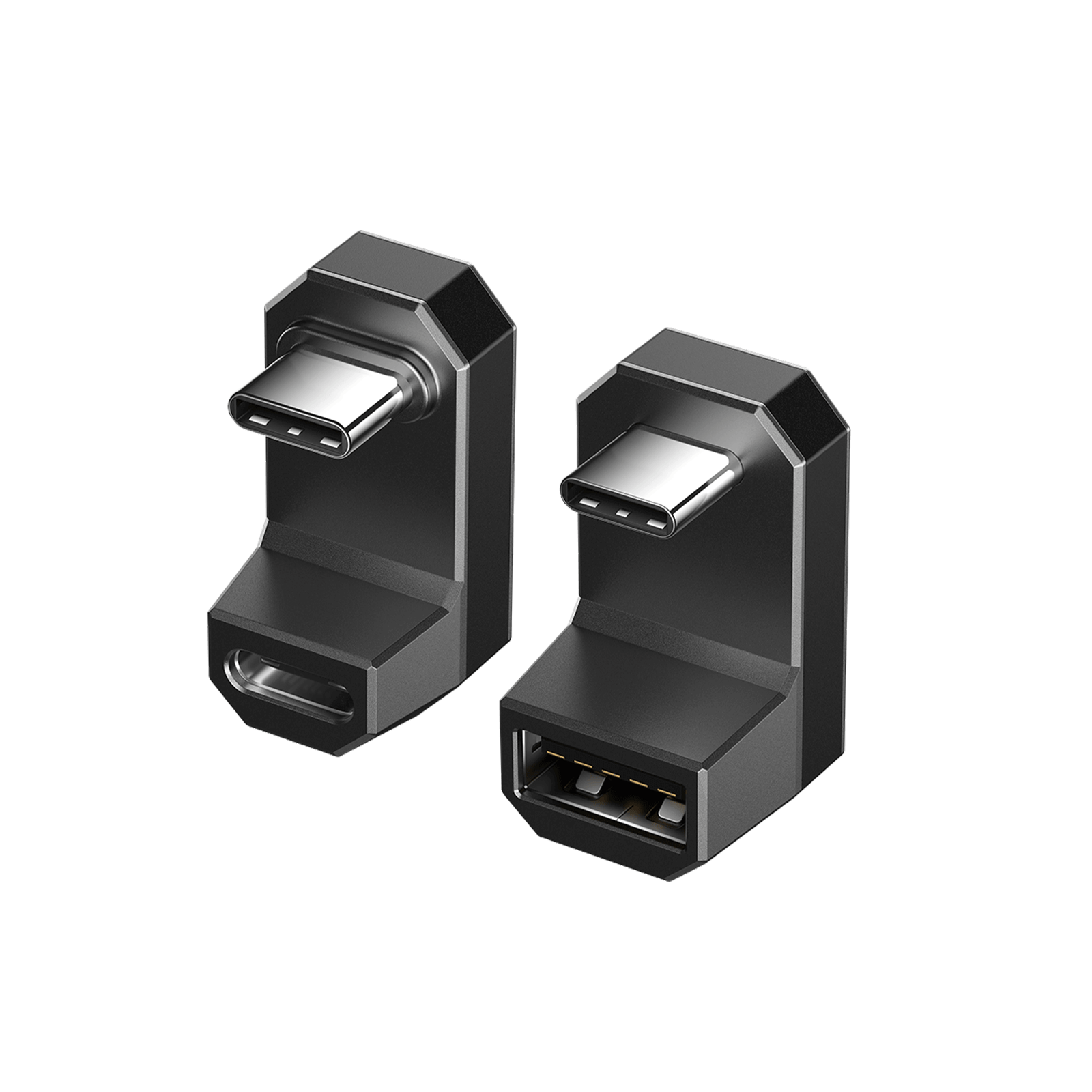
Description
- 180 Degree Full Function Data Transmission: This USB C to USB Adapter with an innovative 180 degrees U shape design, is much more convenient and more comfortable for playing games, watching videos, and working when you lie on the couch or bed while charging. Important Note: This 180° adapter cannot work with a case wider than 0.46 inches and a thickness of more than 0.16 inches.
- 60W Fast Charging & 10Gbps Transfer Speed: Provides the fastest possible charging for your devices with a fast transfer speed.
- 4K@60Hz Video & Audio Transmission: The USB-C 3.1 180-degree extender supports up to 4K@60Hz video signal and audio transferring for the connection between your USB-C devices to another monitor or display with a USB-C interface. (Note: Please make sure both your input device and output monitor have a USB type c port and support video input and output).
- Compatibility: Widely works with most Type C devices. For Steam Deck, ROG Ally, Switch, MacBook Pro, Surface Book 2, Samsung Galaxy S22/S21/S20/S10, Note 20/10, LG G7/V20; Google Pixel, Chromebook, etc.
- What you get: USB C Male to USB C Female Adapter * 1, USB C Male to USB A Female Adapter * 1.
NOTE:
- iPhone 15 needs to turn on assistive touch when connecting to the mouse (Settings-Assistive Functions-Touch-Assistive Touch-Enabled).
- NOT compatible with AYA NEO console. Cannot guarantee 30W Turbo Mode for Rog Ally. It may require a charger over 65W, based on current information. Ultimately, enabling 30W Turbo Mode depends on the specific charger used.)
- It cannot be used with the PC0104 because the PC0104's stand blocks the USB cable connected to the 180° USB-C to C & A Adapter Set
- Not compatible with the PC0109 ModCase for ROG Ally.
FAQ
Q1. What about the compatibility with the ModCase PC0104 when the metal bracket is attached?
A1. If you use DD0009&DD0010 when the metal bracket is attached, one of the port of the adapter may be blocked by the metal bracket.
Q2. Can the JSAUX protective cases be supported?
A2. The DD0009&DD0010 is compatible with Steam Deck intalled PC0102/PC0103/PC0104/PC0105.
Q3. What should I be aware of the products when I am using it?
A3. Be sure that the adapter is attachted to the USB-C port of your device tightly, when it is properly attachted, there will be a little click sound from one of the ports of DD0009&DD0010.
Q4. Can DD0009&DD0010 be supported my Steam Deck installed protective cases of other brand?
A4. Only JSAUX cases be supported.
Q5. If I use Anti-Slip Stand for Steam Deck Dock SG0104 / Portable Stand for Steam Deck SG0101 /Anti-Slip Holder for Steam Deck SG0102, can this adapter work still?
A5. Yes, they are compatible with DD0009&DD0010.
FAQ
Q1. Why will my music stop when I unplug the power after charging?
A1. It is normal becausse the main control chip will be restarted if the power supply of the main board system is changed. Please set play music again.
Q2. What devices is this adapter compatible with?
A2. This adapter is compatible with almost any device with one USB-C port.
Q3.Can I use the volume buttons/call controls on my earphone cable with this adapter?
3. Yes, the adapter fully supports inline headphone controls.Note: Adapter does not support inline volume control on Apple’s earPods.
Q4. Will listening to music through this adapter affect charging speed?
A4. No, the adapter is designed for simultaneous audio streaming and PD fast charging. Listening to music will not affect charging speed.
2-in-1 USB-C to 4K@60Hz HDMI Charging Adapter
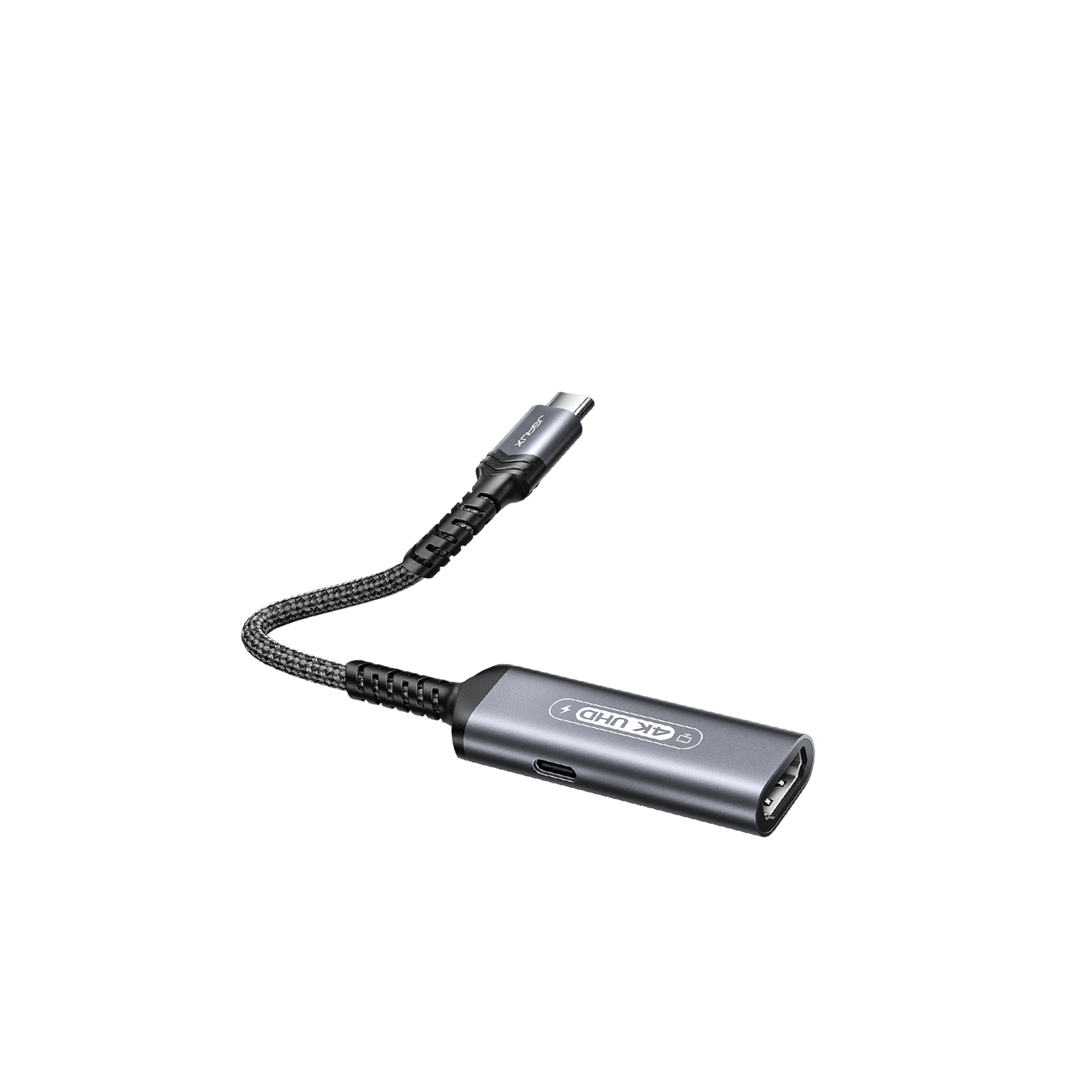
Description
- 【Charging While You Display】JSAUX HB0201 has a HDMI 4K output port and a USB C charging port. 2 ports can work at the same time. You can connect a USB C Thunderbolt 3-equipped PC or laptop to a HDMI display and charging your usb c devices at the same time.
- 【100W Fast Charging】JSAUX HB0201 HDMI to USB C adapter has PD 4.0/3.0 and QC fast charging technology, supports up to 100W output. Fast charge for MacBook Pro 16” up to 50% in 35mins, charge for Samsung S22 Ultra up to 80% in 35mins. (NOTE: The actual charging speed depends on your device and wall charger.)
- 【4K@60Hz Visual Feast】You can have up to 4K@60Hz revolution with this type c to hdmi .Backward compatible with 1080P, 1080I and 720P. Delivering crystal clear, high quality video and audio. While you are having presentations, watching movie and sharing photos with your family.
- 【Compatibility List】This hdmi to c adapter is compatible with iPhone 16/16 Plus/16 Pro/16 Pro Max, MacBook Pro 15''(2016-2018), MacBook Pro 13''(2016-2019), MacBook 2017 2016 2015, MacBook Air 2018 2019, iMac2018 2017(21.5''/27''), iMac pro 2018 2017(27'),Mac mini, Mac Pro, Surface Book 2, Pixelbook, Dell XPS 15 13, iPad Pro2018 12.9''(Gen3), iPad Pro2018 11'', Surface Go, Dell XPS 13 7390 and 2 in 1, Samsung Galaxy S22 S21+ S20 S20+ Plus S20 Ultra S20 Z Flip, Note 8 9 10 20 Plus 10+, S8 S9 S10 Plus S10+, HUAWEI Mate20 P20 P30.
FAQ
Q1. Does it support PD 3.0?
A1. Yes.
Q2. Can it be powered with the default 45W PD 3.0 charger that comes with the Steam Deck
A2. Yes, it can.
Q3. What HDMI cable should I use to support this adapter?
A3. HDMI 2.0
Q4. Can it be compatible with DD0009&DD0010?
A4. The USB-C port of HB0201 can be connected with the USB-C port of that adapter.
FAQ
Q1. Can it be used with the Nintendo Switch?
A1. No, it does not support the Switch.
Q2. Is the USB-C PD port compatible with other USB-C devices?
A2. Is the USB-C PD port compatible with other USB-C devices?
Q3. Why is there no laptop speaker sound after docking station connection?
A3. The docking station includes HDMI and 3.5mm audio/mic ports. HDMI connection to a display triggers laptop audio to switch. To use laptop speakers, on Windows 10 (similar on macOS), click speaker icon, select "Sound," and choose desired sound output.
65W USB-C Foldable Charger

Description
- 【TV Mode Power Support for Switch 2】Provides stable, high-output power for Nintendo Switch 2 while in TV Mode via the dock. Note: This charger supplies power only—it does not transmit video or HDMI signals.
- 【65W GaN Fast Charging】Powered by advanced GaN technology, this USB C charger delivers up to 65W of fast, efficient charging—perfect for high-demand devices like laptops, tablets, and gaming consoles including Steam Deck, ROG Ally, and MacBook.
-
【All-in-One Travel-Ready Charger】Includes US, UK, and EU plug adapters to support charging in over 150 countries. The foldable US plug and compact design make it ideal for carry-on and everyday use.
Durable 6.6FT USB C Cable Included: Comes with a 6.6FT (2-meter) braided USB C to C cable that supports Power Delivery 3.0 and fast data transfer. Reinforced and tangle-resistant for long-lasting durability. - 【Wide Compatibility & Safe Charging】Compatible with Nintendo Switch 2, Switch OLED, Steam Deck, ROG Xbox Ally, ROG Ally, MacBook Pro/Air, iPad Pro, iPhone Air, iPhone 17/16/15 Series, Galaxy S25/S24/S23, Pixel 9/8/7, and more. Features built-in protection against over-voltage, over-current, and short-circuit for worry-free charging.
FAQ
Q1. What will the product I receive look like and why the charger is not compatible with my outlet?
A1. When you open the packet of the CH6504/CH4504, the EU adapter is defaultly attached to the plug. Please remove the EU adapter and choose the proper adapter you want.
Q2. What will the product I receive look like and why the charger is not compatible with my outlet?
A2. Yes, the charger CH4504/CH6504 can be put in the bottom room of BG0102.
Q3. Could it be placed in the Jsaux Carrying case BG0106?
A3. Yes,CH6504/CH4504 can be put in the bottom space of BG0106.
Q4. What is the difference between CH4504 and CH6504?
A4. The 65W charger and the 45W charger are only different in charging power, and other parameters are the same, and both chargers have an EU adapter and a UK adapter.
Q5. I am worried that when twistering the USB-C port of the cable when charging my Steam Deck directly would cause some effects on the product lifespan of CH4504/CH6504.
A5. When encountering the angle needs to be twistered, you could attach the 90 degrees adapter to the USB-C port of the cable and use the charger.
Q6. What is the difference between charger CH4504 and charger CH4502?
A6.
1.CH4504 comes with EU/UK charger while CH4502 does not.
2.The length of CH4504 is 10 FT while CH4502 is 5 FT long.
3.The output of CH4504 is 5V⎓3A, 9V⎓3A, 15V⎓3A, 20V⎓3.25AAnd the output of CH4502 is 5V⎓3A, 9V⎓3A, 15V⎓3A, 20V⎓2.25A.
Magnetic Wireless Charger
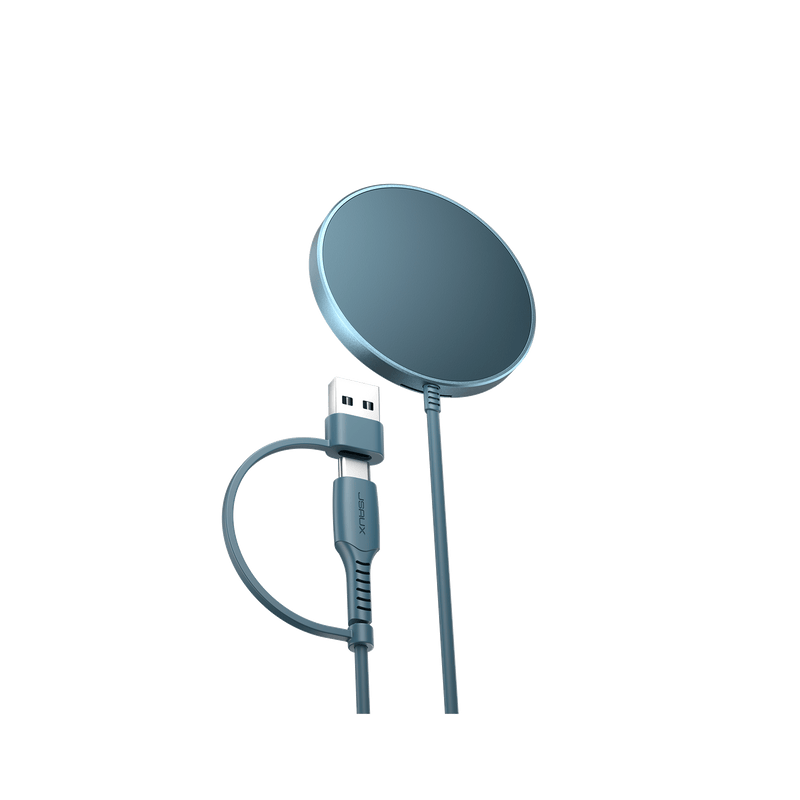
Description
- 【Universal Magnetic Compatibility】Compatible with iPhone iPhone 17 Pro Max/17 Pro/17/17 Air/16 Pro Max/16 Pro/16/16 Plus/15 Pro Max/15 Pro/15/15 Plus/14 Pro Max/14 Pro/14/14 Plus/13 Pro Max/13 Pro/13/13 mini/12/12 Pro/12 mini/12 Pro Max, AirPods 3 with MagSafe Charging Case, AirPods 1/2/4 with Wireless Charging Case, AirPods Pro/Pro 2, and also compatible with iPhone 16e (supports wireless charging, but magnetic attachment requires a Mag-Safe case or magnetic ring, not included)
- 【Strong Magnetic Hold】JSAUX magnetic phone charger for iPhone 17 offers convenient wireless charging by easily snapping onto the phone with its strong magnets. It automatically positions the phone and holds it securely. For case users, opt for a MagSafe-compatible case to ensure optimum charging performance
- 【Magnetic Snap-On Charging】In a dark bedroom, there is no need to hunt for a charging port. This magnetic wireless charging pad for iPhone 17/16/15/14/13/12 uses perfectly aligned magnets to snap into place, whether you are working, watching videos, gaming, or chatting. It charges without using the phone’s charging port and supports 360° charging in any orientation. With a sensing distance of up to 3 mm, it enables inductive charging without removing the magnetic phone case
- 【Portable & Multi-port Input】: The high-quality metal material offers good performance with longer spanlife. Only 0.23 inch (thickness), with 4.9 ft integrated multi-port cable, just like the smallest & lightest wireless mag safe charger. Free up more space and easy to carry. Recommended to pair with an 18W, 20W, or higher USB & USB C power adapter, which is sold separately
- 【Intelligent Protection】It is normal for the magnetic wireless charger to become slightly warm while charging the phone. This is simply how wireless power transfer works. The charger has built-in overheat protection to keep charging within safe temperature limits. If the battery becomes too warm, the phone’s software may pause charging above 80% to protect battery health and extend its lifespan
FAQ
Q1. Sometimes the charger gets warm when charging, will it be safe?
A1. As with MagSafe Charger, to extend the lifespan of your battery, if the battery gets too warm, software might limit charging above 80 percent. When the temperature drops, it will charge again.Please don’t worry, it will be safe.
Q2. Can i use 5W or 12W USB Power Adapter for it?
A2. I am afraid not. Please use 18W, 20W or higher power wall adapters instead of 5W or 12W APPLE USB Power Adapters to ensure that the device can provide 15W of charging power.
Q3. What is the maximum output power?
A3. Power output of up to 15W MAX , for iPhone is 7.5W MAX.
Q4. Can I use it to charge my AirPods?
A4. YES. But AirPods 2/3 or AirPods Pro have to equipped with AirPods MagSafe Charging Case.
Q5. Does this wireless charger affect battery health over time?
A5. The factors that determine the battery life are the speed and temperature of the battery charging. As long as the phone battery is properly charged, it will not affect the health of the battery.
Q6. Does it stop charging when the battery is full?
A6. When the battery is full, the magnetic wireless charger will not stop charging. It will continue to charge in trickle flow mode.
FAQ
Q1. What is included in this speaker gift?
A1. You will get 1*Bluetooth Speaker, 1*Lanyard, 1*USB C Cable, 1*Manual.
Q2. Can it charge iPhone wirelessly?
A2. Yes, this bluetooth speaker supports MagSafe charging for iPhone 14/13/12 series.
Q3. Is this a Bluetooth speaker?
A3. Yes, it is a 3-in-1 Bluetooth wireless speaker with Bluetooth speaker, phone stand and wireless charger functions.
Q4. Can I buy this Bluetooth speaker as a gift for someone?
A4. Of course, it is ideal as a birthday gift or for your loved ones and friends on Mother
3-in-1 45W Charger Dock
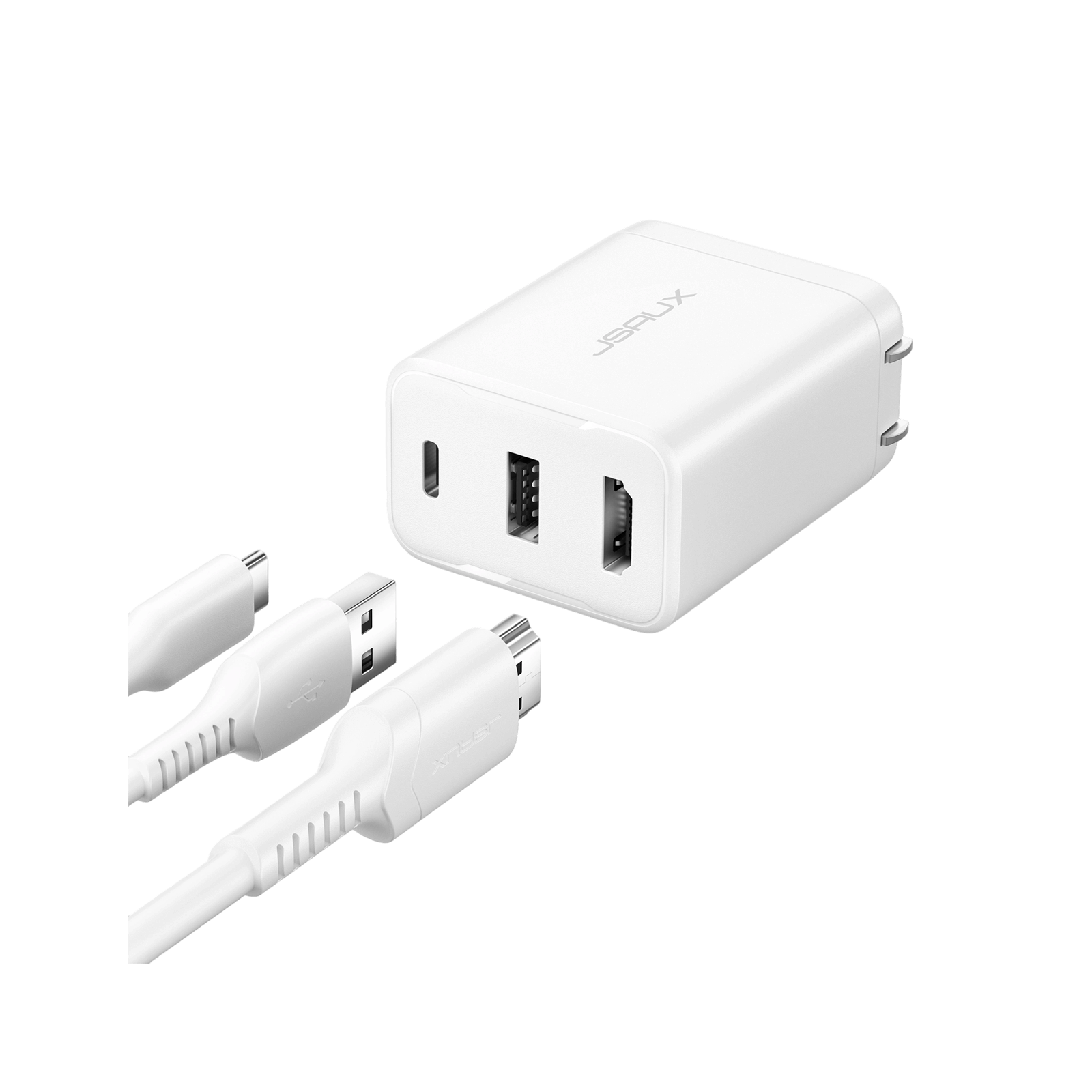
Description
- 【3-IN-1 Design】 1. USB-C 3.1 Port: 45W charging output for fast charging of Steam Deck, and laptops with the included cable; 2. USB-A 2.0 Port: Supports 480Mbps data transfer between the device and U-disk/hard drive, Also supports 5W charging output; 3. 4K HDMI 2.0 output: supports 4K@60Hz output in TV mode and game mode. This charger docking station combines the functionality of the original charger and dock, plug and play for convenience and time saving.
- 【45W Fast Charging】This charger provides 45W fast charging to the steam deck, not only for Steam Deck but also for MacBook and other laptops. The built-in smart chip provides multiple protection, and protects your device from over-current, over-voltage, overheating, and short-circuit.
- 【HDMI 4K HD Output】This Steam Deck charger hub supports resolution up to 4K@60Hz, also compatible with 4K@30Hz, 2K/144Hz, 2K/120Hz, etc.. Have fun with a big screen and high-quality pictures thanks to its HDMI port supporting 4K.
- 【Compatibility】JSAUX 45W multi-function charger is compatible with Steam Deck, ROG Ally/X, 2018-2020 MacBook Air 13", 2016-2020 MacBook Pro 13"/15"16", HP Spectre x360, Lenovo X1 Yoga, DELL XPS13/15/17, HUAWEI MateBook X/Xpro, iPad Air 4,2018-2021 iPad Pro 11"/12.9", Samsung Galaxy Galaxy Tab S4/S5e/S6, Galaxy Note8/9/10/Note20/20 Ultra. (Note: Not compatible with AYANEO Game Console)
-
【What You Get】1×JSAUX Steam Deck Charger, 1×3.3ft USB-C to USB-C 3.1 Gen2 Cable, 12-Month Warranty and friendly 24/7 customer service. (NOTE: HDMI Cable Sold Separately).
FAQ
Q1. Does this HC4503 fit in my JSAUX Carrying Case?
A1. Yes, it could be put in JSAUX Carrying Case BG0102/BG0103/BG0106/BG0105.
Q2. What HDMI cable should I use to support this Charger Dock?
A2. It supports HDMI 2.0.
20000mAh 65W PD Portable Powerbank
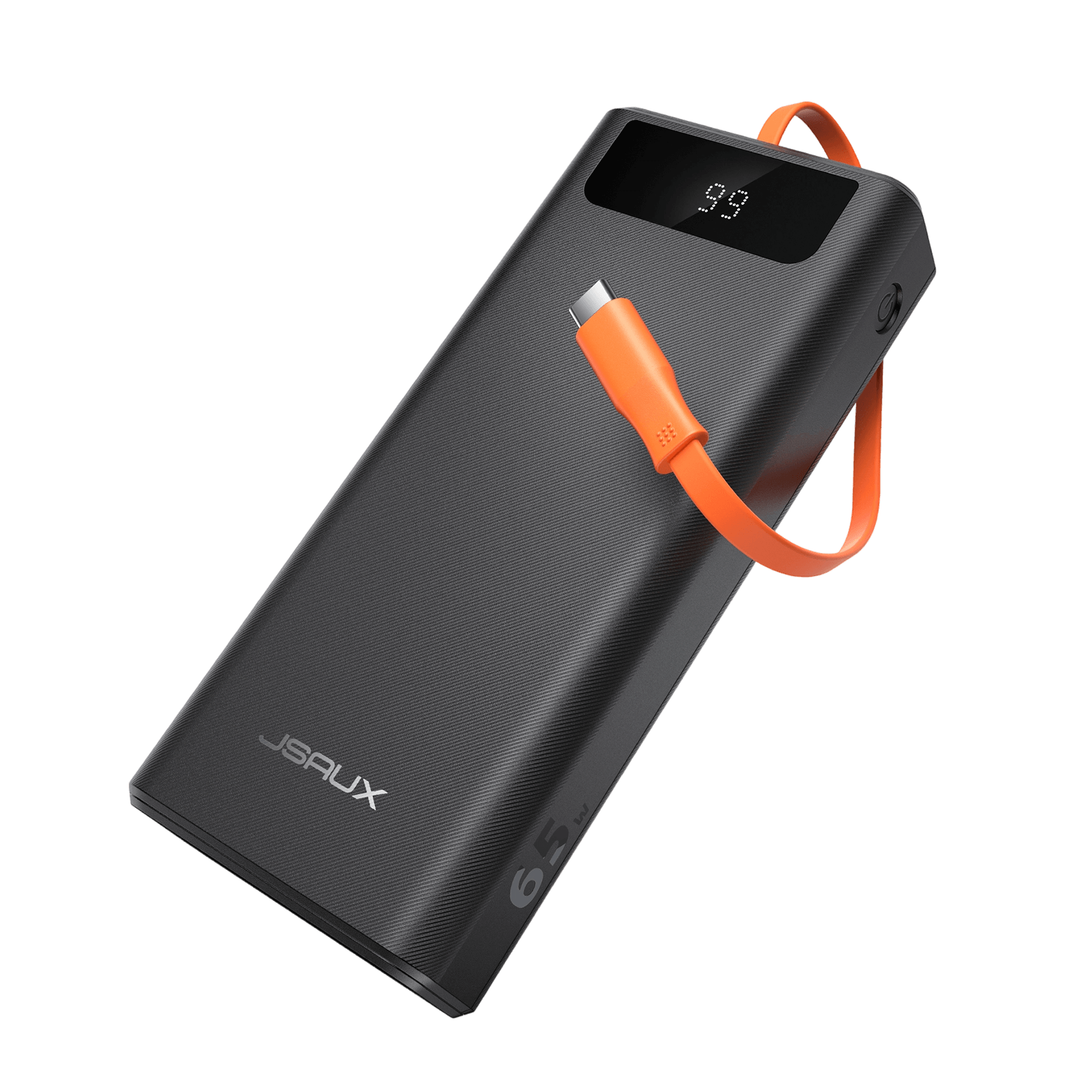
Description
- 【65W High-Speed Charging】: Equipped with PD65W charging support, this power bank can quickly charge your devices, including the Steam deck at full speed (45W), ensuring you're never caught without power on the go
- 【20000mAh Large Capacity】: This portable charger provides ample battery life to keep your devices charged all day long, making it the perfect companion for long trips or busy days out and about
- 【Intelligent Display】: The smart digital display keeps you informed of your battery level, voltage, and current so that you can stay on top of your charging needs. It also alerts you to safety issues by alarming, making it a smart and user-friendly charging solution for your devices
- 【Multi-Protection】: This portable charger includes built-in protection against over-current, over-voltage, overheating, and short-circuit, ensuring your phone and personal safety
- 【Multiple Output Ports】: Equipped with two USB C ports and two USB A ports, this portable charger offers versatile charging options for multiple devices at the same time, making it a must-have for families or groups on the move. Equipped with a built-in cable, allows for hassle-free charging on the go without carrying an extra charging cable
-
【Universal Compatibility】: Compatible with a wide range of USB C PD devices, including Steam Deck, Steam Deck OLED, ROG Xbox Ally, ROG Xbox Ally X, ROG Ally, ROG Ally X, Legion Go 2, Switch 2, Switch, iPhone, Samsung Galaxy, Huawei, and more, it is the ultimate charging solution for all your mobile needs.
FAQ
Q1. Why cannot I purchase the power bank PB6501?
A1. Due to the limitations of the logistics provider, the Power Bank PB6501 can only be shipped to the following countries and regions(we are still looking for a better solution), we are sorry for the inconvenience. USA / UK / Germany / Austria / Canada / Belgium / Czech Republic / Denmark / Estonia / Spain / Finland / France / Greece / Hungary / Italy / Lithuania / Luxembourg / Netherlands / Poland / Sweden / Slovenia / Slovakia / Portugal / Latvia / Bulgaria / Romania / Croatia / Ireland
Q2. Will a powerbank obstruct the intake vents when installed?
A2. The Power Bank is tied horizontally, and there is a certain distance from the game console, which will not block the air inlet and outlet of the game console.
Q3. Iam worried about putting heat into the steam deck from the battery use?
A3. When the power bank is in use, the shell heat will not be very high, and it will not cause the temperature in the game console to rise.
FAQ
Q1. What is the width that can be accommodated?
A1. 2cm is fine.
Q2. Will it block the SD vent and affect heat dissipation?
A2. Of course not.
Q3. Will I still be able to use the SG0104 with the Killswitch case on my Steam Deck?
A3. No, because the groove is not enough to accommodate the thickness of the SD after the Killswitch is installed.
Anti-Slip Holder for Handheld Consoles
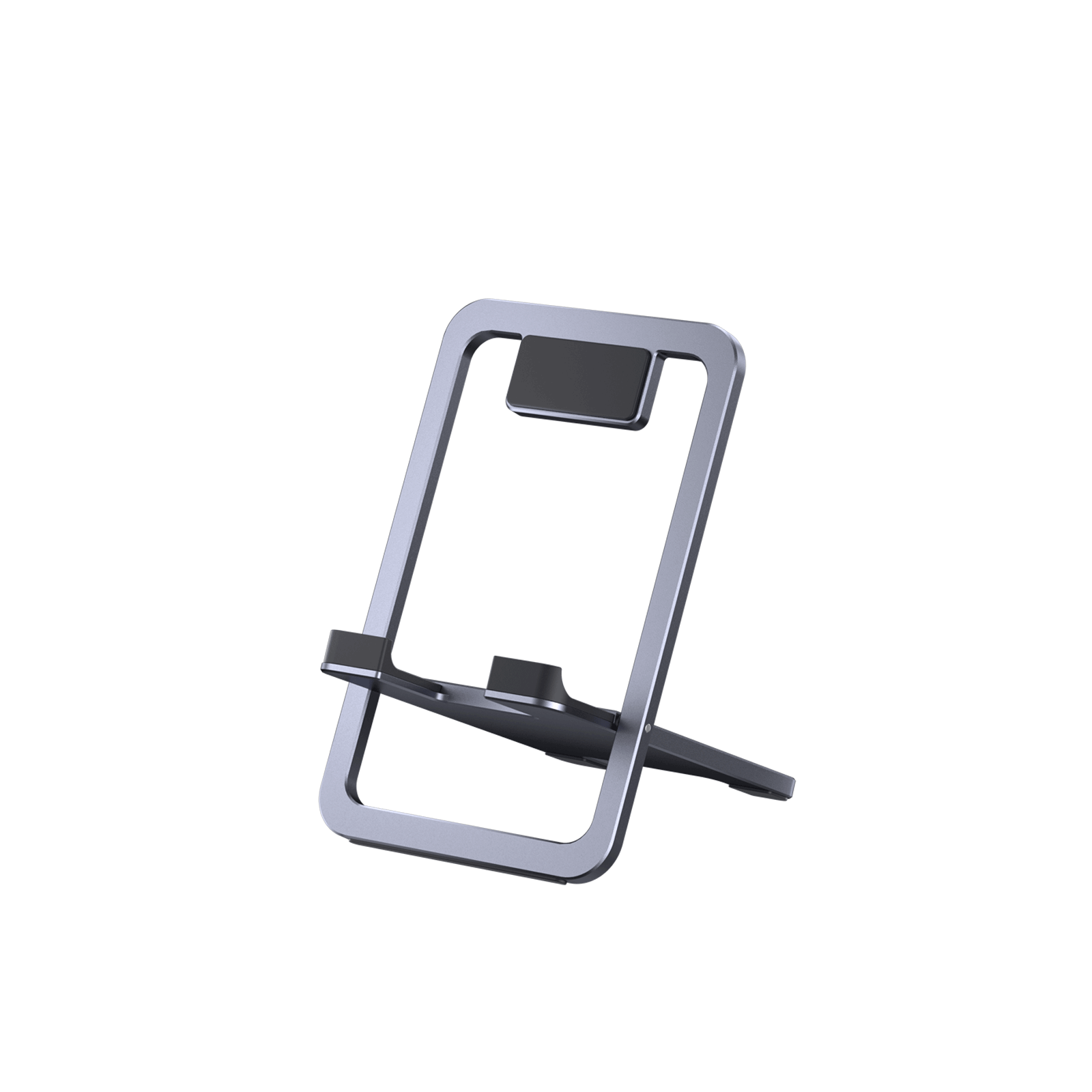
Description
- 【Foldable and Convenient】Enjoy your Steam Deck or ROG Ally gaming sessions on the go with this portable and foldable stand. Designed to fit easily into your pocket or bag, it's perfect for travel or business trips.
- 【To Free Your Hands】With this stand, you can free your hands and enjoy your Steam Deck/ ROG Ally anywhere at any time.
- 【Angle Adjustable】The holder supports angle adjustment from 0° to 90°, you can flexibly customize the angle of your device to find the most comfortable viewing angle.
- 【Sturdy Swivel Never Loose】The swivel part of this stand is made with reinforced materials, ensuring that it's both strong and durable. No matter how many times you fold or unfold it, it will never break or lose its shape. The swivel is also smooth and tight, providing a stable and secure base for your Steam Deck.
- 【Wide Compatibility】Compatible with Steam Deck/OLED, ROG Ally/X, Switch, Switch 2, and Legion Go. For Legion Go 2 / Legion Go S, the stand supports bare-device use only. Not compatible with ROG Xbox Ally/X.
FAQ
Q1. Would an ipad with a heavy-thick case fit into the groove?
A1. Fit fine. The hook that the iPad sits in has a platform of about 1’’.
Q2. What are the dimensions of the plate that the tablet leans on?
A2. 5.3” x 3.4”, and it supports a 11” tablet very securely, both horizontally and vertically. However, Please note that it does not work with tablets larger than 12 inches.
Q3. Is it made of stainless steel, brushed steel, or plastic?
A3. None of the above. JSAUX tablet holder is made of high quality alloy to ensure its stability and durability. Also its surface is frosted to avoid scratching your tablet.
Q4. Is this tablets holder adjustable in angle?
A4. Yes, you can adjust it to any angle you want.
Q5. Does the stand "give" if you are pressing the home button on the bottom of a tablet or is it locked securely in place?
A5. The stand has a rubber buffer between the upper stand and your device. It keeps the device from sliding. There is also a lip that keeps it from coming off at the bottom. Unless you are very hard on the button it should not slide.
FAQ
Q1.Can the stand adjust the angle arbitrarily according to the direction I want?
A1. Of course! The stand is equipped with two 360° adjustable rotations, and the 360° rotations are shown in the figure below. (It is recommended to hold the bottom firmly before twisting, and you will hear a click when twisting).
Q2.Why do I hard to adjust the height and angle of the Stand?
A2. It is recommended to snap the bottom clip in the position to be fastened, tighten it and then adjust the angle and height.
Q3.I feel that the adjustable rotation is a little loose after I use it for a period of time. What should you do?
A3. We include an L-shape hexagonal wrench for tightening to the right level at any time. Please note, do not tighten it too much, or the rotation will be stuck.
Q4.Does it fit the edge of my table/headboard/cabinet?
A4. The adjustable clamp base can vary from 0 to 2.9 inches (0-75 mm). It can be clamped as long as the thickness of the edge of your furniture is within this range. Also, we recommend clip it to something flat will be more stable.
Q5.Does it fit my phone?
A5. The phone holder can support devices of 2.5 to 4.1 inches (64-105 mm) in width devices. JSAUX Universal Cell Phone Holder is compatible with iPhone 14/14 Pro/14 Pro Max/14 Plus/iPhone 13/13 Pro/13 Pro Max/13 mini/iPhone 12/12 Pro/12 Pro Max/12 mini/iPhone 11/11 Pro/11 Pro Max/iPhone X XR XS Max/iPhone 8, Samsung Galaxy, Google Pixel and almost all cell phones.
FAQ
Q1. What diameter cup holder can it support?
A1. Cup holders with a diameter of 55-110mm are supported.
Q2. What is the length range of the bracket?
A2. The length of the bracket is 255-391mm (excluding the base).
Q3. Will it affect the air vent and interfere with the airflow?
A3. No, the bracket is installed on the cup holder, so it will not interfere with the airflow through the air vent.
Q4. How to use this bracket?
A4. 1. Place the base of the bracket into the cup holder in the car, hold the bracket with one hand, and use the other hand to turn the knob on the base clockwise to tighten the knob until the bracket is steady.
2. Adjust the transverse and longitudinal axles on the bracket until the phone clip is in the right position.
3. Open the phone clip and fix the phone to use it normally.
Q5. How to shorten the length of the bracket correctly?
A5. Pay attention to the Alignment mark, align the two up and down, and compress the short bracket down.
Q6. What should I do if the shaft of the bracket is loose?
A6. The shaft can be tightened with our included hex wrench for extra strength.
FAQ
Q1. Will the pressure from the front mounts damage the screen protector from the pressure placed upon it?
A1. No, it will not. With silicone pads on three sides for protection, the screen stays safe unless you go overboard with force. Once the base mount’s knob is tightened and holds the screen securely, no need to crank it further.
Q2. Can I use my iPhone 14 with a phone case on?
A2. No, unless it is a magnetic phone case. Otherwise, the magnetic force gets weakened through the case and the phone is more likely to fall off.
Q3. Can I use it on a laptop or monitor?
A3. The base clamp can support screens with a frame width > 6mm and a thickness ranging from 12-18mm, as long as the overall thickness of the screen is evenly distributed. If your screen meets these thickness requirements, then it is compatible for use.
Q4. How to use this metal ring?
A4. For non-magnetic phones, attach the metal ring to the back of your device. After applying the adhesive, let it sit for 10 minutes to ensure a stable bond before use. Remember, the magnetic ring is designed to support phones weighing less than 300g.
FlipGo Portable Dual Monitor
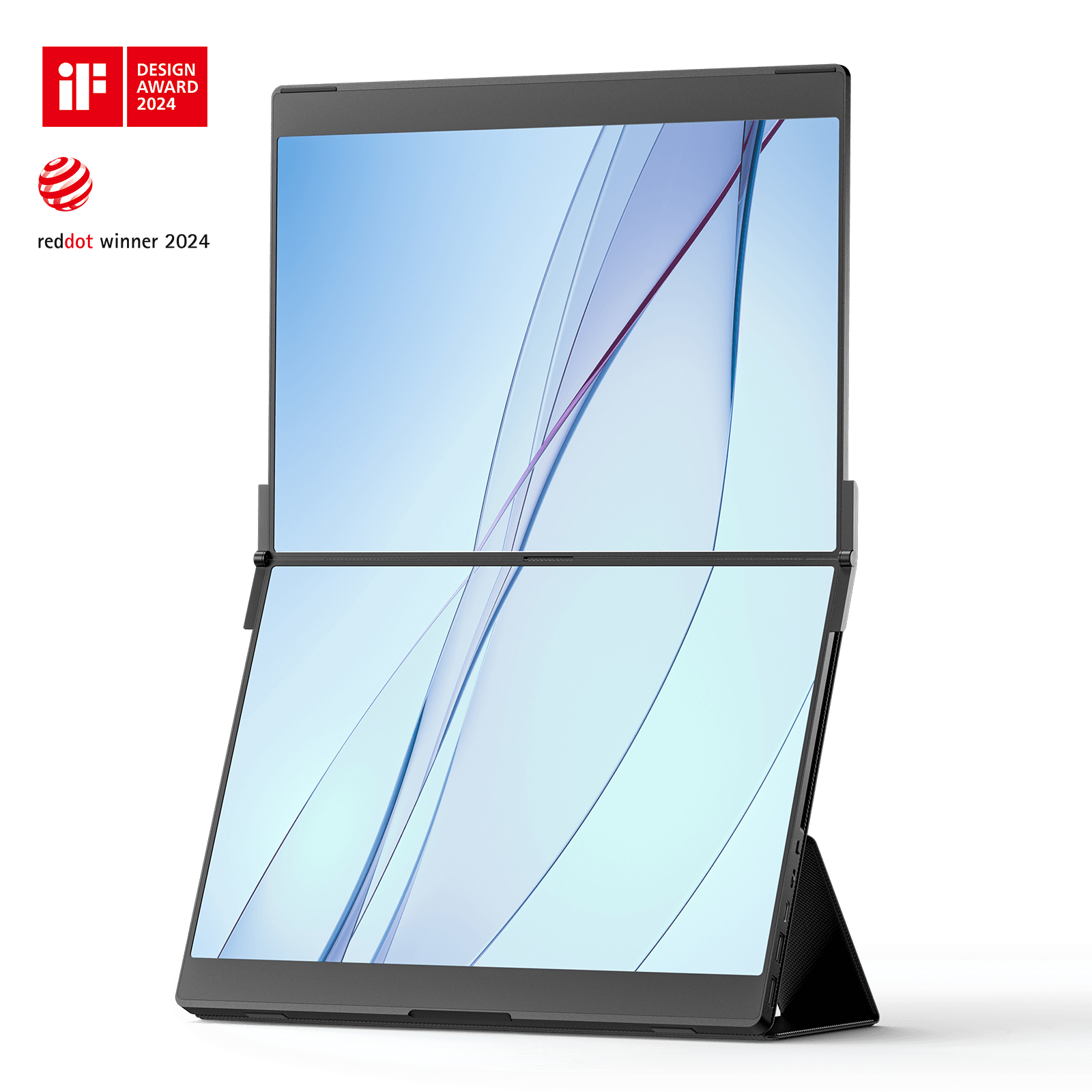
Description
- 【Stacked Displays to Boost Your Productivity】FlipGo revolutionizes desktop displays by stacking them vertically, creating a square-like aspect ratio that reduces head-turning and enhances focus and productivity. Its ultra-narrow bezel seamlessly connects the two screens, offering an immersive, uninterrupted viewing experience.
- 【Dual Screen, Boost Your Productivity】When writing papers and working with multiple sources, the Dual Screen Portable Display simplifies the process. It allows for efficient split-screen browsing and the flexibility to keep track of ideas and inspirations and handle multiple desktop windows with ease.
- 【One Cable Connects Two Screens】FlipGo powers up directly from the USB-C port of your laptop, using just one cable to light up two screens for One to Duo or UltraView mode. When connected to an external power supply, the laptop will be charged.
- 【Boost Your Productivity with Different Views】FlipGo has two separate displays, but it can act as one to display content, switching between them with just one click. Productivity shouldn't be limited and neither will your perspective.
- 【Touchable Screen for Higher Productivity】FlipGo brings dual-screen touch and gesture support to macOS and Windows. Not only can you use FlipGo as a regular touchscreen, but you can also utilize it as a second touchpad for your MacBook, unlocking your productivity to the fullest.
FAQ
Q1. How to enter UltraViews mode?
1. Make sure you are using the FlipGo Pro version and successfully connected to your laptop. Because the non-Pro version does not support UltraViews mode.
2. Wait for the screen to light up and verify the screen mode. If it is not UltraView mode, please click the display switching button on the left side of FlipGo to switch to UltraView mode.
(Note:USB-C port and Mini HDMI port both can support UltraView mode.)
Please refer to the video for details:
Q2. Why can I only get a mirroring screen? How to enter DuoViews mode?
For mac
●If you are using the Pro version, please install and enable the DisplayLink driver first, and then use a USB-C cable to connect the DisplayLink port (marked double rectangles overlapping) and your laptop. Since Macbook only supports SST, you need to use DisplayLink to achieve a dual-screen extended display.
●If you are using the Standard version or the Touch version, please use the following method:
Method 1:
The laptop should be connected to the DP port (marked D-shaped) and HD1 (Mini HDMI) port at the same time to achieve a dual-screen extended display.
Method 2:
The laptop should be connected to the HD1 (Mini HDMI) port and HD2 (Mini HDMI) port at the same time to achieve a dual-screen extended display.
●After the connection is successful, you can go to "System Preferences" -> "Display" to view FlipGo’s settings.
For Windows
●Please use a USB-C cable to connect the DP port (marked D-shaped) and your laptop. (Note: The FlipGo Pro version only supports mirroring mode when using the HDMI port.)
●If you are using the Pro version and connected to the DisplayLink port (marked double rectangle overlapping), please install and enable the DisplayLink driver.
●If you are connecting to the HDMI port.
The laptop should be connected to both the HD1 (Mini HDMI) port and the HD2 (Mini HDMI) port for extended display
●After the connection is successful, in Windows, right-click on the desktop, select Display Settings, and then select Extensions.
Q3. Is there any usage tutorial?
Please check it here.
Q4. There is no signal after connecting.
● Power supply problem:
Please use the included power (PD 65W )supply to power FlipGo.
● DisplayLink problem (Only for Pro version):
If it is connected to the DisplayLink port (marked double rectangles overlapping) , please install and enable DisplayLink. You can check whether the screen is turned on in the DisplayLink settings.
Click here to download DisplayLink.
● Connection cable problem:
Check whether the HDMI to Mini HDMI or USB-C to USB-C cable is firmly connected, and try changing a cable to eliminate the cable problem.
● Laptop does not support video output:
Please check whether your USB-C port supports DP Alt mode. It is recommended that you contact the device manufacturer to confirm.
● Display setting issues:
On the connected device, check the display settings to confirm that the portable screen is detected and set to extended or mirrored display.
In Windows, you can right-click on the desktop, select "Display Settings", and confirm the display status of FlipGo in the settings.
In Mac, you can go to "System Preferences" -> "Display" to view FlipGo’s settings.
If the above checks cannot solve the problem, there may be a hardware failure in the portable screen or the connected device. You can try to connect the portable screen to other devices for testing to eliminate faults in the portable screen or the device itself.
Q5. Where to download DisplayLink?
Q6. Why do I feel the picture is a bit blurry?
Due to Apple system limitations, macOS does not enable its Retina-based high pixel density mode when connecting to a non-4K third-party screen.
1. It is recommended to use the default resolution.
2. Download the free version of BetterDisplay 2 to adjust HiDPI. When connected to the USB-C1 port, installing the free version of BetterDisplay 2 can unlock other clear resolution combinations.
Note: When connecting to the DisplayLink port (marked double rectangle overlapping), additional HiDPI options cannot be enabled due to DisplayLink limitations.
Click here to download BetterDisplay 2
Q7. Why is HiDPI not shown? How do I adjust HiDPI?
Please connect to the DP port(marked shape of a D). After installing the free version of BetterDisplay 2, you can unlock other clear resolution combinations.
Note: When connecting to the DisplayLink port (marked double rectangle overlapping), due to DisplayLink limitations, additional HiDPI options cannot be enabled.
Click here to download BetterDisplay 2
Q8. Why can not I touch it? Why does the FlipGo screen actually respond when I touch it somewhere else?
For Windows
1.Use the included full-featured USB-C cable to connect the FlipGo’s DP port(marked shape of a D) and your computer USB-C port.(Note: HDMI port only provides video signal transmission and cannot realize touch function)
2.Press "Win+R" to open theRun dialog, enter "shell:::{80f3f1d5-feca-45f3-bc32-752c152e456e}" and press Enterkey to bring up the tablet settings interface.
3.Or you can also access the tablet settings page through the Control Panel (for devices equipped with a touchscreen only).
Search for ’Control Panel’ in the search bar > Hardware and Sound > Tablet Settings.
4.In the display section, select "FlipGo-A1," click "Settings," and then choose "Touch Input."
5.Follow the on-screen instructions to designate the current screen as the touch screen, then lightly press the Enter key.
For Mac
The Mac system does not natively support touch. The touch function is implemented through a simulated trackpad. You need to move the cursor to the position of the touch screen to obtain a simulated touch experience.
1.Use the included full-featured USB-C cable to connect theFlipGo’s USB-C2portand your computerUSB-C port.(Note: HDMI port only provides video signal transmission and cannot realize touch function)
2.Open Settings > Display > Arrange Displays, then relocate the menu bar to FlipGo.
3.Move the cursor over to the desktop displayed on the FlipGo.
Click here for more setting details.
★HDMI cannot realize touch function signal transmission, because HDMI only provides video signal transmission, please connect the laptop through a USB-C cable.
Q9. Why can not I adjust the brightness?
When FlipGo is not connected to an external power, due to insufficient power from the laptop power supply port (especially when the battery is low), FlipGo will limit the screen brightness to 10% and disable other functions in order to ensure basic display requirements. For a better experience, we recommend you use an external power supply of 65W or higher to power the FlipGo.
And JSAUX takes customer feedback very seriously. If you would like to be able to adjust the brightness without being connected to external power, please let us know.
Q10. How to use the menu button?
The menu button uses a pulsator button, which needs to be pressed in place to call out the menu.
1-Press the menu dial to open the OSD menu, then press the power/back button briefly to return.
2-Move the dial up and down to adjust the selection box position/adjustment value.
NOTE: When not in menu mode, turn the dial to adjust brightness.
Q11. How to use the stand?
Please go to our manual page -choose “4 different stands” to get the usage guide. There will be tutorials on how to use our four different brackets.
Q12. How to switch between horizontal and vertical screens?
For Mac
When connected (the logo is in the shape of a D), adjust the rotation of FlipGo in macOS system preferences;
When connecting the DisplayLink interface (the logo is a double rectangle overlapping), adjust the rotation of FlipGo in the DisplayLink Manager.
For Windows
Access Windows Settings, navigate to Display Settings, and adjust the rotation angle accordingly.
For reference:
Q13. Does FlipGo support Steam Deck, Switch, iPad, and Samsung Dex?
Our portable screens can support devices equipped with DP Alt Mode (Type-C video output function). However, we do not recommend using it with handheld consoles (such as Steam Deck, Switch), smartphones, tablets, etc. Because these devices may have display limitations (such as the inability to customize the output resolution, the inability to set rotation, and the inability to support MST), compatibility issues may occur during connection (such as abnormal display, distorted images, or even the inability to output the display at all).
Cooling Fans for Steam Deck LCD & OLED
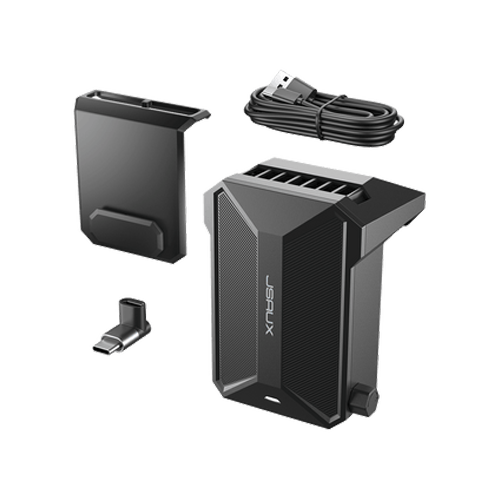
Description
- Designed for Steam Deck LCD & OLED: This cooling fan for Steam Deck is exclusively designed for the Steam Deck, maximizing the use time of the device for an even longer and better gaming experience.
- Adjustable Speed Fan: You can adjust the fan speed according to your needs at any time, providing a customized cooling experience.
- Long Battery Life: With a full charge time of 1.5 hours, the Steam Deck cooler can work continuously for 4-6 hours, making it convenient for use anytime, anywhere.
- Fast Cooling: The rapid cooling function greatly reduces the temperature of the game console in a short period of time, preventing overheating and improving the gaming experience.
- Significant Temperature Drop: The Steam Deck cooler is the best way to cool your Steam Deck, providing a large drop in temperature so that you can fully enjoy your game without any worries of overheating.
- When the cooling fan runs out of power and is connected to the cable for charging, it will turn on the lowest wind speed by default and can't be adjusted. If you need to turn on the highest wind speed, you must turn off it first and then turn it on.
- The Cooler Kit in PC0104 is equipped with a GP0200 cooling fan.
FAQ
Q1. How to install the cooling fans?
A1. If you want to use with PC0104:1. Install the PC0104 protective case on the Steam Deck2. Slide the cooling fans down to the chute on the back of PC0104.If you want to use it directly on Steam Deck:1. Paste the mounting sticker on the Steam Deck;2. Slide the radiator from top to bottom and fix it on the chute where the patch is mounted.
Q2. How to adjust the wind speed?
A2. If you turn the switch knob clockwise, the wind speed will gradually increase, and if you turn the switch knob counterclockwise, the wind speed will gradually decrease until it is turned off.
Q3. I do not want to buy the PC0104 kit, can I just want to buy the cooling fans?
A3. Sure you can, Our fans can be directly adapted to the steam deck.
Q4. Will the cooling fans interfere with the internal air pressure of the Steam Deck?
A4. No, the cooling fans are mounted on the Steam Deck’s air outlet (top), not the air inlet (back).Because our cooling fans draw air from the air outlet, it will increase the air intake speed and air intake volume of the air inlet. Resulting in faster air circulation, more heat can be taken away. With the current maximum air volume and rotation speed of our cooling fans, it is not enough to form negative pressure.
Q5. How long does it last on a full charge?
A5. The battery life can be up to 3 hours at the highest wind speed and about 5 hours at the minimum wind speed. The cooling fans will stop working after the power is consumed. It is recommended to use the distribution charging cable and right-angle adapter for charging.
Q6. Is the fan noisy when in use?
A6. With regard to cooler fan noise, at a distance of 25cm from the cooler fan,When the fan is at half speed, the noise level: 44-46DBWhen the fan is at maximum speed, the noise level: 48-50DBAt a distance of 15cm from the fan,When the fan is at half speed, the noise level: 44-48DBWhen the fan is at maximum speed, the noise level: 50-53DB
Q7. What is the difference in compatibility between GP0200 and GP0201?
A7. GP0200:Compatible equipment: Steam deck and steam deck with PC0104 protective case.And compatible with most docks. (Note: The official one needs to be used with our SG0104)GP0201:Compatible equipment: Steam deck and steam deck with PC0101/PC0103/PC0105/PC0106 protective case.(Not with our PC0104/PC0102 case.)
Q8. What is the difference between GP0200 and GP0201?
A8. GP0201 is an upgraded version of GP0200 fan! The new GP0201 fan has a unique telescopic function, you can adjust the height as you like so that it can adapt to more products! Moreover, there is a small upgrade at the bottom of the GP0201 fan, adding a practical bracket function that allows the fan to stand on the table.
Q9. Can GP0201 be disassembled?
A9. Does not support disassembly, GP0201 Cooling Fans are integrated.
Q10. Will the cooling fan GP0201 fit on the docking station?
A10. The cooling fan GP0201 cannot fit on the docking station.